.png)
How do I add a 'Subsection' to an event registration form?
Please note that the following article describes functionality for the new version of our form editor (v2). If you are using our legacy form editor (v1), you can still follow the article below, but the description of the options noted may be different. If you wish to switch to the new version of our editor, please contact us at getregistered® support.
To add a new Subsection to your registration form, first ensure that you have the correct Section selected by clicking on the Section name displayed on the left-hand column (when selected, this will show the Section name on the right-hand side as well).
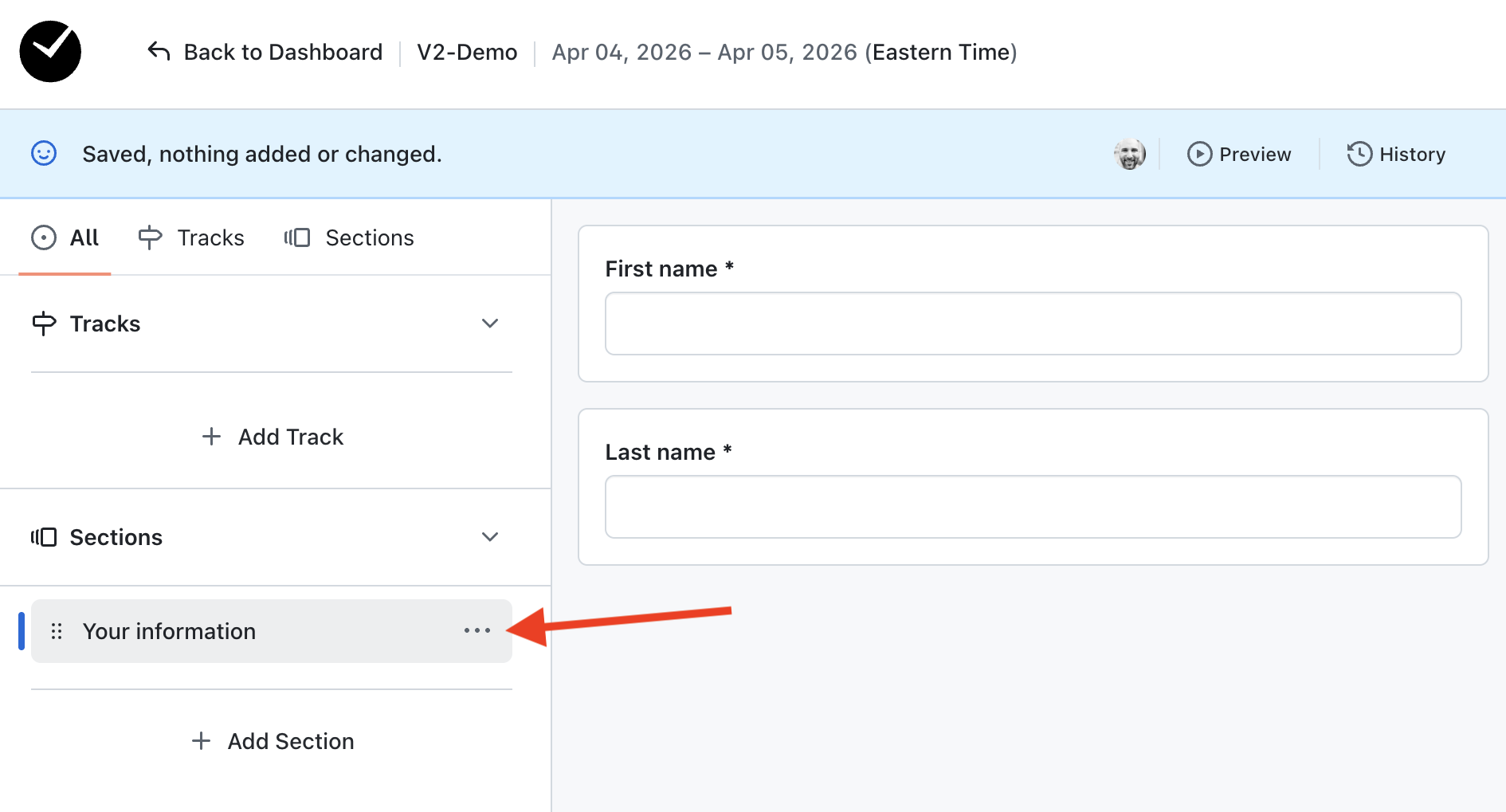
Once you are happy you are interacting with the correct section, select the 'Subsection' option at the top of the right-hand column and and a new Subsection will be displayed on your form.
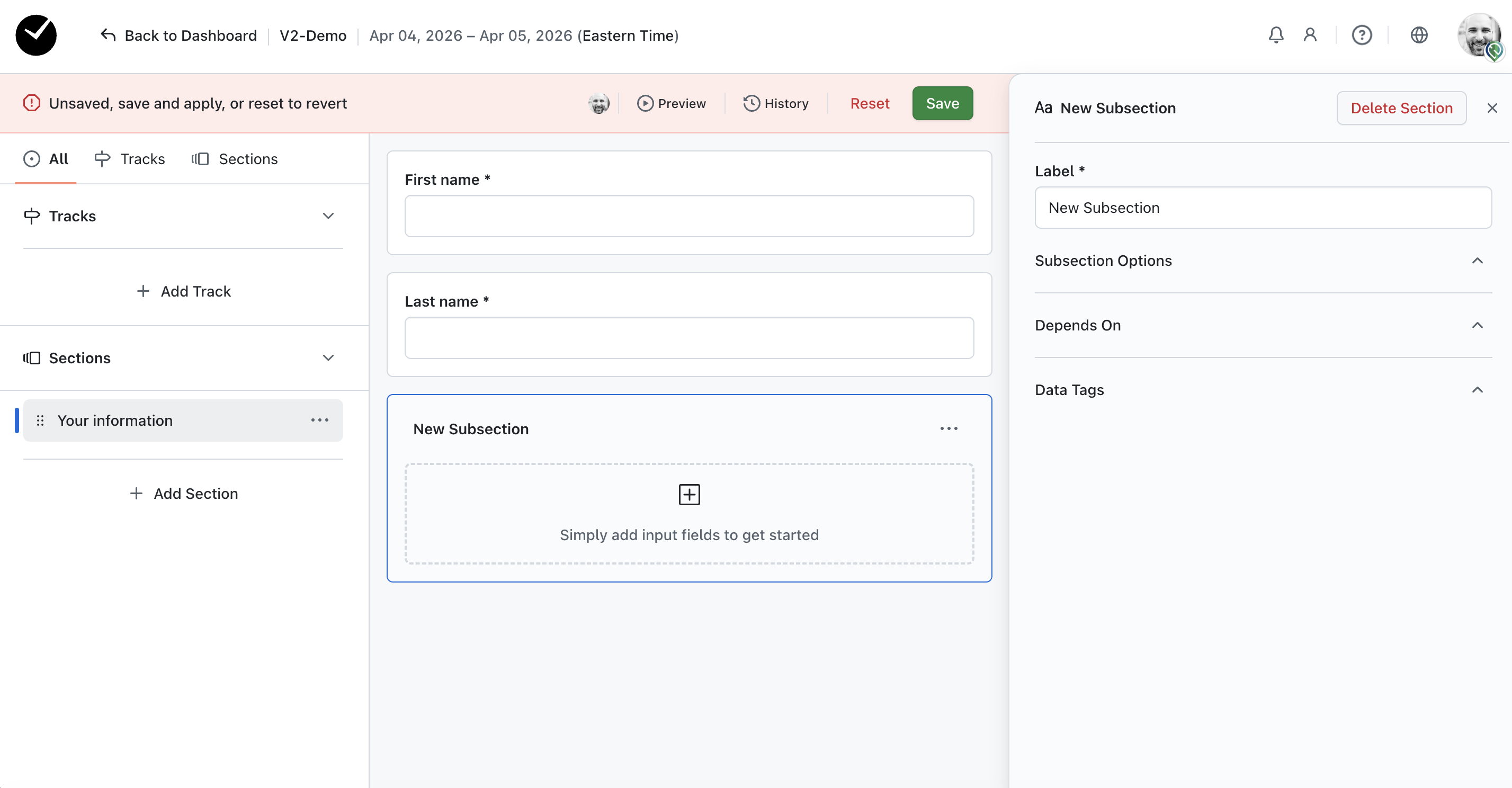
The new subsection added will display an area with the text 'Simply add field inputs to get started' - this allows you to easily see when a section currently has no fields added to it, and shows you the area you can add your input fields to. You can now begin to drag your input fields into the subsection and order as required.