.png)
How do I save my changes when creating or editing an event registration form?
Please note that the following article shows functionality for the new version of our form editor (v2). If you are using our legacy form editor (v1), you can still follow the steps in the article below, but the location of the options noted may be different. If you wish to switch to the new version of our editor, please contact us at getregistered® support.
The Registration Form Editor allows you to save any changes you make to your registration form via the 'Save' button. This button is available at the top of the editing area at all times, provided that you have outstanding changes present on the form since your last save.
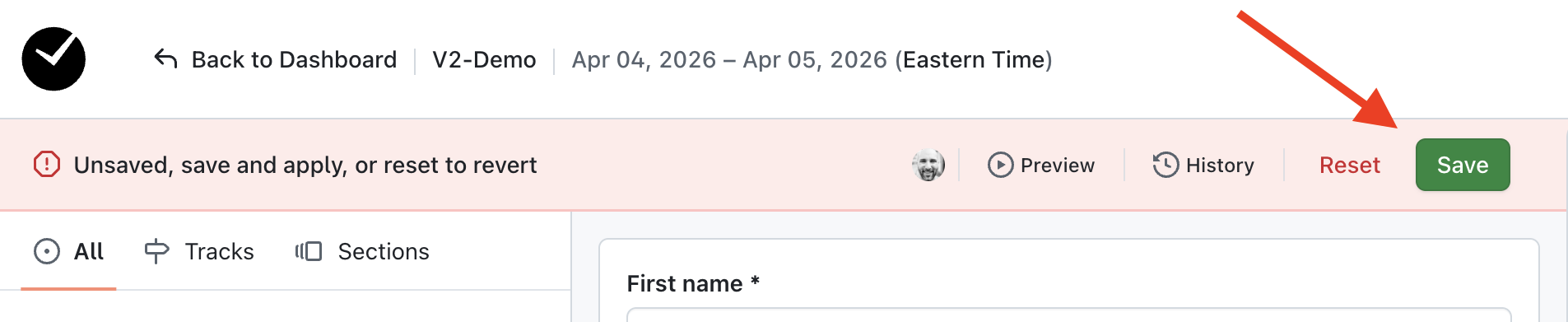
If you haven't made any changes recently, only the 'Preview' option will be available in this area - don't worry, this just means you're currently up-to-date! The status bar indicates when changes have been made that haven't been saved by turning red - when there is no new content or amendments, this bar shows as blue.
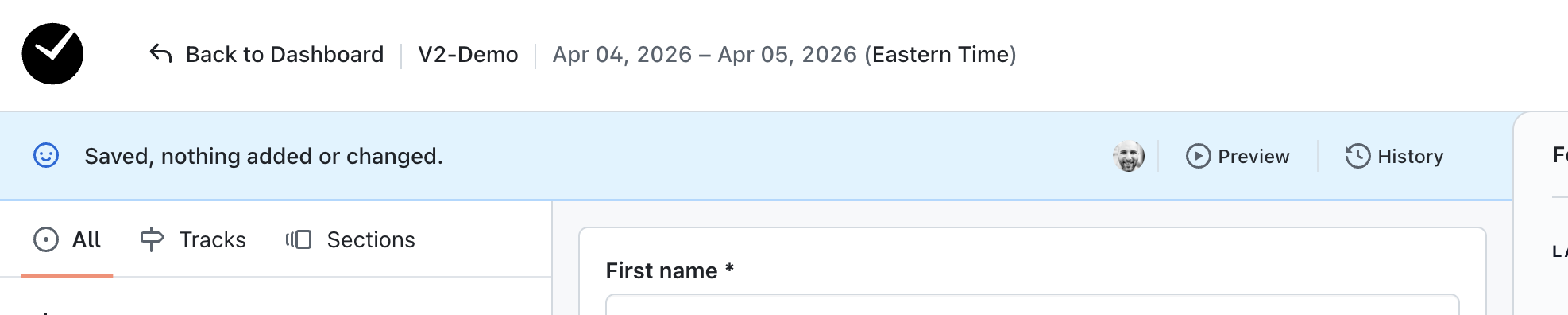
It is worth making a mental note to save as often as possible (by clicking the 'Save' button) as there is no automatic saving in place for the editor, and if you forget to save you could easily lose your work!