.png)
How do I use event ticketing/QR codes?
Note - 'Check-in Attendees' is now a legacy feature, and if you have the 'Schedule' feature enabled for your event, please follow any steps provided referring to the 'Schedule' feature only
To enable QR Codes for your existing event, enter your Event Settings area and select the 'Advanced' tab. Scroll down the form and you will see the option 'Enable QR Codes' - simply check this option and save your changes, and now each new registrant will receive a unique QR code as part of their registration.

If you have enabled QR codes for your events then your guests can show the QR code that they receive on completing the registration form as a ticket. This is available on the attendee's registration 'show' page, as well as their registration confirmation email. The attendee can download the QR code to a mobile device if desired (both Apple and Google Wallet are supported).

Additionally, if you are using our 'Name Badges' feature in conjunction with your event, with QR codes enabled and a suitable name badge template selected, the unique QR code created for an attendee will be present on their name badge when printed as well, eg:

How do I scan QR codes in an active event scenario?
Admin Event Users can scan the attendees' QR codes when on-site via the 'Check-in Attendees' area - simply click on the 'Check-in Attendees' tile on your Event Dashboard followed by selecting the 'Check-in Scanner' button to the right of the page to enter the Check-in Scanner area:


If you have our 'Schedule' feature enabled for your organization, you will need to click on the 'Schedule' tile to access the 'Check-in Scanner' area - the button to access the 'Check-in Scanner' will be positioned in the same place on landing.


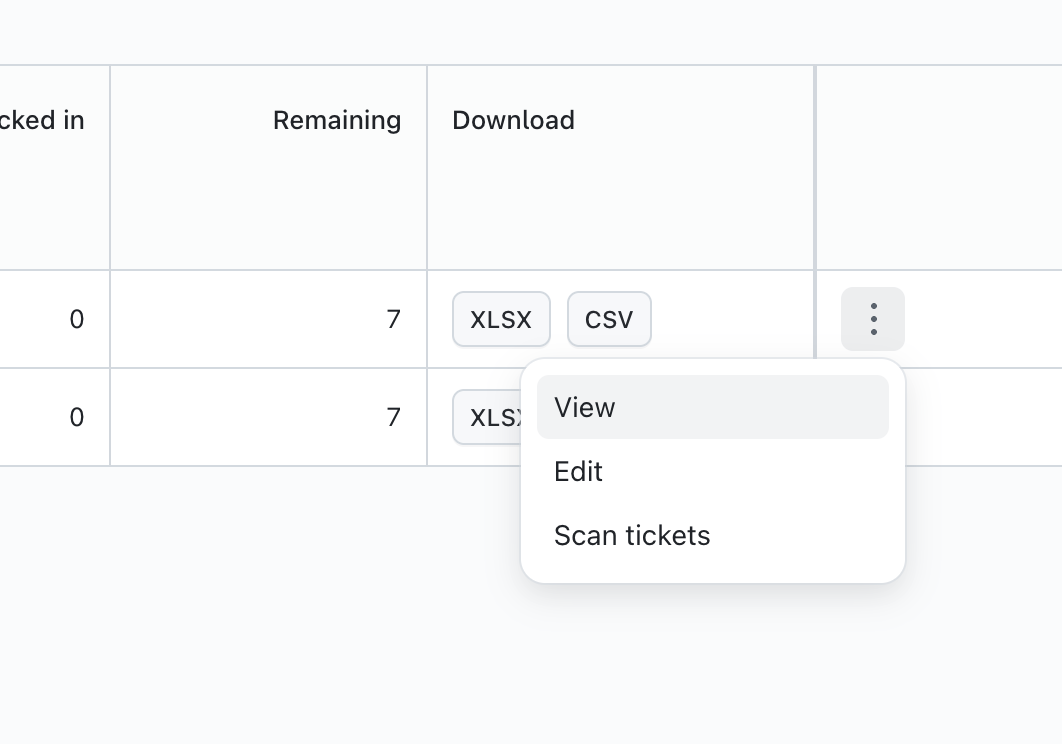
You can also enable the Check-in Scanner for individual checkpoints by clicking on the 3 dots at the end of any checkpoint and selecting 'Scan Tickets':
Once you have selected to begin scanning, you will be asked to permit access to your device's camera, and once allowed, you can begin scanning attendee QR codes. You will see a small video window on the main area of the page that will allow you to easily align the QR code to be read. Simply align the QR code with the window and the attendee check in/out will be captured in your event:
