.png)
How do I set a time zone for my event?
By default, any new event you create will have a default timezone applied depending on what your 'Organization Timezone' is set - this will usually be your local timezone. However, when you have created a new event, you have the option to set an 'Event Timezone' in your Event Settings (under the 'Basics' tab).
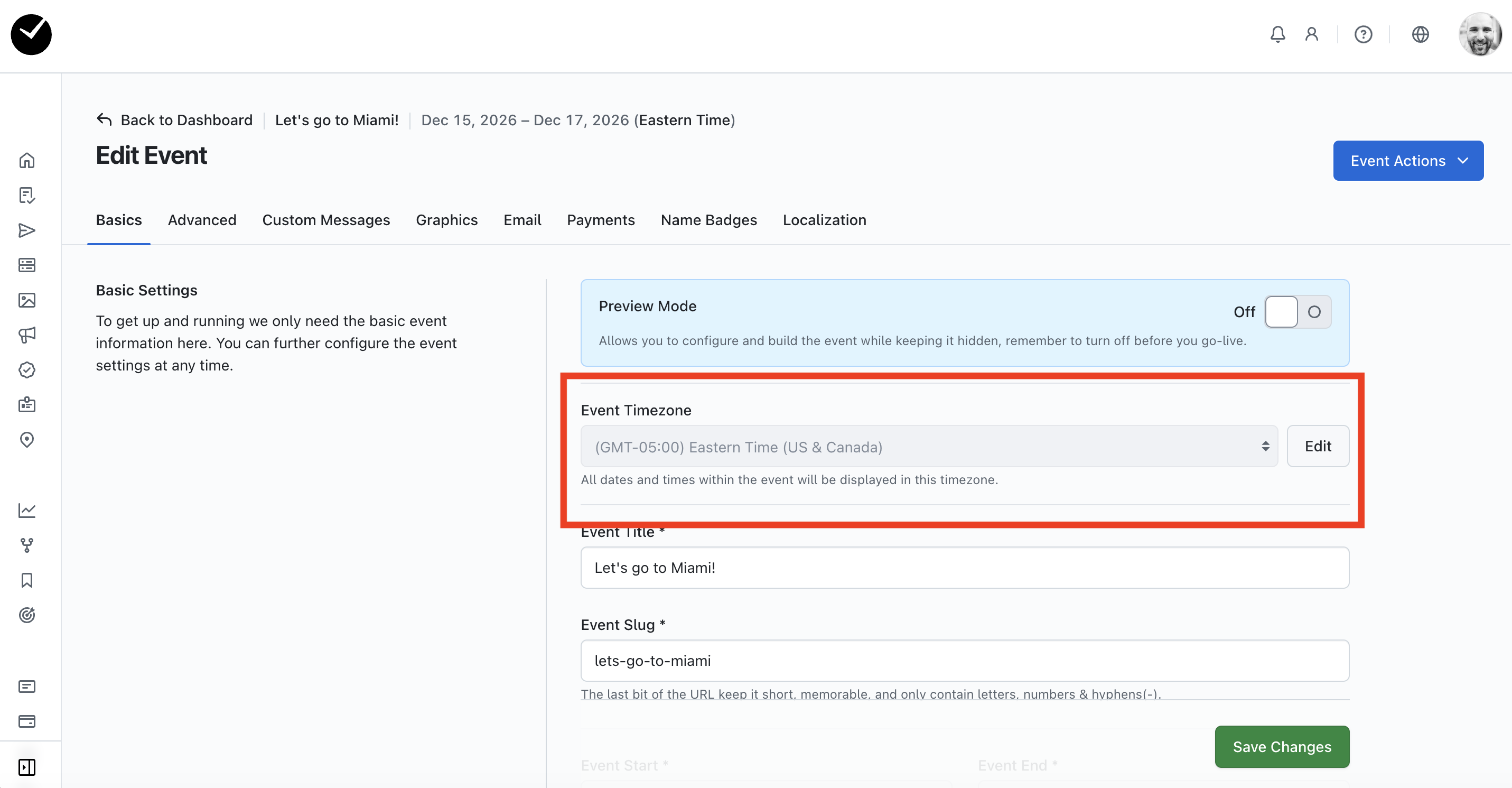
When setting an 'Event Timezone' for an event, you have the ability to choose what timezone your event uses for registrations dates and set individual times for each one, ensuring that things like event start and end dates/times match the timezone of where the event is being held. This can save on any confusion for attendees when registering and provides everyone with consistent dates/times throughout your event life cycle.
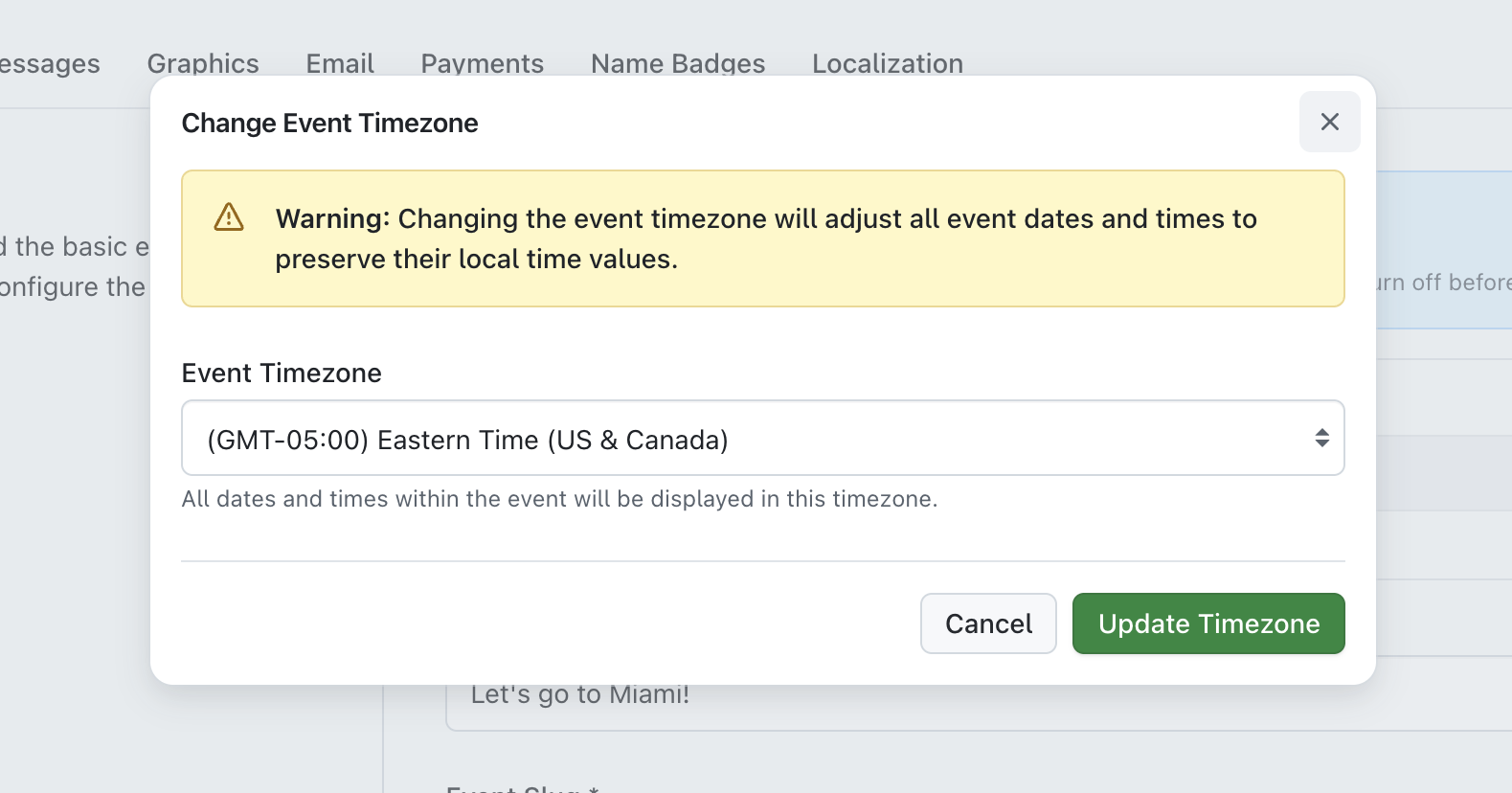
When you set an event timezone that is different to your organization timezone, all dates/times in your event will be in the event timezone, and will display the event timezone code next to it where a timestamp is shown (eg EST). This change will be applied across the entire admin site and will be present in the following areas:
Event Settings
- Start Date
- End Date
- Registration Opens
- Registration Closes
- Register By
- Registration Freeze
- Attendee Track Upgrade Options
- Cancellation Policy
Activity Feeds
- Latest Activity
- Registration Changelog
- Newsfeed
Registrations
- All Registrations
- Registration Import
- Registration Data Import
Invitations
- All Invitations table
- Invitation Import table
Registration Form Editor
- Session Booking
- Room Blocks
- Tracks
Reports
- Custom Reports
- Registration Changelog
- Rooming /Booking Reports
- Lead Scanner Reports
Invoices & Payments
- All Invoices
- All Payments
- All Refunds
- All Line Items
Discount Codes
- All Discount Codes
- Import Discount Codes
Check-in Attendees
- Checkpoints
Data Imports
- Registration Import
- Registration Data Import
- Invitation Import
- Session Import
- Discount Codes Import
When interacting in these areas, you will see timestamps returned in the event timezone.
How does the Event Timezone feature affect attendees when registering?
With the Event Timezone set to a specific timezone, all opening/closing/cutoff related dates and times for the event will be set to the Event Timezone for an attendee. However, the attendee will see different dates/times depending on the area they are interacting with.
Event Website
When entering the event website, registration opening/closing dates and times will be displayed in the attendee's location/timezone (based on their browser location), but the times shown will relate to the event timezone setting. So for example, if an attendee is in London (UTC-0) and the event timezone is set to Auckland (GMT+12), even though the dates will show the same, the registration open/close times will show as 12pm for them (not 11:59pm).
Event Registration Form
When an attendee is interacting with the event registration form, again, all registration closed/frozen/track availability related dates and times for the event will be set to the Event Timezone. Track availability dates/times will be displayed in the attendee's location/timezone (based on their browser location), but the times shown will relate to the event timezone setting, this is also the case for Cancellation Policy information when an attendee initiates a registration cancellation.
When beginning registration, all room and session booking dates/times will show in the event timezone - we do this so as to not to confuse the attendee. For example - if a session is due to start at 9am Hawaiian time (UTC-10), and the attendee is based in London (UTC-0), you would not want the attendee to think that the session begins at 11pm, as they may decide it's too late for them! So to make things easier, we have respected the Event Timezone, making it simpler for attendees to register with confidence, and saving you additional support requests!