.png)
Can I create customized emails for my event?
Note - your organization must have the 'Communications' feature enabled to be able to access the 'Communications' area and build email campaigns. Please contact support if you'd like to to see this feature activated in your organization's events
getregistered has an custom email creator feature available for your events, that allows you to create and schedule emails for your attendees - Communications. If your organization has the 'Communications' feature enabled, you will see the following tile available in your Event Dashboard.

Clicking on this tile, will take you to the following page:

When you initially land on this page, you will be interacting with the 'Campaigns' tab. From here, you can compose your campaign emails, select your audience(s), and schedule delivery as you need. You can also create 'triggered' emails, that will be sent to attendees when their registration or invoice status changes, which replaces the default emails/messages that we provide in getregistered.
Under the 'Confirmation Messages' tab, you can create your own specific confirmation emails for each event track you have available in your event registration form.
Lastly, clicking on the 'Email Settings' option will redirect you to the Email Settings area in your Event Settings, allowing you to configure your email banner/logo and much more. Please review the 'Email' section of this article for more details on what settings are available to you.
How do I create an email campaign in the 'Communications' area?
To begin creating your email campaign, click on the 'New Communication' button at the top right of the page (or alternatively, click on the 'New Communication' text on the center of the page if you have no previously created campaigns):

On the following page, you will see the 'New Communication' form.

The form presented to you provides you with the following options:
- Campaign Name - this is the name you wish to give your campaign, which will be displayed on the Communications page once save. This is a mandatory field
- Header Banner - selecting this will allow you to add a banner image to your campaign email. We recommend that if using this feature, you use an image with a resolution of 1200 x 280 pixels. This is an optional feature, and if left untouched, your event banner image will be used instead
- Content - this area is where you will create your email content. The Content editor empowers you to be able to create beautiful emails with little to no effort, and also create personalizations using the 'Insert Variable' option (which is discussed more in-depth later in this article). This is a mandatory feature, you must add content here to be able to save your email communication.
- Schedule - this option allows you to decide when you wish to send your emails to your attendees. We provide the following scheduling options:
- Immediately - will deliver the email immediately to your intended audience once configuration is completed
- Specific Time - will deliver the email to your intended audience on the specified date and time. Please note this schedule will be based on the timezone your Event Timezone is set to.
- Relative to Key Event Dates - will deliver the email to your intended audience based on an key event date, such as 2 days before Event Start, or 1 week after Event End. Again, this schedule will be based on the timezone your Event Timezone is set to.
- Triggered by Status Change - will deliver the email to your intended audience when there is a change to either their registration or invoice status in the system
Once all mandatory areas have been completed, and your schedule/audience have been set, simply click 'Save Communication' to proceed. You will then be taken to the 'Campaign' show page for your created campaign, where you can review your changes and scheduling. Your campaign will remain in 'Draft' status until you choose to 'Submit Campaign' on this page.

What content can I add to my email using the 'Content' editor
Using the Content editor, you can add text, images, tables, links, and personalizations as you see fit. Please note that we only support PNG and JPG/JPEG image types when adding images to your email!

We offer a high level of text customization, including colouring, highlighting, font changes, formatting and much more. One of the most powerful features we offer is under the 'Insert Variable' option.

Selecting this option provides you a list of pre-prepared variables you can select to add to the email, which will be replaced by the relevant data in our system for your event when delivered. Using these variables, you add a personal touch to your email campaign without quickly and easily, eg:
Content with variables in editor

Email message as viewed for attendees

As you can see in the second picture above, all the variables in the editor have been replaced with actual event data. As well as adding a personal touch to your emails, using variables to replace plain text for things like event dates means that if you intend to include this information in your campaign email, you don't have to make any content edits if your event dates change - the system will automatically update this based on your event data!.
You can even add your own variables based on your event form fields - simply select a field, and click on the 'Data Tags' option. In the 'Key' Field, enter the text TEMPLATE_FIELD , and then enter a name for the variable into the 'Value' field and save your changes.
Note: Custom variables can only be used with event form fields that accept an input, not event form pages/sections - there must be a value captured from attendee input on the registration form by the field for a custom variable to work.

When you enter the Content editor for your campaign, you will now see a new variable on the list, and when selected, the custom variable will be added, pulling in any information entered/selected by the attendee during registration for the field with data tag applied.

How do I schedule an email campaign?
When creating or editing your campaign, your scheduling options are available near the bottom of the form under the 'Schedule' dropdown. Please note that when editing a campaign, you cannot change your schedule 'type', only the criteria of the schedule - if you need to change your schedule type, then you will need to clone your current campaign and then change the schedule type on the Edit Campaign page.
Selecting the 'Immediately' option will allow you to start processing and sending your campaign as soon as you save your campaign.

Selecting the 'Specific Time' option allows you to enter a specific time and date for the campaign to be sent - as mentioned previously, please note that this option will schedule based on your event timezone settings.

Selecting the 'Relative to Event Key Dates' will provide you with a range of options and fields to choose when the campaign will go out. You first enter the 'Amount' (eg, if you intend for 1 week after Event End, you would enter '1'), and then set the criteria using the remaining options. The example below shows a schedule for 1 week before the event is due to start:

Selecting 'Triggered by Status Change' will create a schedule based on registration or invoice status changes within your attendee audience, which will be sent out as soon as possible following the change. You must first select the 'Trigger Type' (Registration or Invoice Status), and then the status change to trigger the email. This differs between 'Trigger Type' selection - Registration triggers available are 'Confirmed' or 'Cancelled', Invoice triggers are just 'Paid' status changes.
Note: When an email campaign is created with either 'Triggered by Status Change' options 'Registration Status' -> 'Confirmed' or 'Registration Status' -> 'Cancelled', these will override the default system notifications for when the actions occur, even when resending emails. Default Receipt notifications will still be sent on registration confirmation when a payment has been successfully made by the attendee.

When you have chosen your schedule type and have saved your communication, you will be redirected to the campaign 'show' page, where you can review your schedule and other changes. Your campaign will remain in 'Draft' mode until you select to 'Submit Campaign' in this area. Once confirmed, your campaign will be active and emails will be sent out to your audience at your scheduled time.
How do I set my campaign audience?
We offer a range of options for building your campaign audience based on either status, reports or track types. Simply select an option from the 'Recipients' menu to get started.

Status types are pretty much self-explanatory - select your audience based on the status of each attendee, any attendee with a status matching your selected criteria will become part of your campaign audience.
Selecting 'Report Based' allows you to build an audience based on a custom report created in your Custom Reports area. For example, here is a custom report named 'Custom Audience' created in an event:

When 'Report Based' is selected, you will have the option to select a report from your Custom Reports area, which will then become the audience for your campaign. In the example below, the report 'Custom Audience' has been selected, and all attendees on this report will now be the selected audience for your campaign:

If you have tracks available in your event, you will see the option 'Recipients Track / Ticket' displayed.

You can further define your campaign audience by selecting whether the recipients match a specific track or admission type for the track. Just make your selection, and a series of checkboxes will be displayed beneath the 'Recipients Track / Ticket' menu.

The tracks/ticket types selected here that also match your 'Recipients' criteria will be sent your campaign email once your campaign is saved and submitted.
How do I manage my campaigns?
Once you have created/saved a campaign content, returning to the main Communications/Campaigns area will look something like the following:

The main grid area will display all your saved campaigns, returning their type, status, audience type and scheduled time of delivery.
Clicking on the 3 dots at the end of a row will allow you to either 'View', 'Edit', 'Clone' or 'Delete' the relative campaign. If your campaign has already been sent, you will only have the options to 'View' or 'Clone':

If you select to view a campaign, you will be redirected to the campaign 'show' page, which will look something similar to the image below:
The main area of the page shows a preview of your email as your attendees will see it. You can also view the campaign audience list by selecting the 'Audience' tab near the top of the page.
To the left, you will find the 'Submit Campaign'/'Stop Campaign' button (if your campaign is yet to be sent out, or is in the process of being sent), and a card showing the basic details of campaign. To submit your campaign to become 'active', click the 'Submit Campaign' button - if your campaign is set to go out immediately, the campaign delivery will initiate, otherwise, your campaign will be active but will not send until the schedule/status change is reached. If you wish to cancel your campaign before delivery is initiated/completed, click on the 'Stop Campaign' button to cancel.
At the top right of the page, you will see the 'Manage Campaign' button - clicking on this will give you options to edit or clone the current campaign as desired.
Is there a way I can send a preview of the email campaign to myself?
Yes! You can select to send a preview to yourself and other recipients when viewing either a draft or completed campaign. When you are interacting with a 'draft' campaign, the option to 'Send Preview Email' is present under the 'Submit Campaign' button on the left of the page, as well as under your 'Manage Campaign' menu. When viewing a 'sent' campaign, you will only see the option under the 'Manage Campaign' menu displayed:

When you select to 'Send Preview Email', you will see the following modal displayed:

The 'Send To' field is where you will add the email addresses you wish to send your preview email to. By default, the email address connected to your getregistered® account will be populated there by default, but you can change this if required by removing it and adding a new one as required. You can also add additional recipients to receive a preview email, just add a comma after each valid email address, eg:

The 'Populate with' menu allows you to select to use real attendee event data to populate your preview email with.

By default, this option is set to 'Placeholders only (no real data)', which will return a preview email showing raw variable data instead of how it will be viewed by an individual attendee, eg:

If you wish to see your preview email populated with real data, simply select an attendee from the list under the 'Populate with' menu.
When you are ready to send - click the 'Send Preview' button. You will then be returned to the campaign page, and a popup message will let you know if the email(s) were sent successfully.
How do I know if my campaign delivery was successful?
At a higher level, we let you know if your campaign was successfully completed by showing a 'Sent' label on the main Communications/Campaign tab:

You can also check this by selecting to view the campaign - if your campaign was successfully completed, you will see 'Sent' status labels on the card to the left, on the tabs on the main area of the page, and there will be no 'Submit Campaign'/'Stop Campaign' button displayed at the top left of the page:

How do I customize my event confirmation emails?
If you do not wish to create an email campaign, and just wish to customize your event confirmation emails, click on the 'Confirmation Messages' tab.
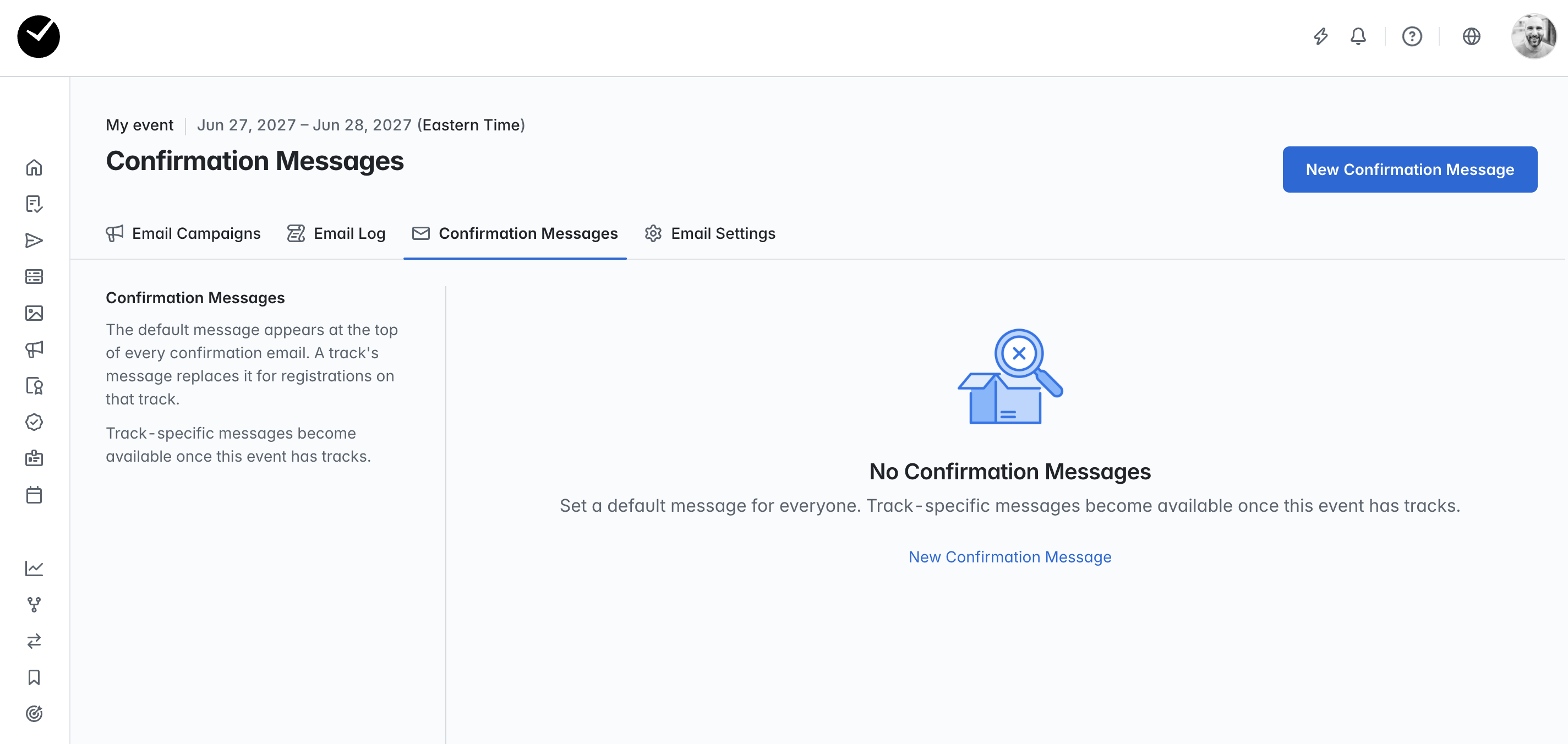
To begin creating your customized message, click on the 'New Confirmation Message' button at the top right of the page, and you will be redirected to the New Confirmation Message form.
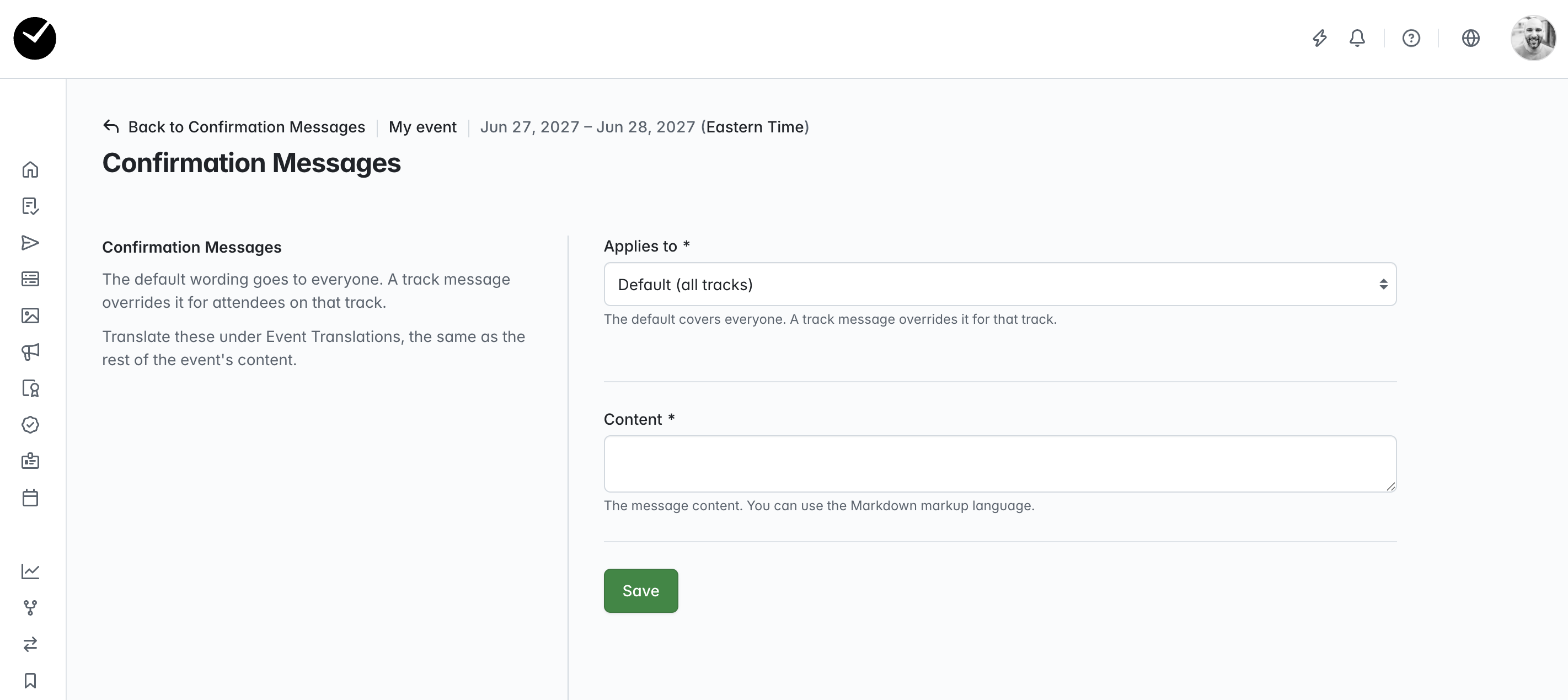
On the form, you will see two fields/options: 'Applies to' and 'Content', both are mandatory.
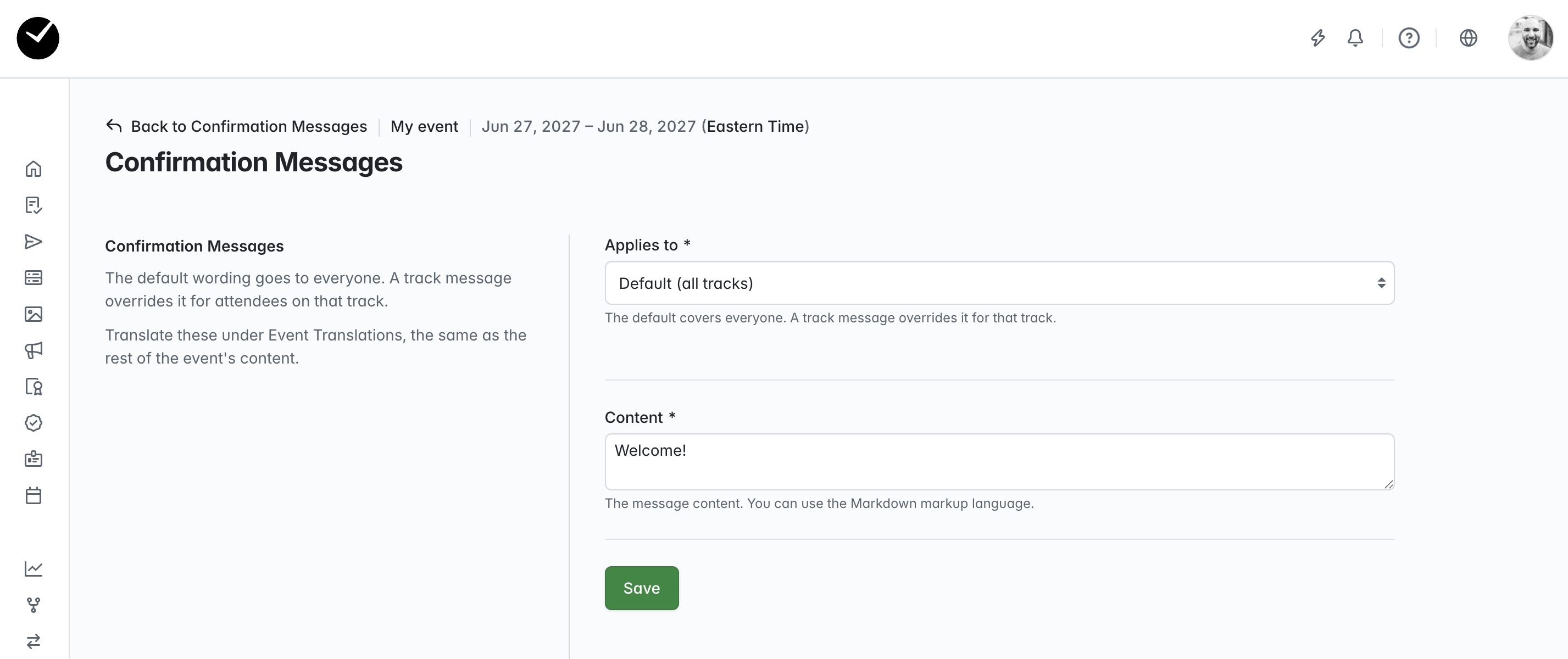
The 'Applies to' selector allows you to select if you wish the confirmation email message to be applied as 'Default' (applied to all tracks), or track specific. 'Default' is the pre-populated selection when you begin building your message. Below this you'll find the 'Content' area, which is where you'll add your custom message - the 'Content' area supports Markdown, which allows you to format your custom message as you see fit.
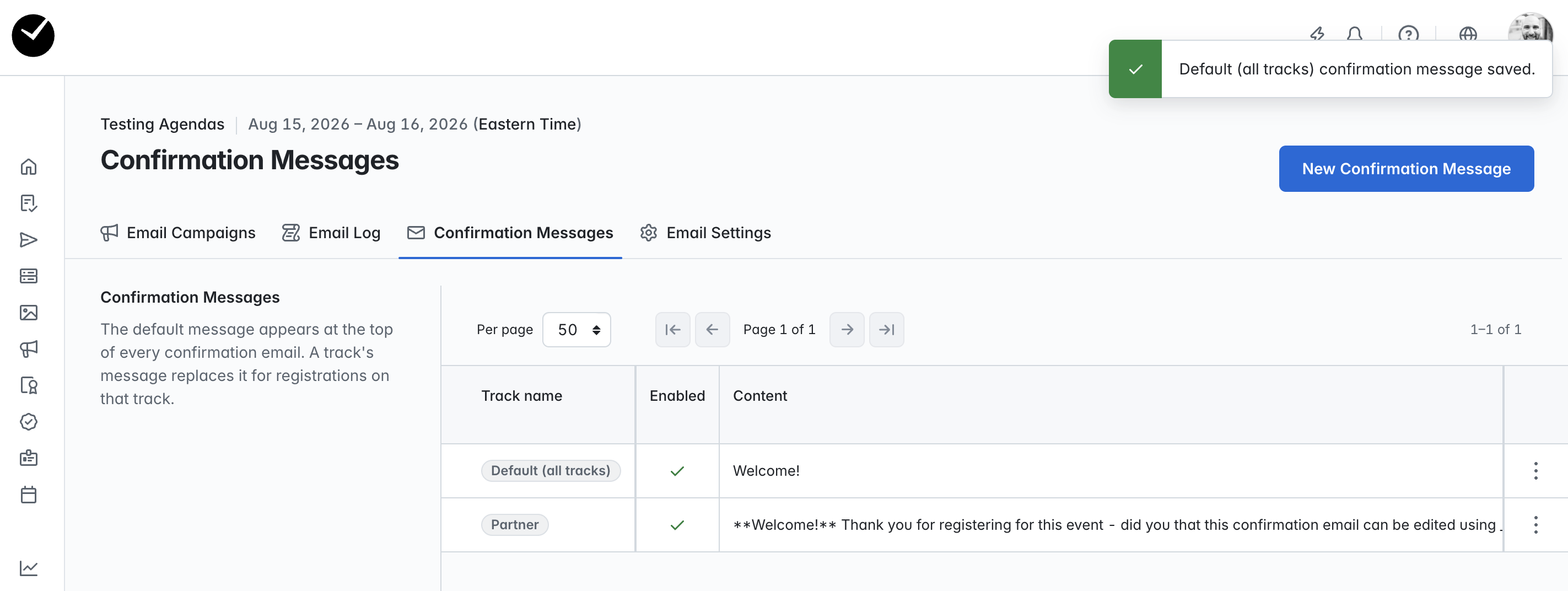
If creating a default message, simply enter your message and hit 'Save' - you will then be taken back to the main Confirmation Messages area and your 'Default' message will be returned on the grid. This grid can be searched and sorted, and will display whether the message is 'Default' or track specific and whether it is enabled/disabled:
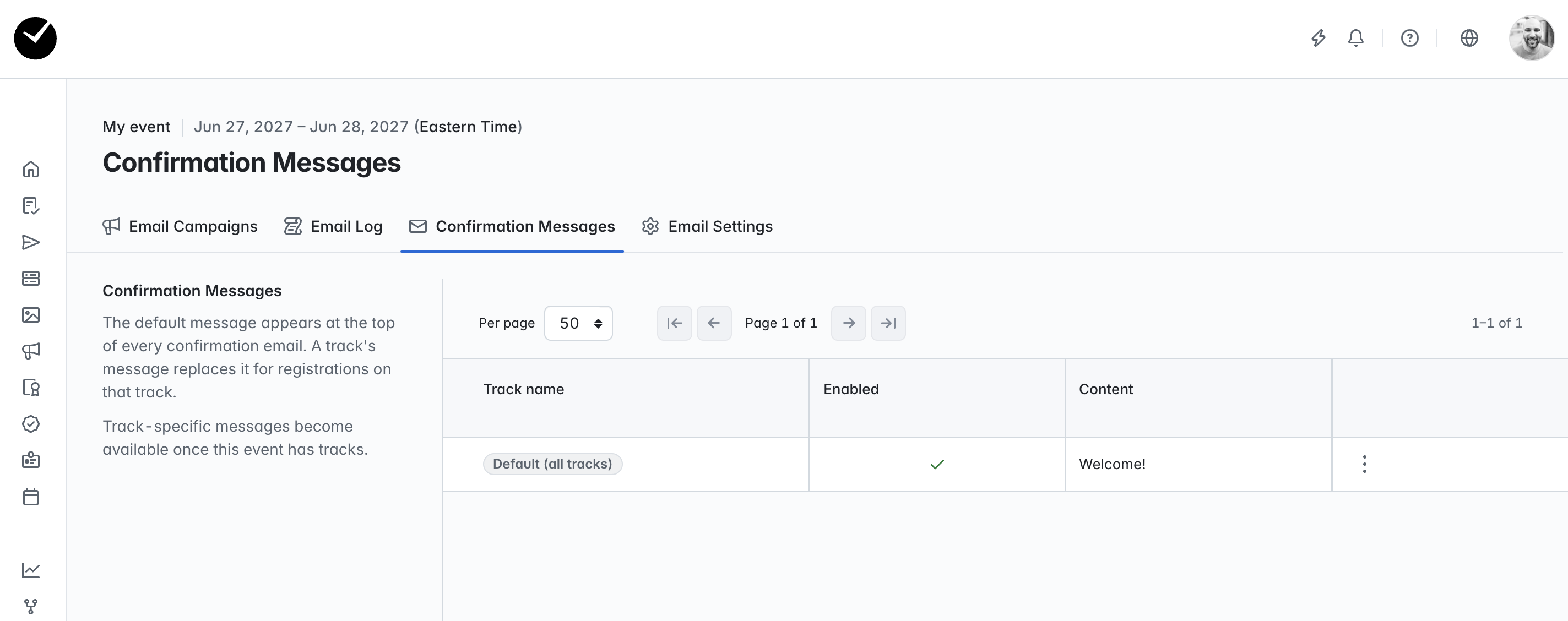
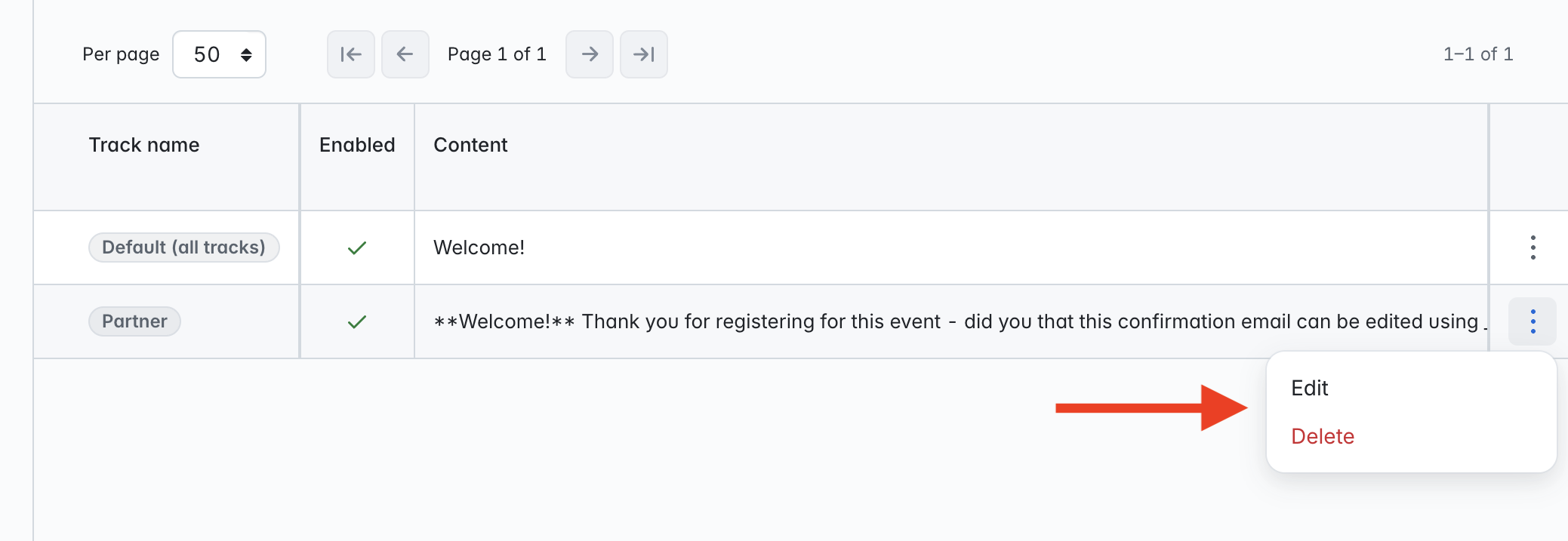
Your 'default' message is now live, and will be used in all new confirmation emails - this will remain active until it is deleted, you can delete or edit your message at any time by clicking on the 3 dots at the end of the row for the message:
If you select to create a track specific message, you will be able to select whether the message is active ('Enabled') or not - when not set to active, the default confirmation email messages will be present in any confirmation emails received by attendees.
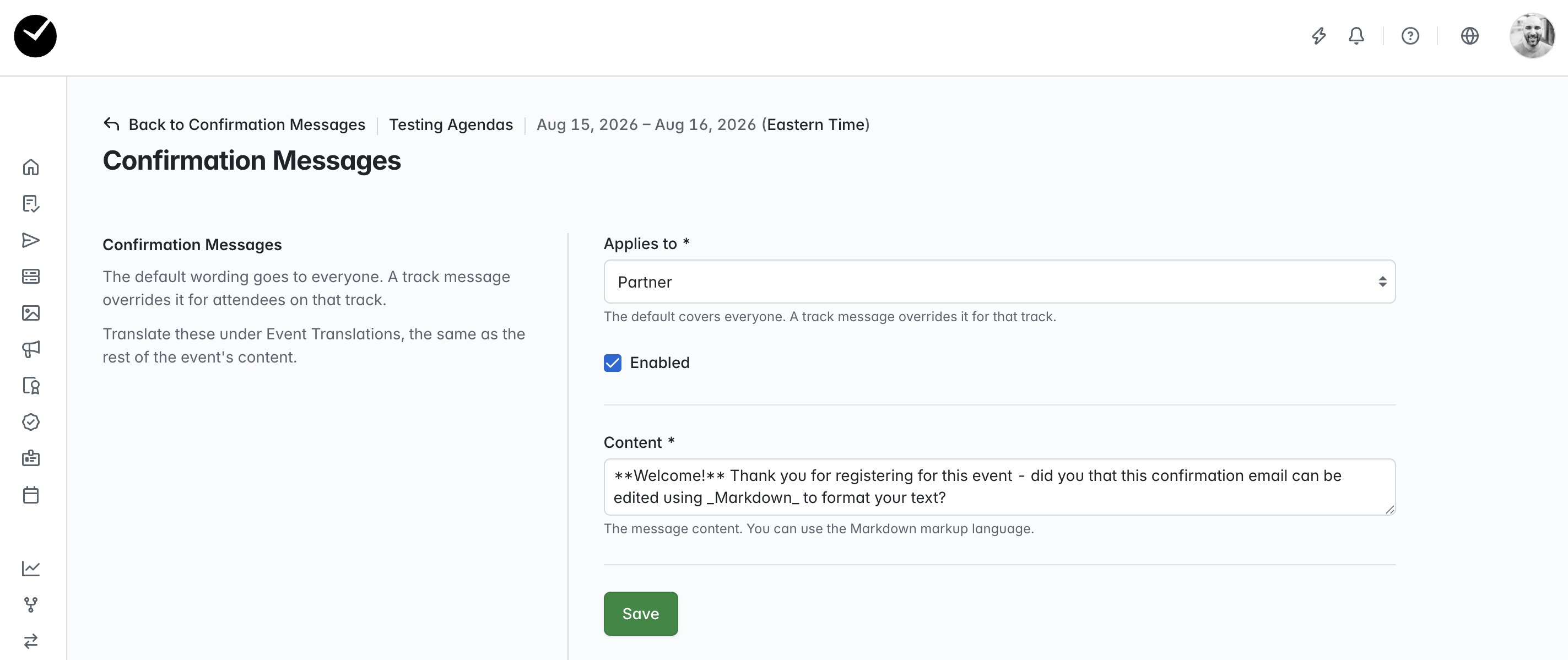
For more information on how to style content using Markdown, please refer to this article for more information. When you are happy with your changes, click on the 'Save' button, and you will be taken back to the main 'Confirmation Messages' tab area, with your saved messages represented on the grid displayed:
If you selected your custom message to be enabled, your message will now be active, and any attendees receiving a confirmation email will see your new message in notification, eg:

Again, to edit or delete a custom message, simply click on the 3 dots on the end of the row of the custom message and select your option:
