.png)
Can I transfer a registration to another attendee?
If Attendee Registration Transfers has been enabled for your getregistered organization, you will have the ability to enable registration transfers for your event attendees. This can be found in your 'Advanced' Event Settings - when you scroll to the bottom of the form on this page, you should see the following options displayed (please note that the 'Transfer Cutoff Date' field will not be displayed in this option is toggled to 'None', which is the default setting for this feature):

To enable Attendee Registration Transfers, select the 'Enabled' button, set a cutoff date if desired (this date is optional) and then click 'Save Changes'.
Initiating an Attendee Registration Transfer
With the Attendee Registration Transfers feature enabled, both admins and attendees can submit for a registration to be transferred. Either a main or a guest registration can be transferred at the preference of the main attendee/admin.
Initiating a registration transfer as an attendee:
When an attendee completes a registration and the Attendee Registration Transfers feature is enabled, they will see the option to 'Transfer Registration' displayed to the left of the page:

When they select this option, they will be presented with the following page:

The attendee will then need to provide the email address, first name and last name of the new attendee before submitting the request. When submitted, the new attendee will receive an email notification inviting them to review the transfer, and the current attendee will see a success message on their registration page, with the 'Transfer Registration' option now removed from the left hand-side:

To transfer a guest registration as an attendee, the attendee must navigate to 'Manage Attendees' on their registration form and select the 'Transfer' button next to their guest registration to proceed - once selected, they will follow the same flow as listed above:

Initiating a registration transfer as an admin:
When an attendee has completed a registration and the Attendee Registration Transfers feature is enabled, if you view their registration page and select 'Manage Registration', you will see the option to 'Transfer Registration' displayed:

If you select this option, the you will then be taken to the 'Transfer Registration' page, and will be prompted to provide the email address, first name and last name of the new attendee before submitting the request.

When submitted, the new attendee will receive an email notification inviting them to review the transfer, and the admin will see a new page showing the current status of the transfer. The admin has the option to cancel the transfer request at this point if desired:

What happens after an attendee registration transfer has been initiated?
Once a transfer has been initiated either by an attendee or an admin, the new attendee will receive an email notification containing a link to review the transfer:

When the attendee follows this link, they are taken directly to the Transfer Confirmation page - from here the new attendee can select to accept or decline the transfer:

If the attendee chooses to accept the transfer, they will be presented with a new page where they will need to confirm all details on the event registration form, with the ability to make amendments where needed:

Once they have made the necessary amendments, selected a password and submit, the transfer is then completed:

And as an admin, you will now see that the new attendee registration present in the event:

Where can I monitor registration transfer statuses in my event?
From your event dashboard or the navigation sidebar, select to enter your 'Reports' area. Once you land in your 'Reports' area, select the 'Registration Transfer' tab and you will see something similar to the following:
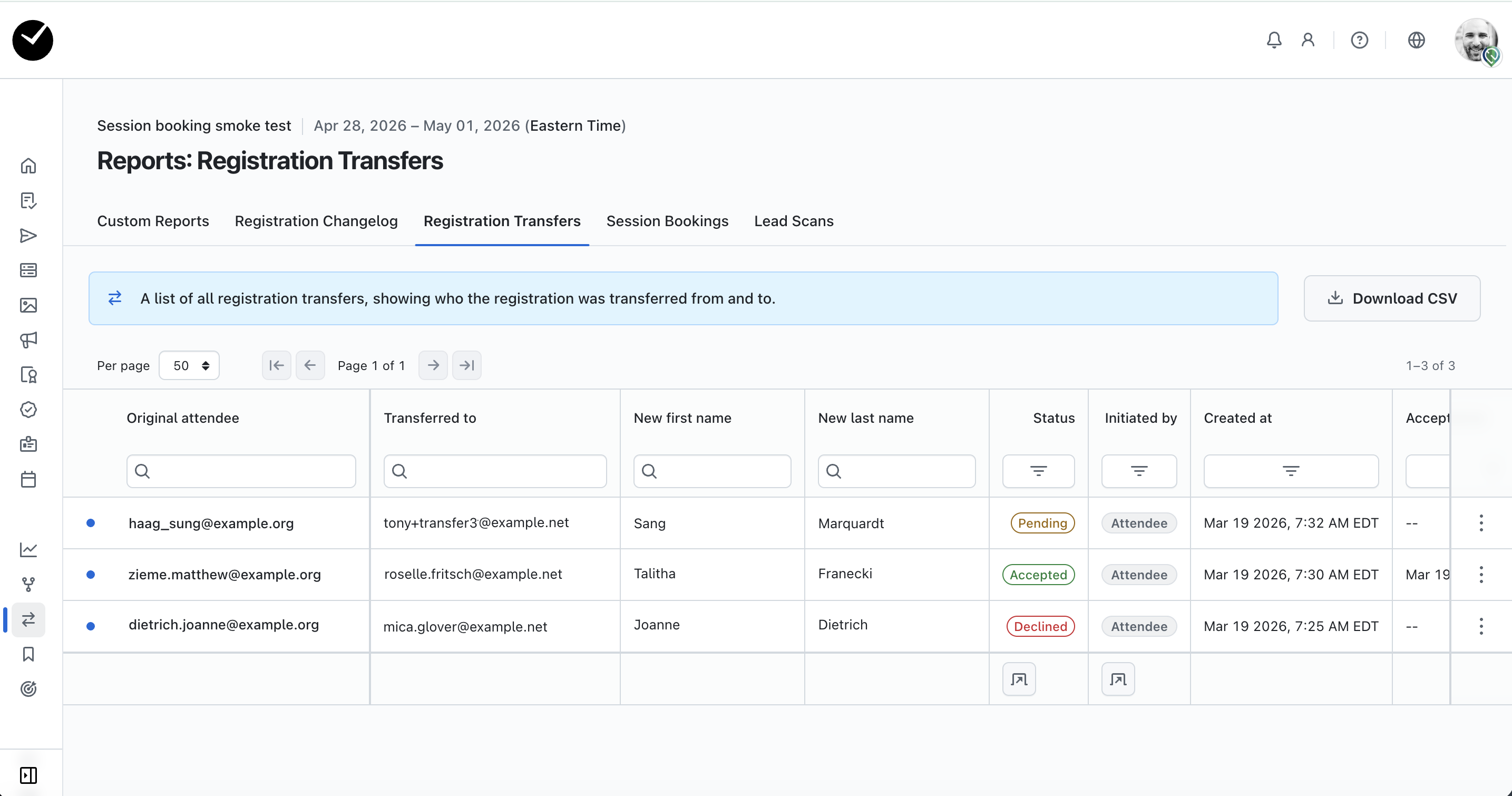
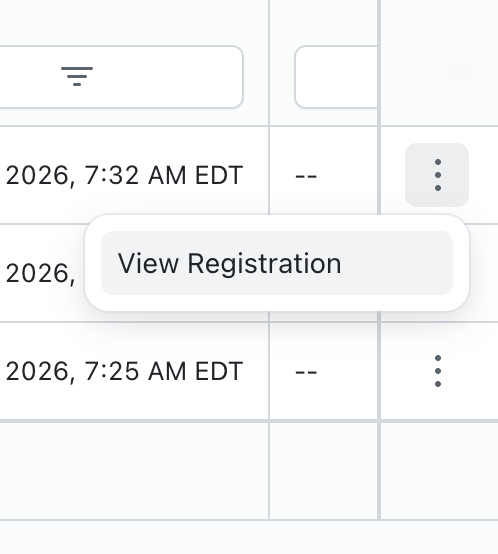
All registration transfer requests can be monitored in this area, showing the status of each transfer and the intended transfer target's name and email address. You can view any of the registrations by clicking on the 3 dots at the end of the relevant attendee row: