.png)
How do I change the background of an event website section?
When creating a new section for your event website, you may wish to change or update your section background to something different than your default Event Theme section settings.
We offer many options for section backgrounds, including color blocks, images and videos. However, not all sections offer the same background options, the following can be applied per section type:
- Hero Section - accepts color block, image and video backgrounds
- Standard Section - accepts color block and image backgrounds only
- Custom Section - accepts color block and image backgrounds only
- Video Section - accepts color block and image backgrounds only
- Showcase Section - accepts color block and image backgrounds only
- Agenda Section - accepts color block and image backgrounds only
- Registration Section - accepts color block and image backgrounds only
- Countdown Clock - accepts color block and image backgrounds only
- Column Section - accepts color block and image backgrounds only
- Divider - accepts color block and image backgrounds only
So basically - all sections accept color block and image backgrounds, with the exception of Hero Sections, that allow video backgrounds as well.
How do I add a video background?
Please note:
- Only Hero Sections accept a video background.
- Only .mp4 files under 10mb can be used as a video background.
- Videos uploaded will be muted and looped, with no playback controls displayed
- Select the Hero Section you'd like to add a video background to and open the 'Background Video' menu on the right of the page:

- Click on the 'Browse' button and select the .mp4 you wish to use as your background. Once selected, the video file will be uploaded and you will see a preview displayed to the right of the page:

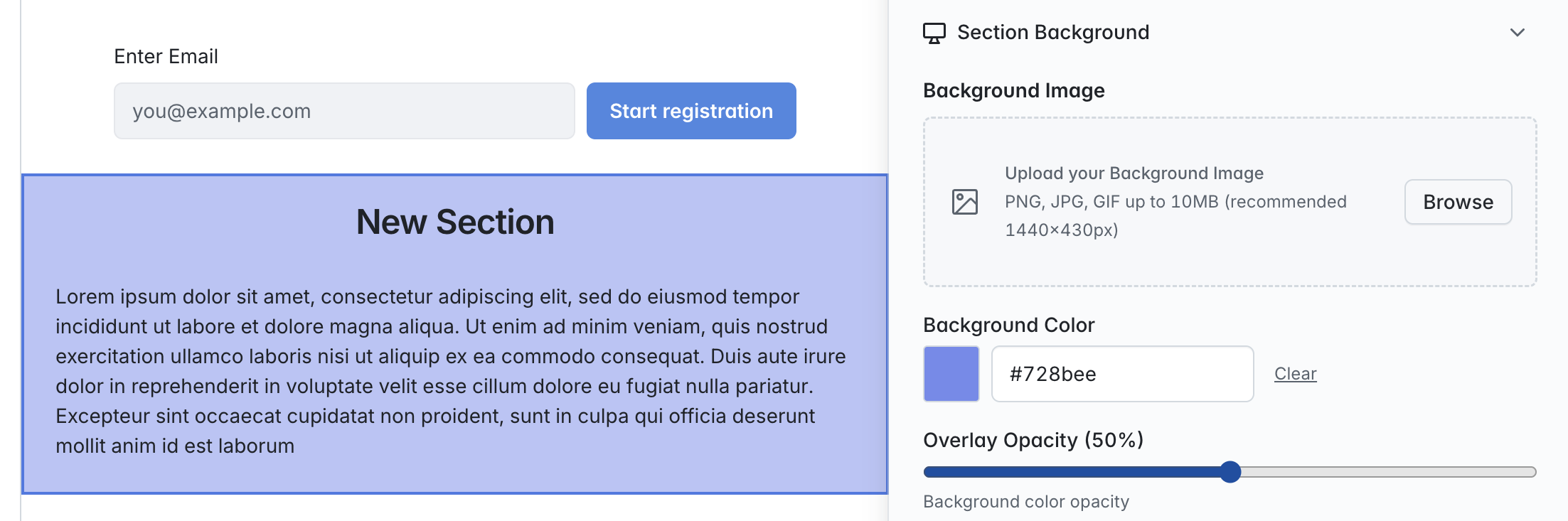
- Open the 'Section Background' menu above, and set the opacity you want for the video on the section:

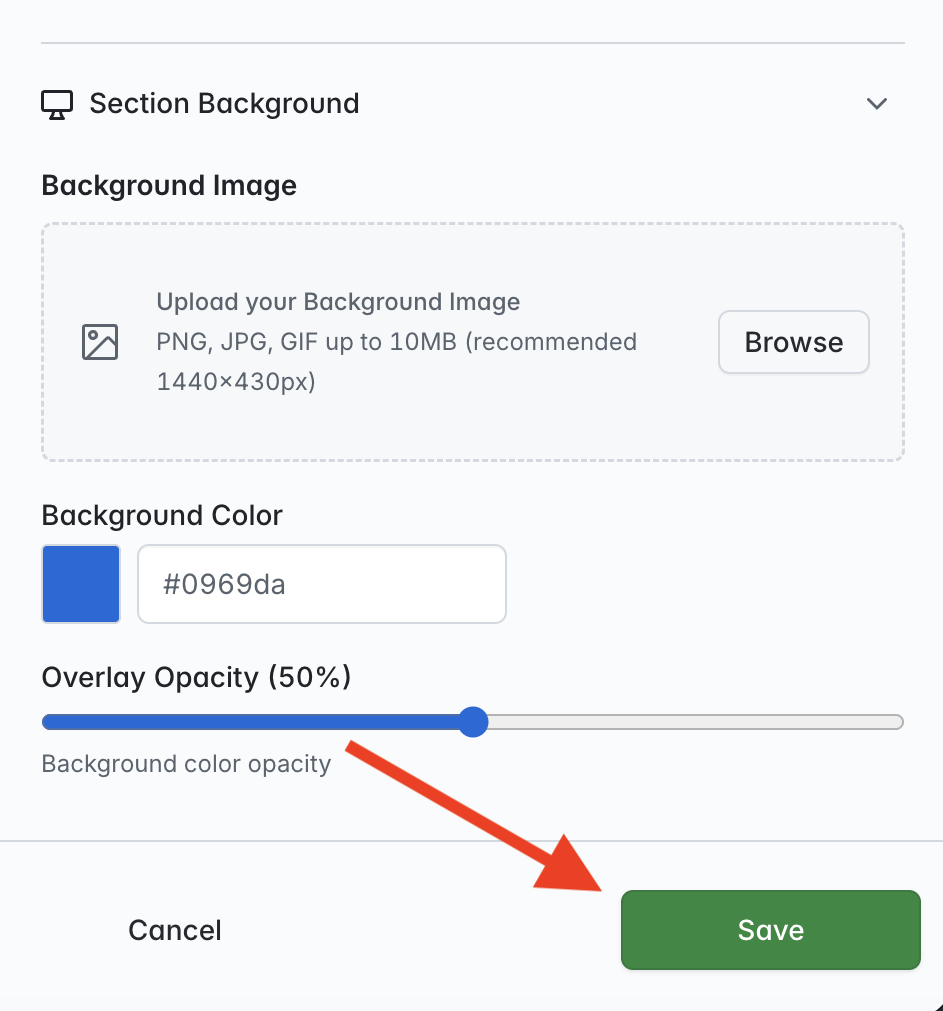
- Click 'Save' at the bottom of the right-hand column to apply your changes:
How do I add an image background?
- Select the section you'd like to add an image background to and open the 'Section Background' menu on the right of the page:
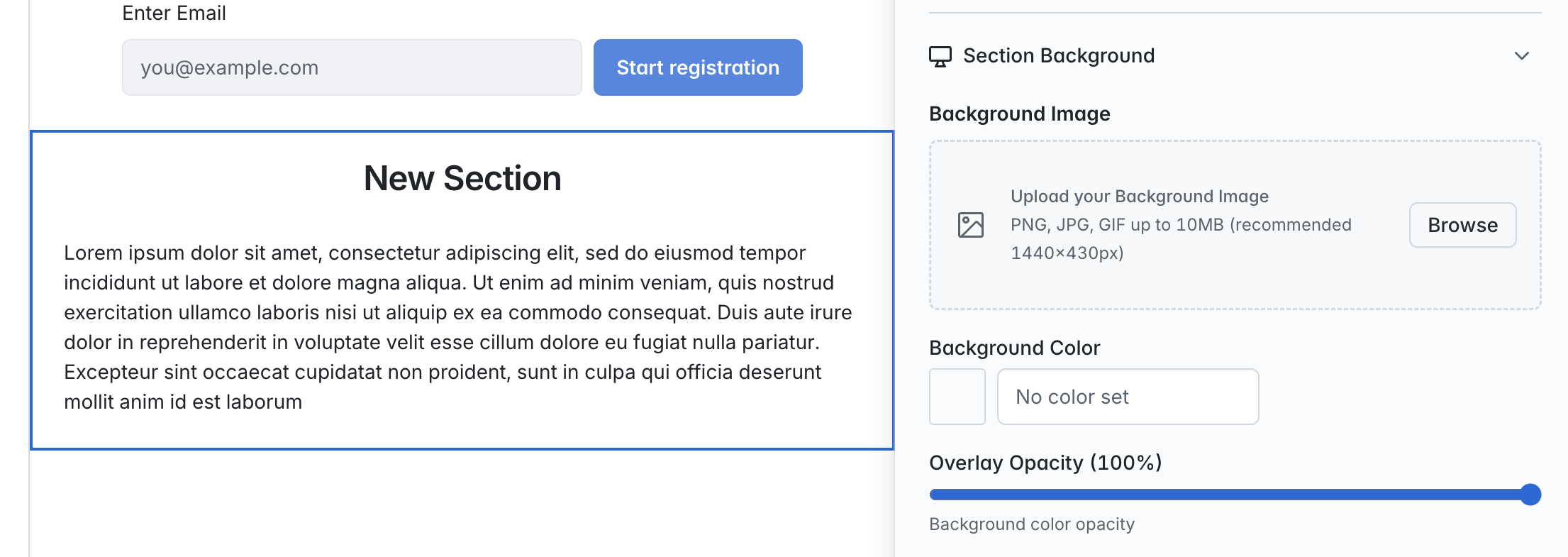
- Click on the 'Browse' button and select the image you wish to use as your background. Once selected, the image file will be uploaded and you will see the image displayed on the section as well as a preview displayed to the right of the page:

- To adjust the opacity of the image and improve text visibility, select the 'Enable background image overlay cover' option:

- Select a 'Background Cover' color:

- Using the 'Overlay Opacity' slider, set the level of opacity for the background cover so that the text visibility is satisfactory. Click on 'Save' to apply your changes:

How do I add a background color?
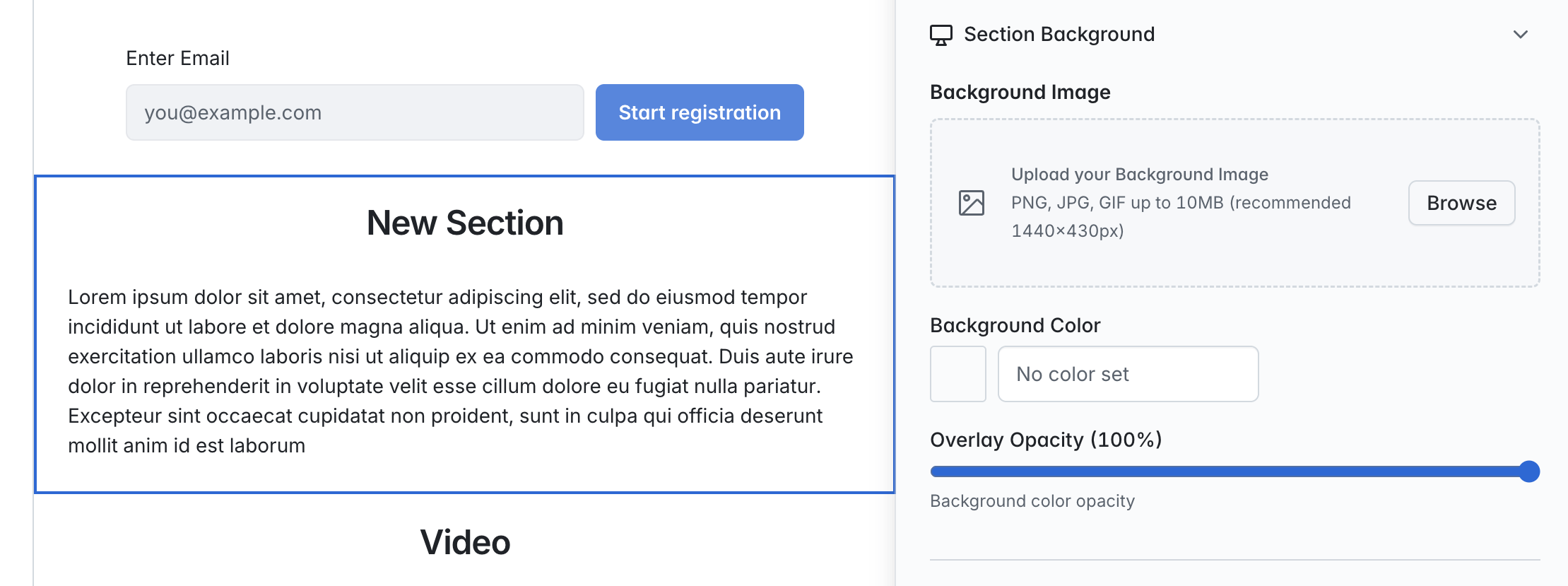
- Select the section you'd like to add a background color to and open the 'Section Background' menu on the right of the page:
-
Click on the color block displayed in the 'Background color' area and pick a color from the palette. To ensure text visibility, we will automatically switch the text color from black to white (and vice versa) for you, depending on the shade of the color you have selected:
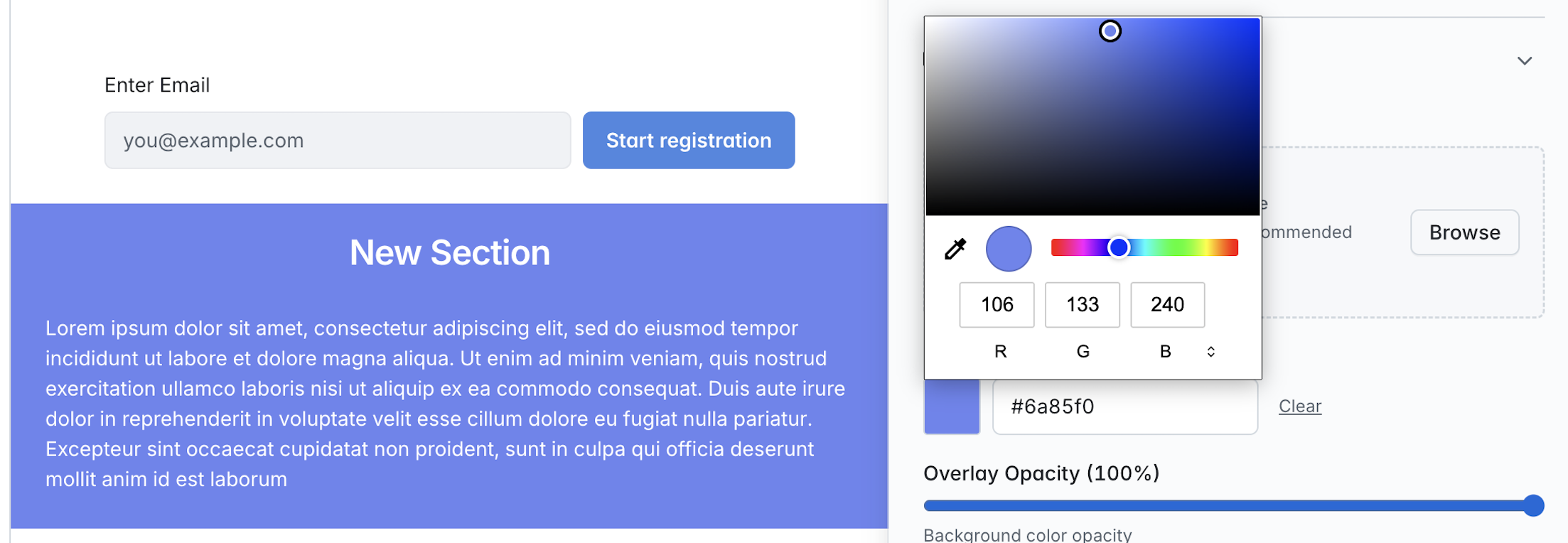

- Set the opacity of the color using the Overlay Opacity slider until you are happy with the visibility of the text. When you are ready to apply your changes, click on the 'Save' button at the bottom of the column: