.png)
How do I create a column section?
When building your event website, you may wish to use the 'Column Section' feature to style and group content in a single area. To begin building your column section, you will need to have the sections you wish to add pre-prepared, as you will need to add them into the column section when building it. You can add any section type to a column section.
Once you have your sections prepared, click on the 'Column Section' option on the right of the page and you will see the following:
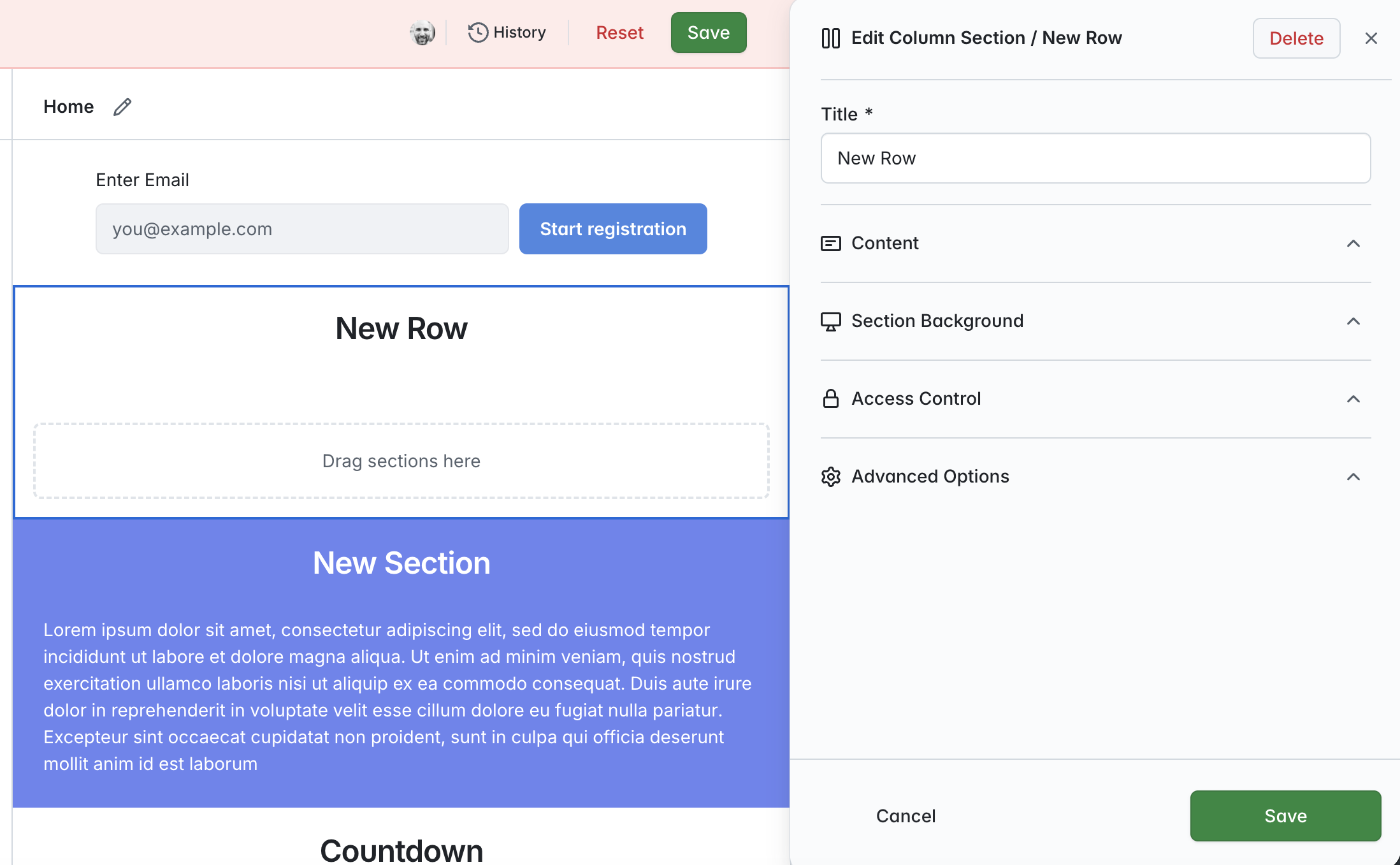
Next, give your column section a title and drag your first section into the area that says 'Drag sections here':
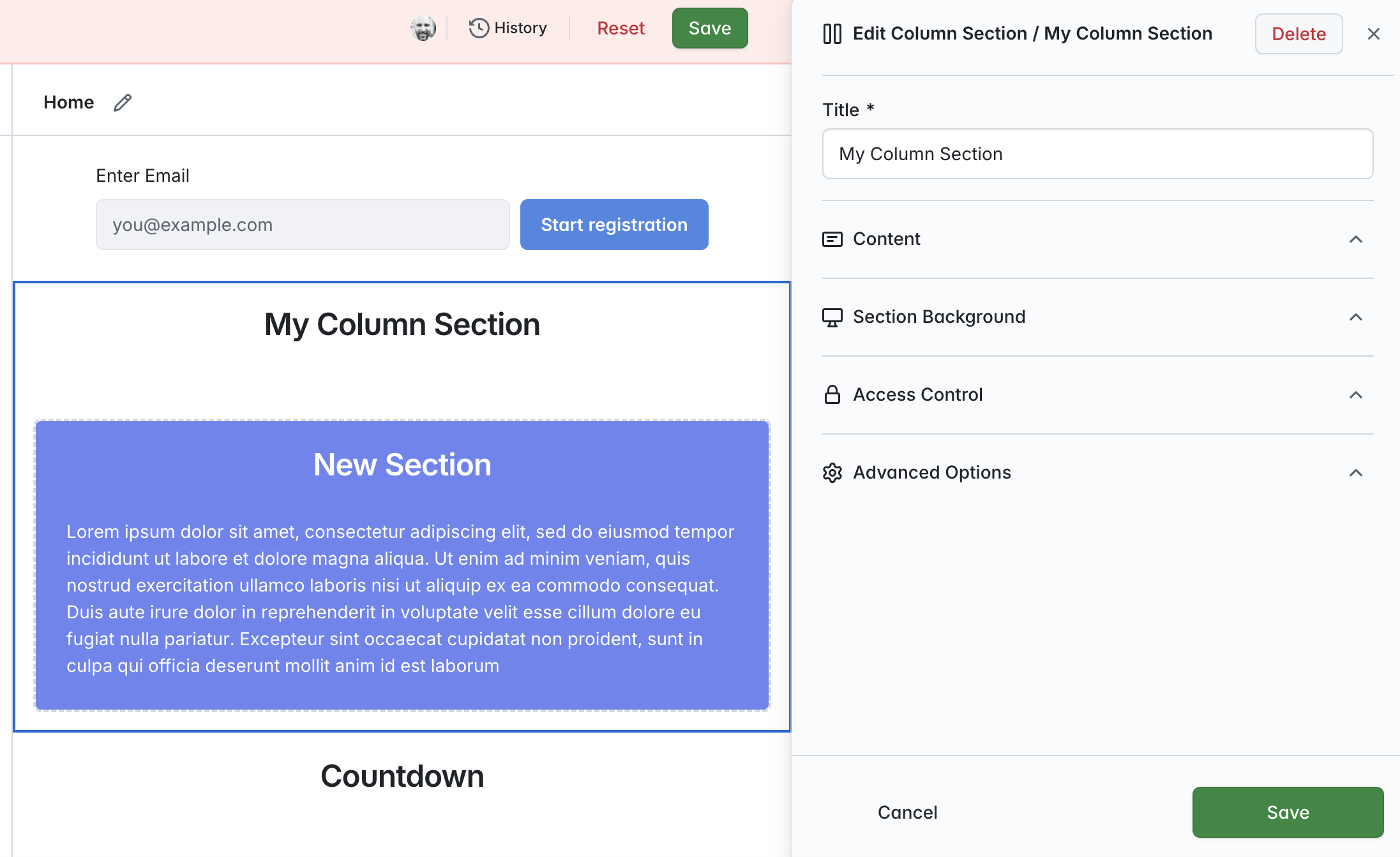
Next - drag your second section into the column section area. You will see that both sections added are now displayed side-by-side in the section:
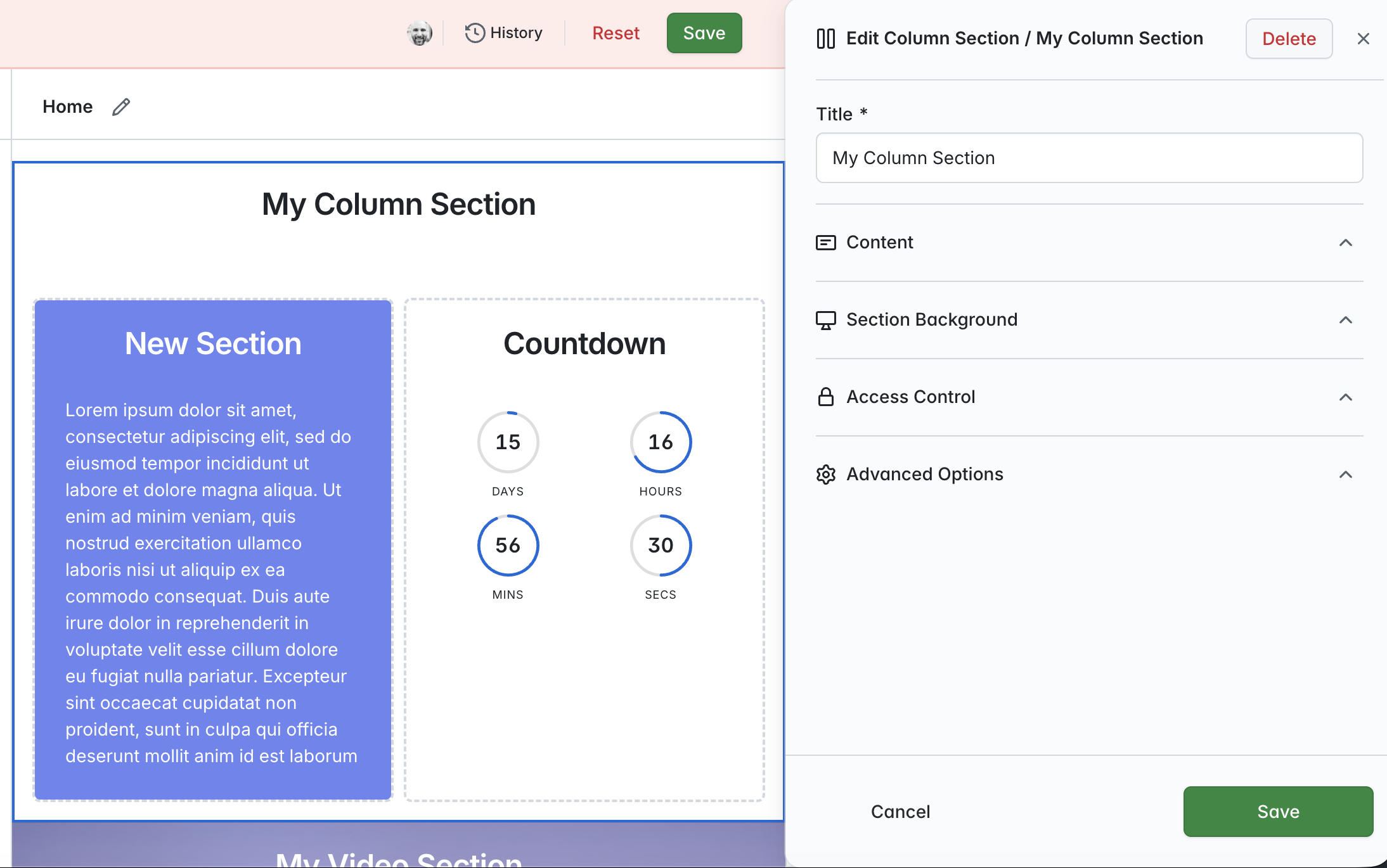
You can continue to add additional sections to your column section until you're happy that all sections required are added. It's worth noting that the more sections you add, the more 'congested' your column section will be, so as a general rule of thumb, we would advise that you limit yourself to 2 or 3 sections per column section to retain legibility.
If you wish to re-order or remove a section, hover over the section you wish to change and select the appropriate action:
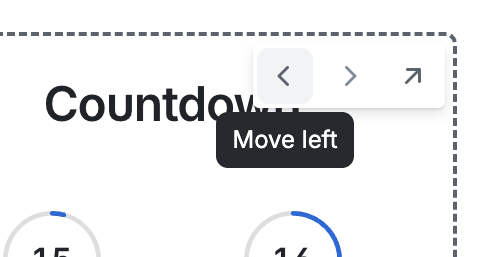
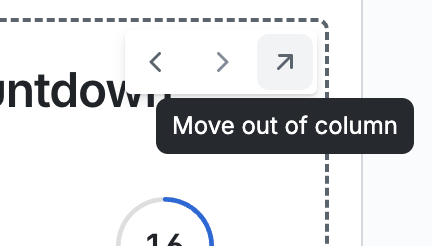
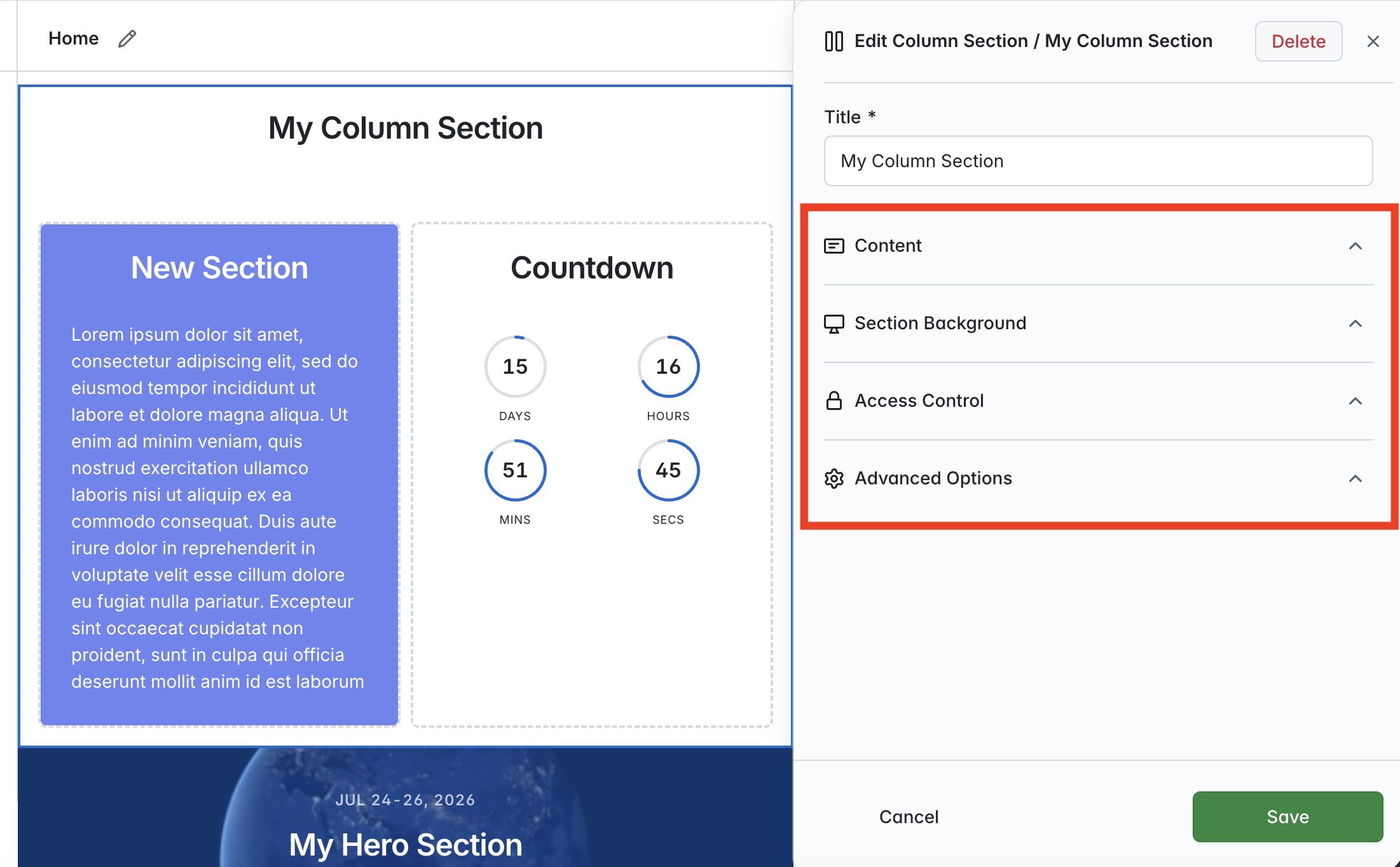
If you wish to, you can also add additional content, add a background to your column section and control visibility using the 'Content', 'Section Background' and 'Access Control' features provided: