.png)
Is there a way I can 'bulk' edit attendees in my Registrations area
Note: Your organization must have our 'Bulk Registration Actions' feature enabled to manage multiple attendees on your Registrations page. Please contact support if you are interested in having this feature enabled.
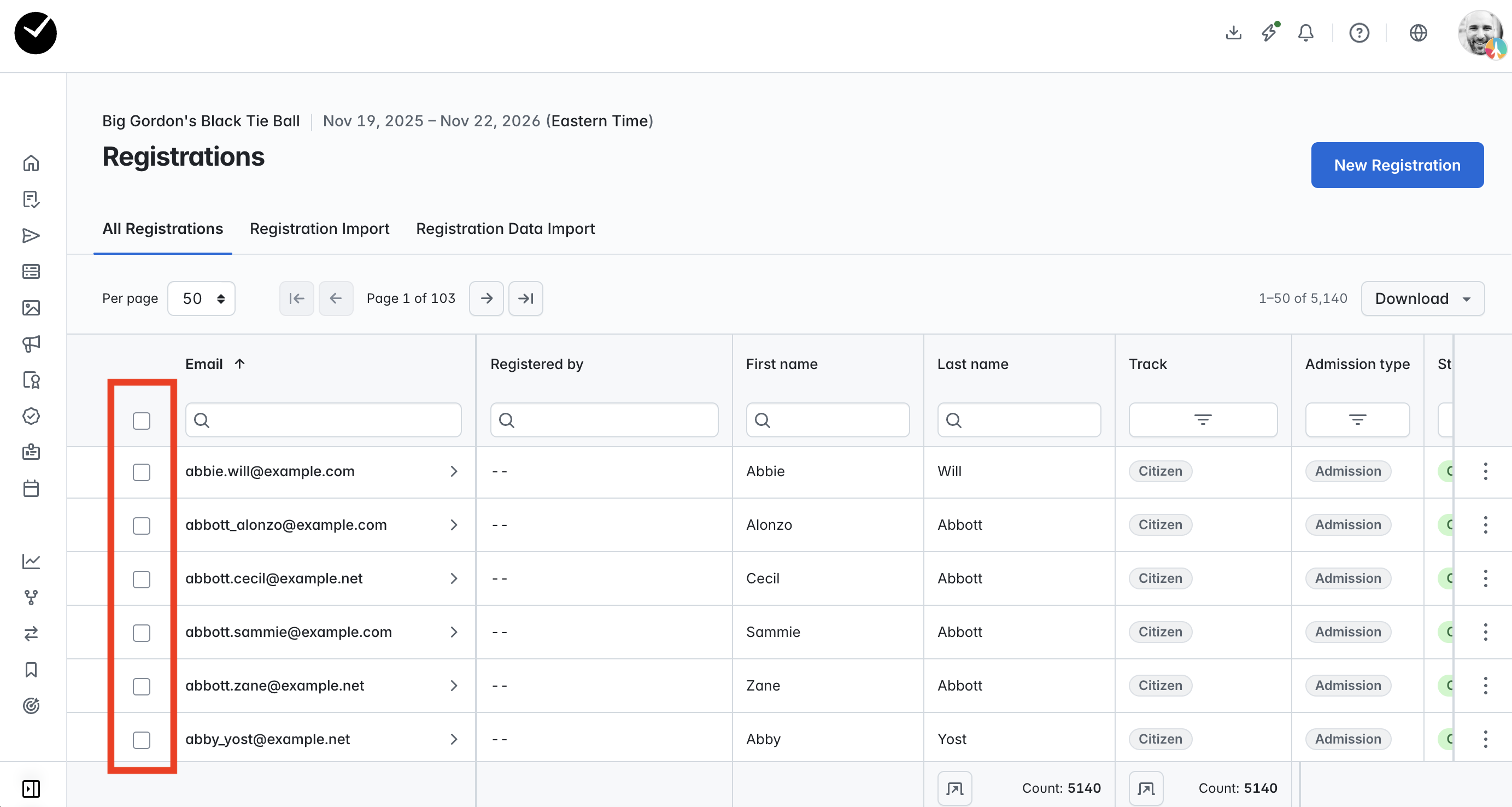
With our 'Bulk Registration Actions' feature, we provide the ability to update statuses, resend confirmation emails and delete attendees en masse using the tool. You can easily identify if your organization has this feature enabled by looking to the left or your Registrations grid - if enabled, you will see a set of checkboxes displayed on the far left column:
To begin using the feature, select the attendees you wish to 'bulk' manage, or select the checkbox at the top of the grid to select all attendees. You will then see an 'Actions' menu displayed at the top right of the grid:
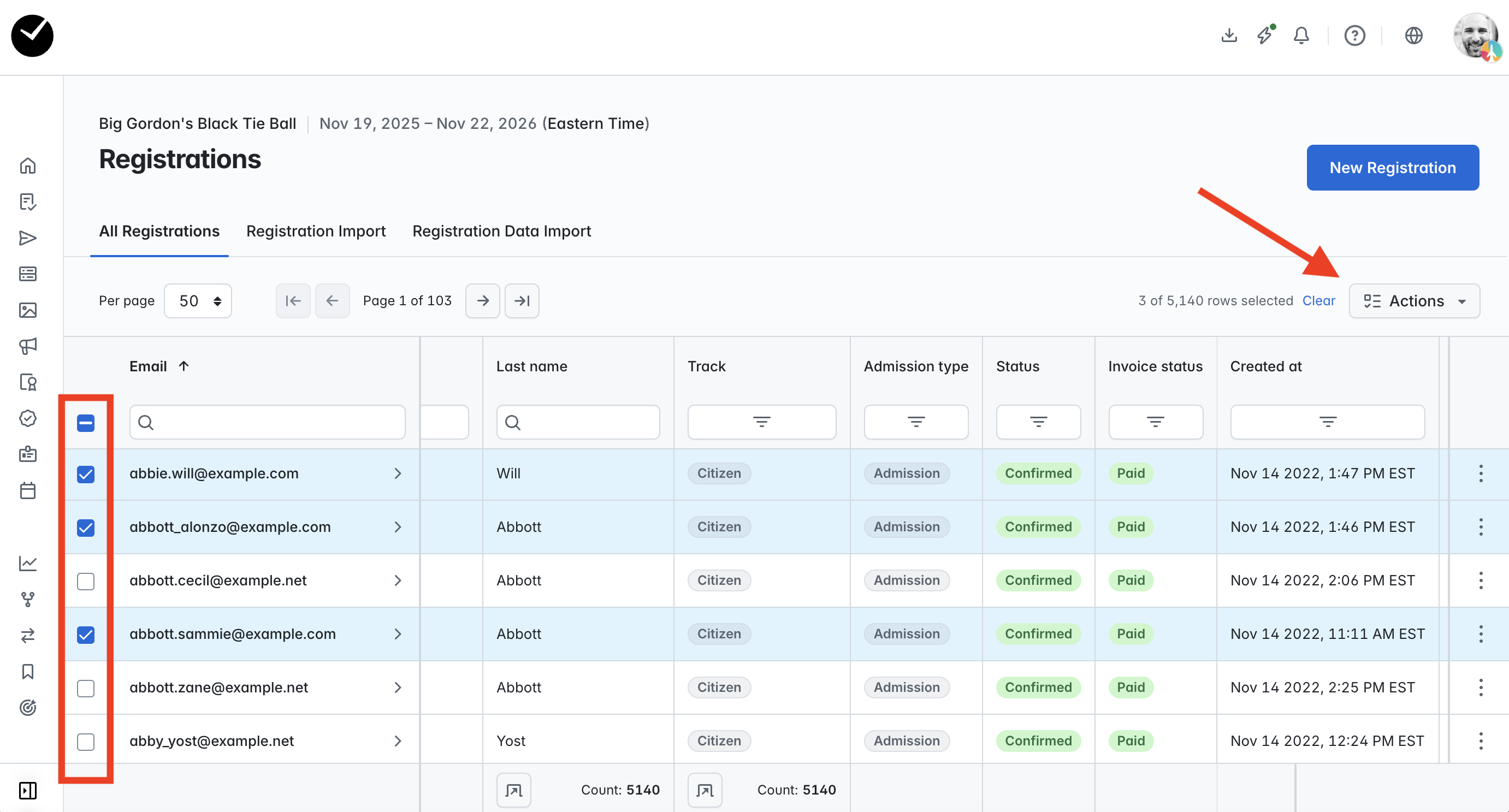
Selecting the 'Actions' menu will display the following options:

- Update Status - this allows you to change the status for all selected attendees to either 'Confirmed' or 'Cancelled'.
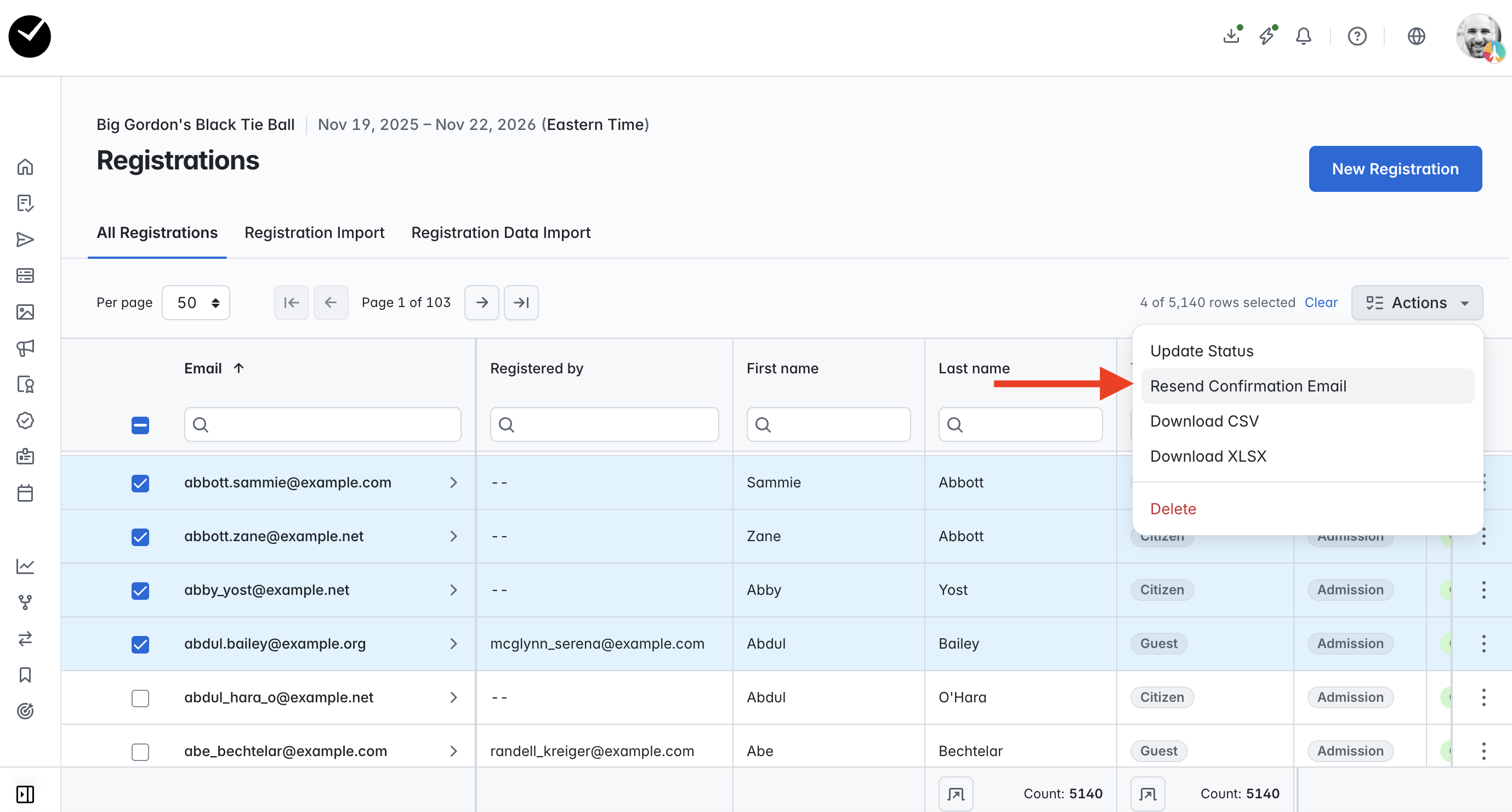
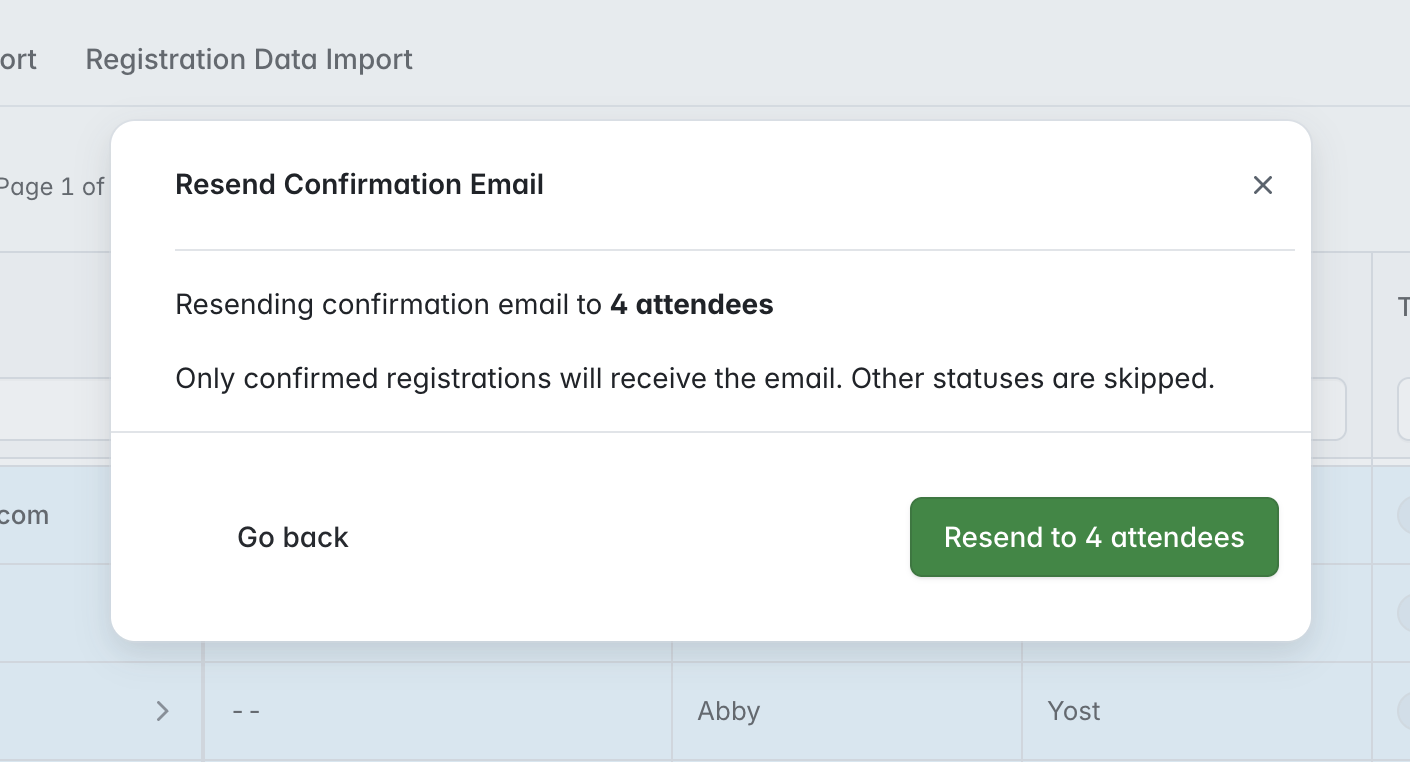
- Resend Confirmation Email - this will resend a confirmation email to all selected 'Confirmed' attendees.
- Restore - this option will allow you to restore any selected 'Cancelled' registrations, making the registrations active once again.
- Download CSV/XLSX - selecting this option will generate a 'Registrations' report containing only the selected attendees.
- Delete - this option allows you to delete multiple 'Cancelled' registrations in a single action.
How do I update the registration statuses for multiple attendees?
Before you start making your amendments, please note that 'Cancelled' status attendees cannot be updated to 'Confirmed' (all other statuses are accepted) using the 'Update Status' action.
To begin editing your attendee statuses, select the checkboxes of the attendees you wish to amend and select the 'Actions' button:
Select the 'Update Status' option from the Actions menu:
Updating status to 'Confirmed'
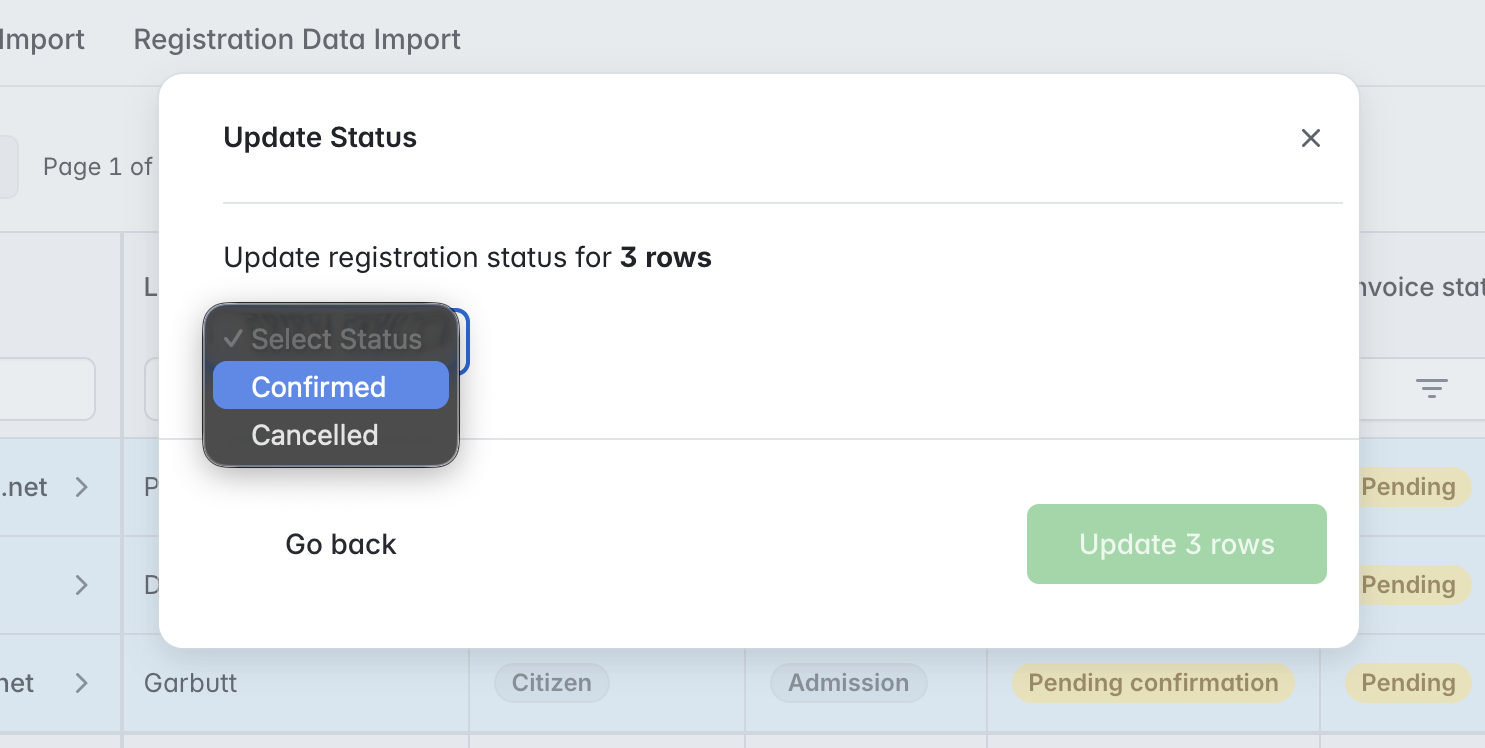
- When you have selected your attendees and selected 'Update Status', you will be presented with the following window - select 'Confirmed' from the dropdown to proceed:
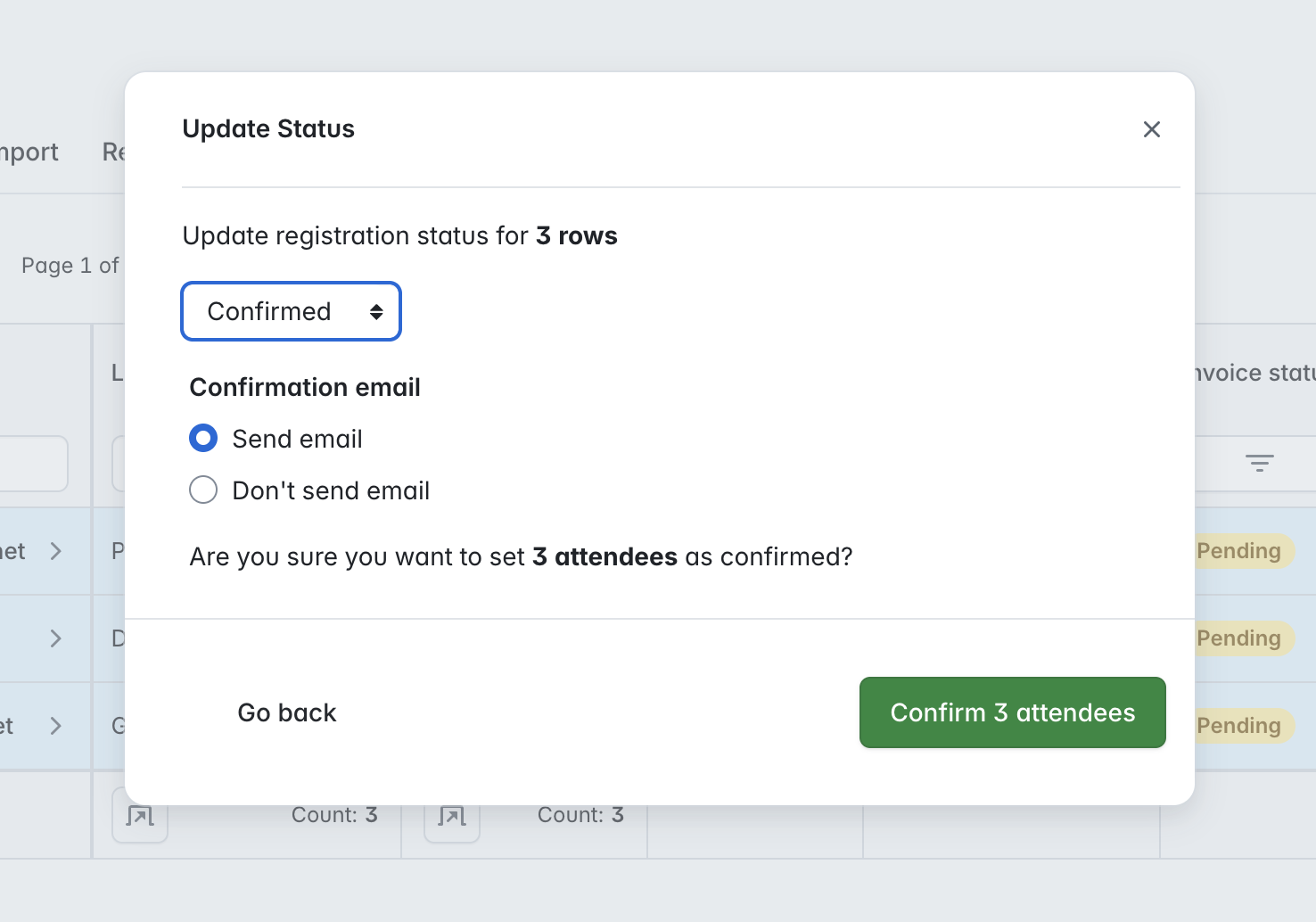
- On the following page, you will be asked to confirm if you wish to proceed, with the option to send a confirmation email on completion. Select 'Confirm' to proceed, and all selected attendees will be updated to 'Confirmed':
Updating status to 'Cancelled'
- When you have selected your attendees and selected 'Update Status', you will be presented with the following window - select 'Cancelled' from the dropdown to proceed if it is not pre-selected already, and you will see the following window:
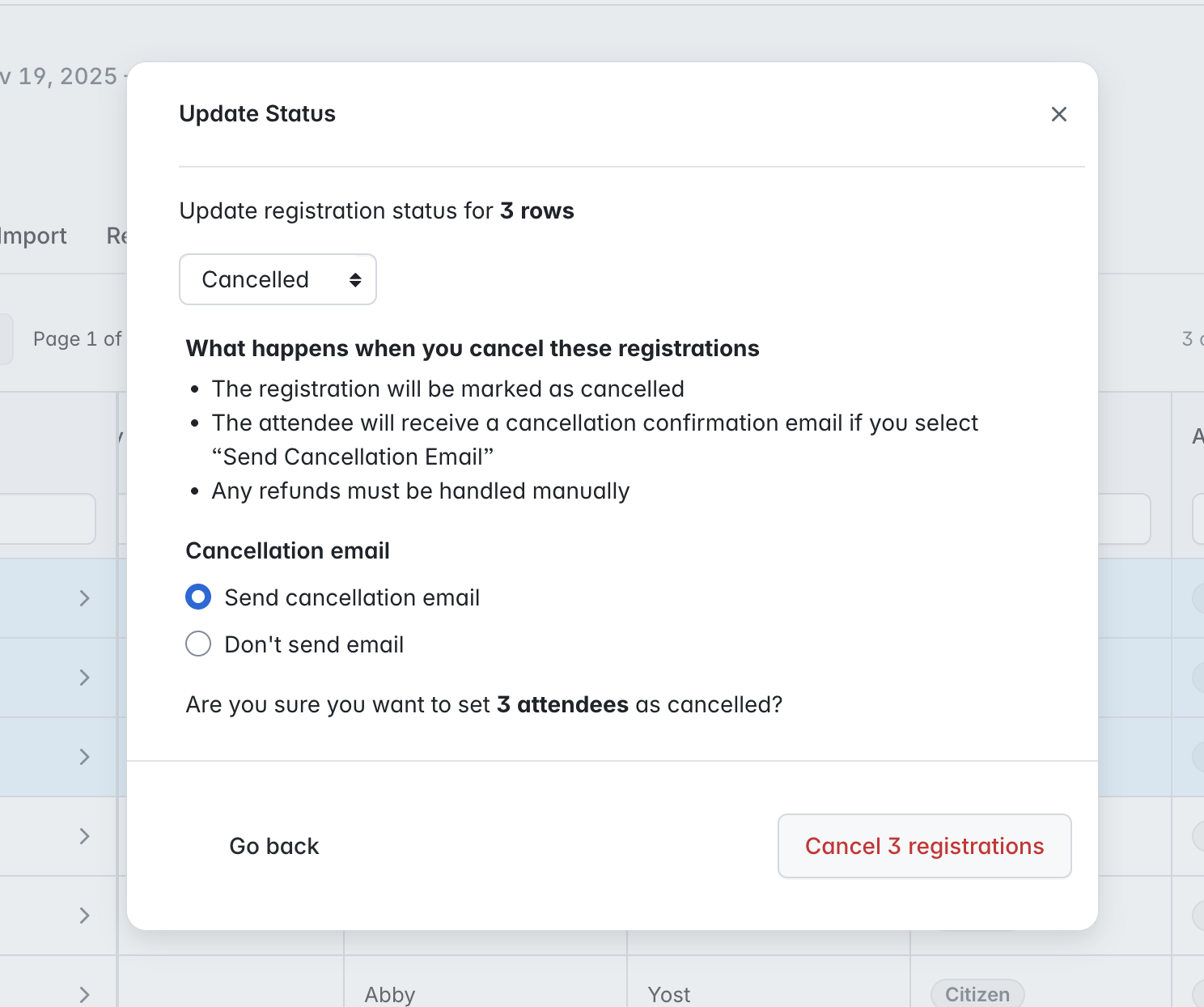
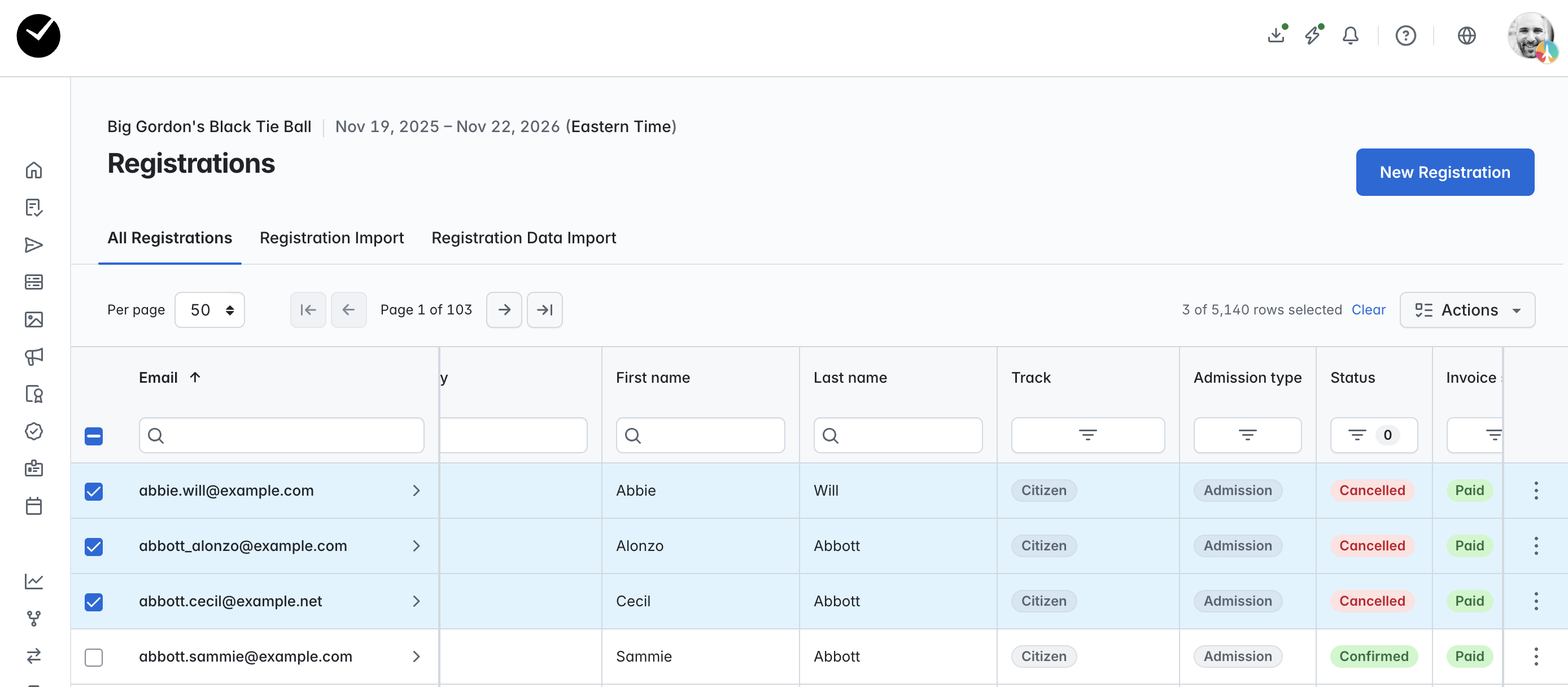
- To proceed, select the 'Cancel...' button and the selected attendees will then have their registration status changed to 'Cancelled':
How do I 'bulk' resend confirmation emails?
As noted in the flow above, select the attendees you wish to resend a confirmation email to, select the 'Actions' menu, and click on the option 'Resend Confirmation Email':
You will then see the following window - click on the 'Resend...' button to proceed, and a confirmation email will be sent to all selected 'Confirmed' attendees.
How do I 'bulk' restore cancelled attendees?
As noted in the flow above, select the attendees you wish to restore, select the 'Actions' menu, and click on the option 'Restore':
You will then see the following window - click on the 'Restore...' button to proceed, and the selected attendee registrations will then be restored.

How do I delete multiple attendees at once?
As noted earlier, only 'Cancelled' attendee registrations can be deleted. To begin the 'bulk' deletion process, select the registrations you wish to delete and select 'Delete' from the 'Actions' menu:
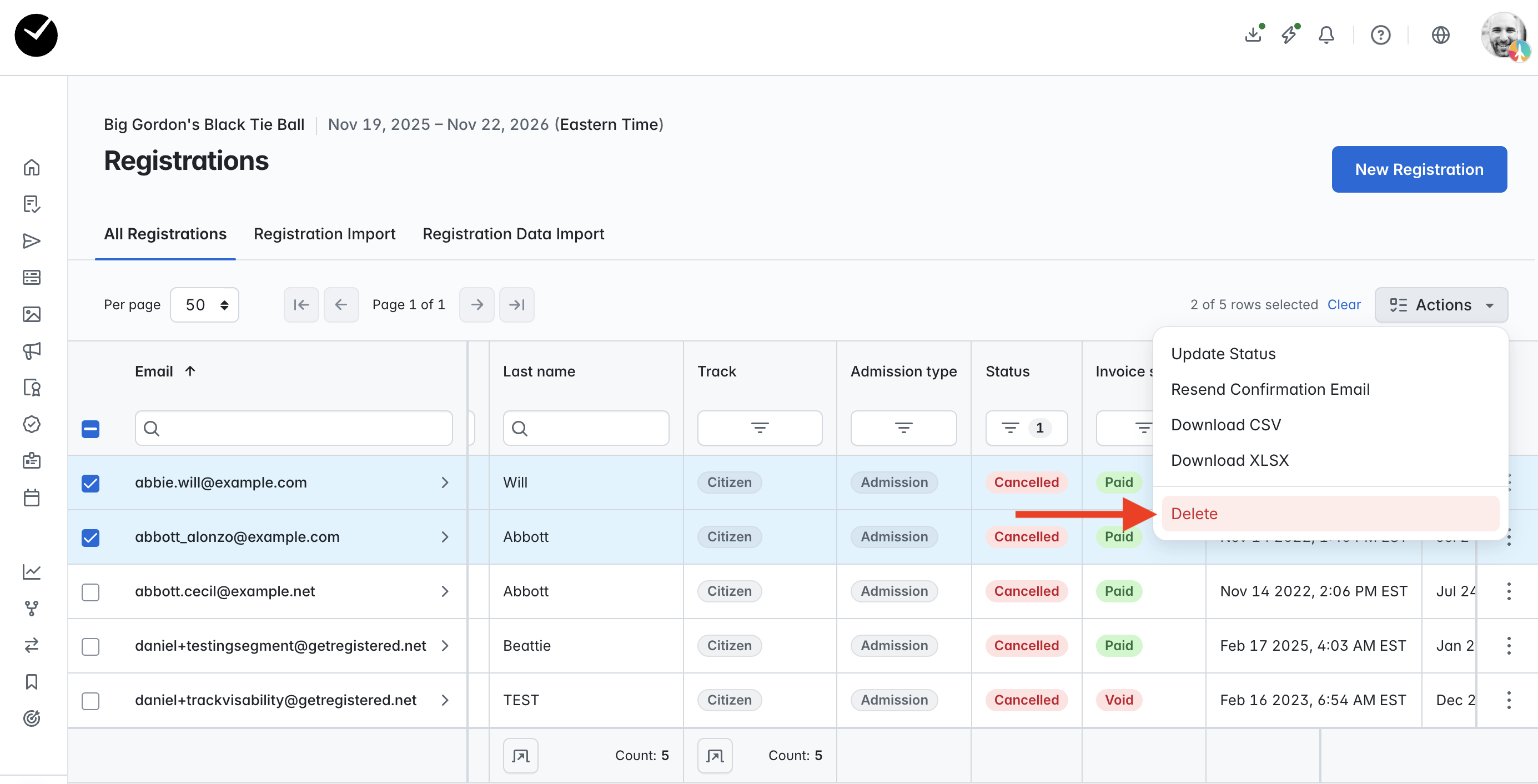
On the new window displayed, you will see the following:
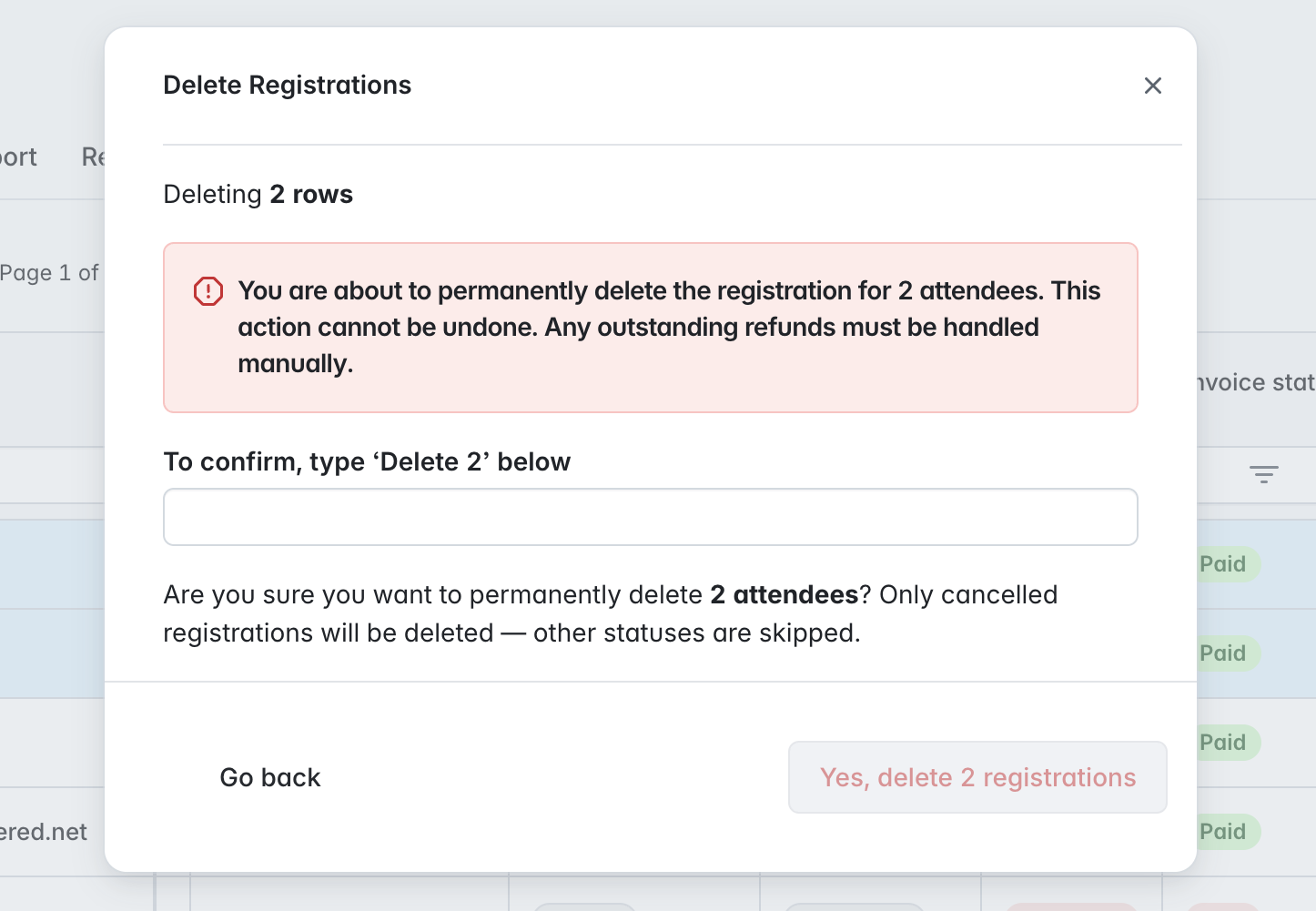
To proceed, you must enter the text displayed into the field provided (eg 'Delete 2') - this will unlock the 'Delete' button below:
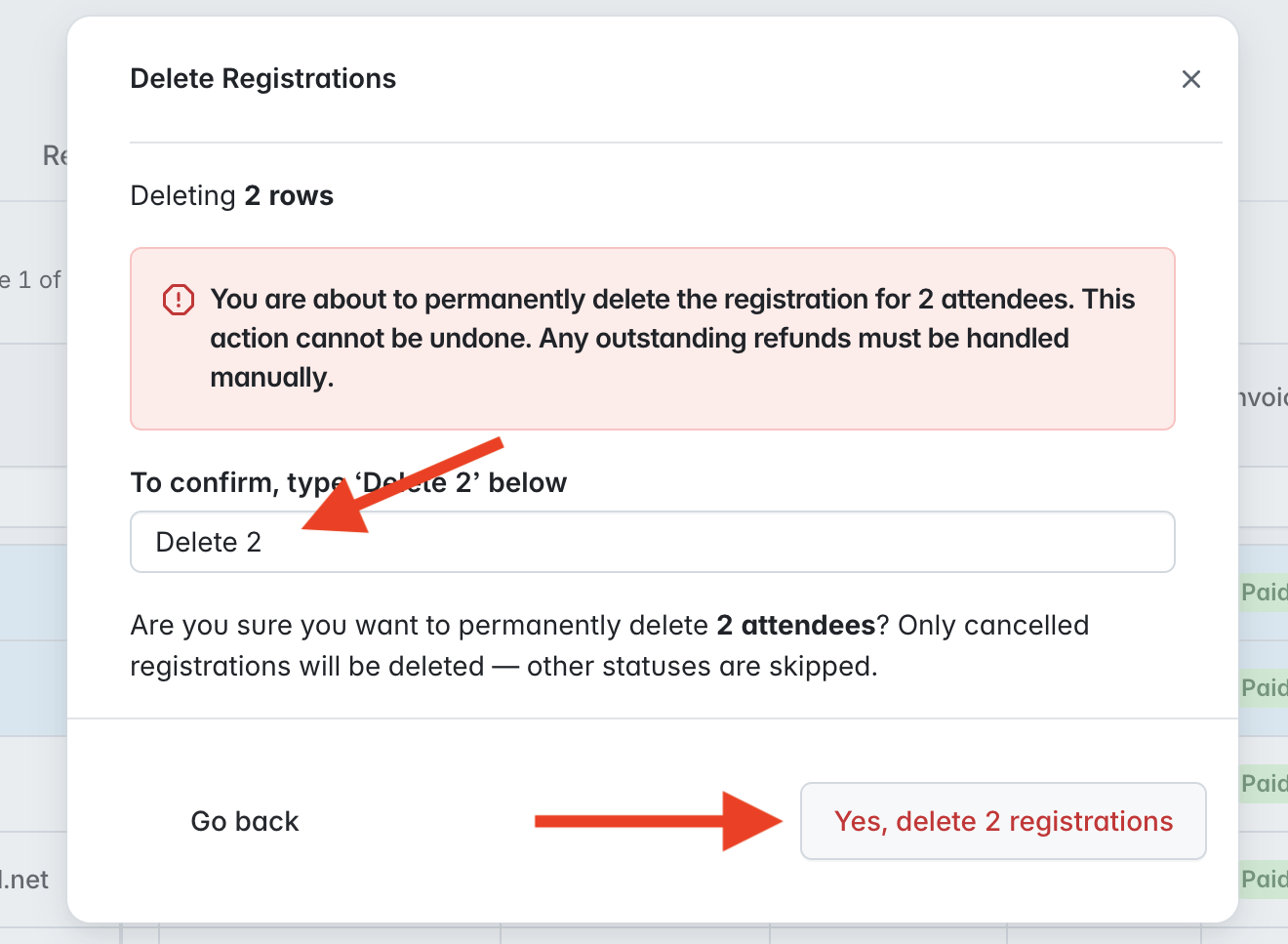
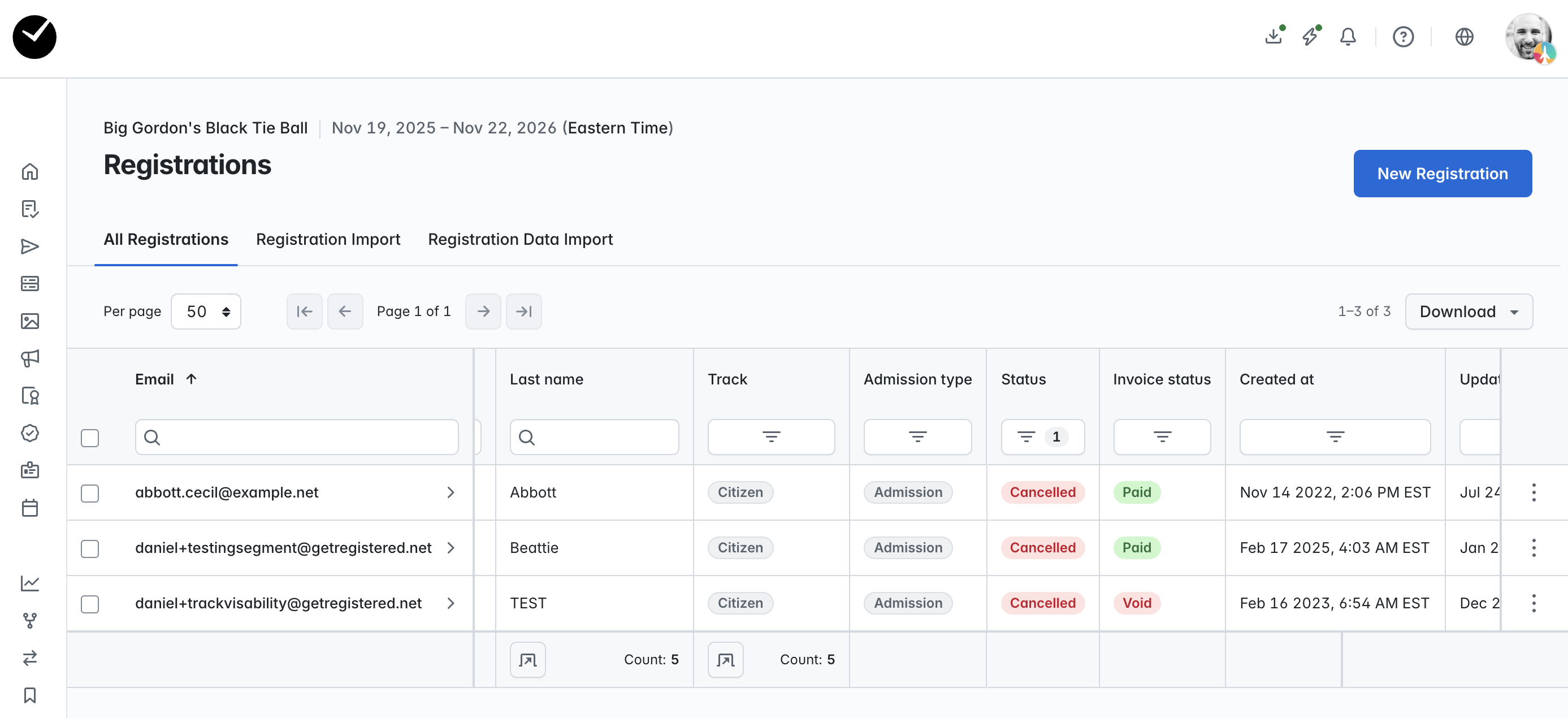
Finally, click on the 'Yes, delete * registrations' button, and the registration records will be deleted for the selected attendees:
Is there a way I can monitor my 'bulk actions' progress and past actions that have been completed?
Yes - at the top of the page, you will see a 'lightning bolt' icon displayed when a bulk action is made. This is your 'Operations' menu:
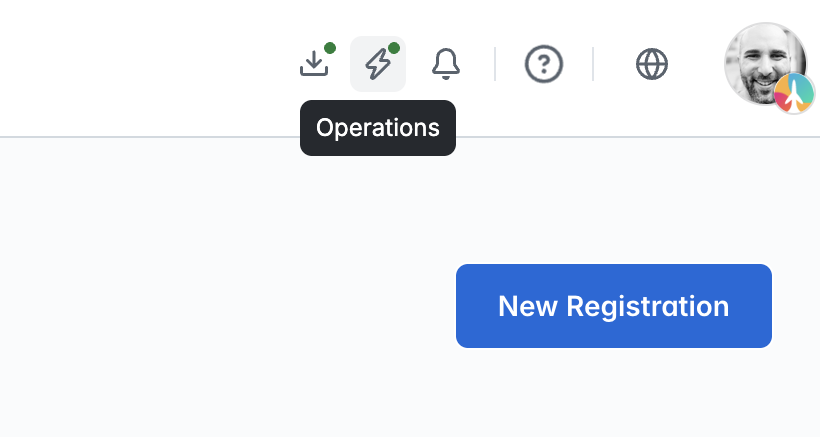
This only displays when bulk actions have been made in your event - clicking on this icon will show you a list of the last few bulk actions that have been made, with the ability to view all current and past bulk actions made by clicking on the 'View All Operations' option:

In the main 'Operations' area (accessed from the 'View All Operations' option), you will see a list of all bulk actions that have been made in your event, including the bulk operation type, actor, status, current progress and creation date. All columns on this page can be sorted and filtered with the exception of the 'Progress' column:

You can also drill deeper into each bulk operation by simply clicking on the '>' arrow displayed inline with the bulk action:

In here, you can see a summary of the action, including and skipped or failed details where they have occurred during the bulk action process. You can also view the affected attendees by clicking on the 'View succeeded'/'View failed' button, which will take you to a filtered version of your event Registrations area, returning only the attendees that have passed or failed during the bulk action.