.png)
How do I create and configure Facilities for Event Requests?
Notes: To use the 'Event Requests' feature, it must be enabled for your organization first. Please contact support if you are interested in activating the feature for your organization.
Only administrators can create and configure Facilities for Event Requests.
When building your Event Request form, you will likely want to provide a list of facilities that can offered to the event requestor, so that they can book services, equipment and of course, a suitable venue! You can begin configuring your event request Facilities in your Site Settings -> Facilities area. This can be accessed from the left column in your Event Requests area or by selecting the 'Facilities' tab on your Site Settings page:
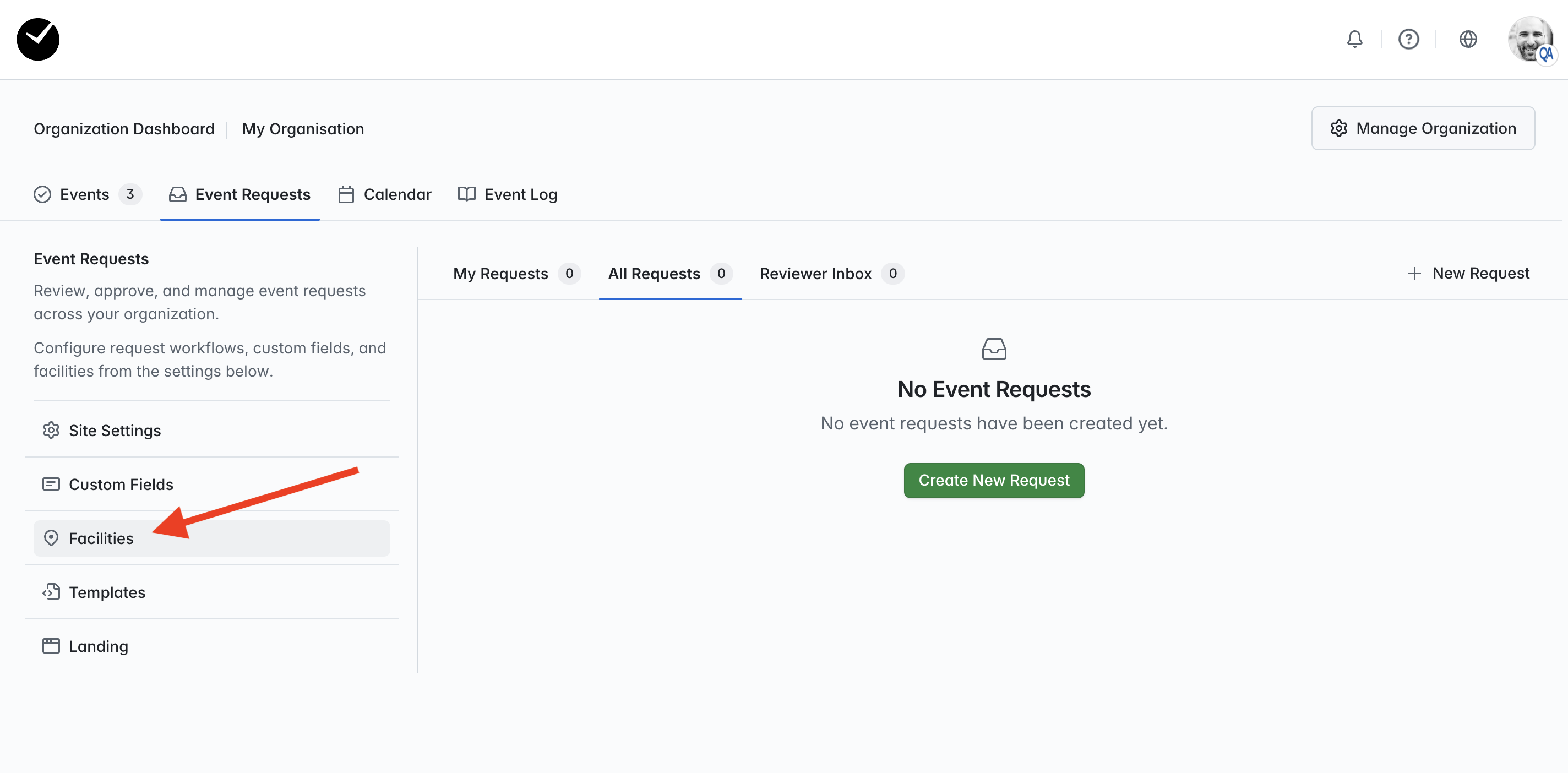
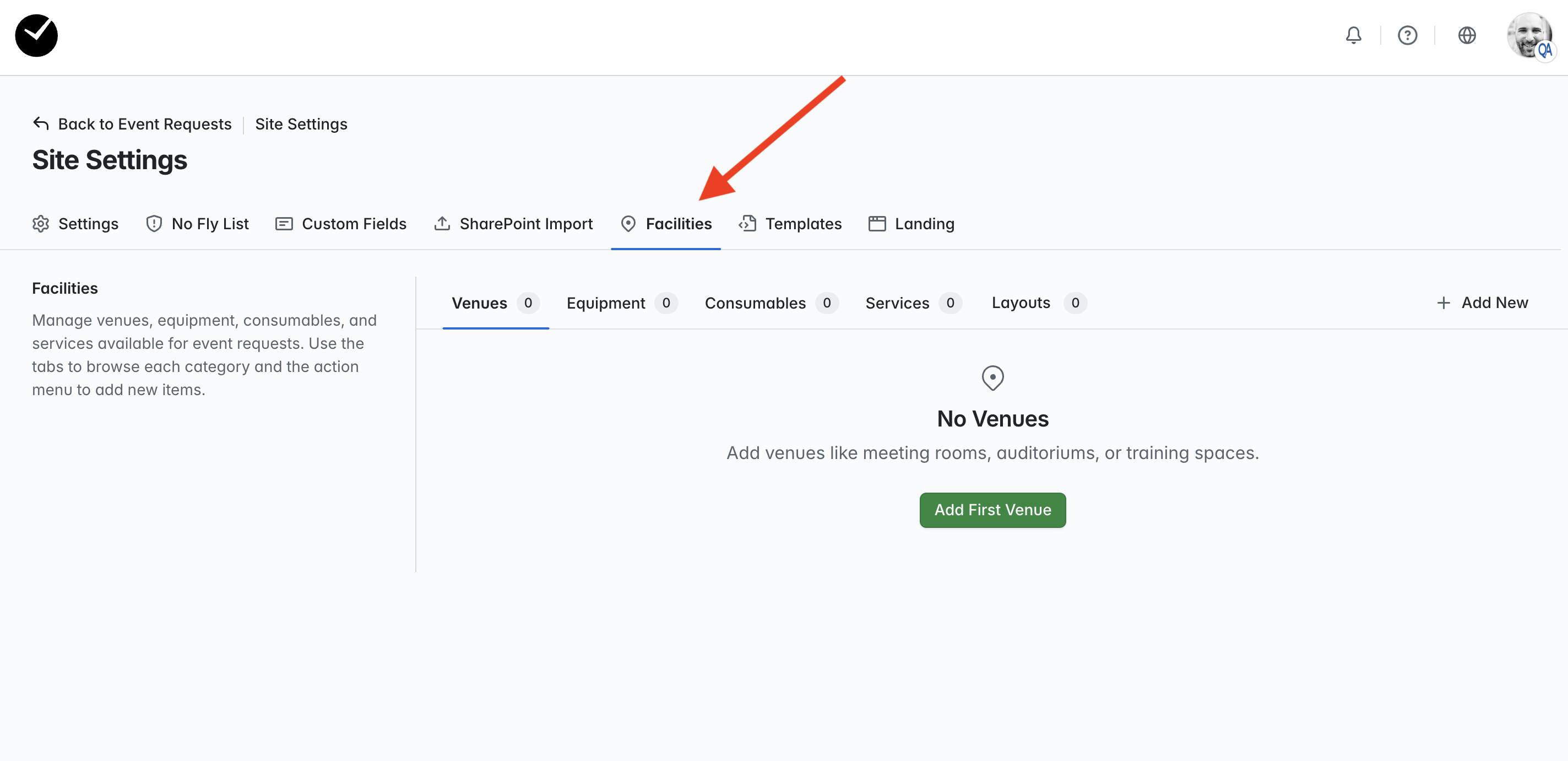
If your organization has not already added any custom fields then the area will look something like the above. At the top of the main area of the page, you will see the following tabs:
- Venues - this is where you will add your 'Venue' facilities, so that an event requestor can request to book a venue with suitable capacity and availability.
- Equipment - this is where you'll add any equipment you'd like to make available to the event requestor to request for their event, such as stationary, televisions/projectors, power options etc.
- Consumables - this is where you'll add any catering options you'd like to make available for the event requestor to request for their event, such as meals, drinks etc.
- Services - this is where you'll add any service options you'd like to make available to the event requestor to request for their event, such as facilitators, transcription, sound/audio/lighting management etc.
- Layouts - this is where you can add/manage the room 'Layouts' available for selection when an event requestor is selecting a venue.
To begin creating new facilities, click on the '+ Add New' button at the top right of the page. You will then see a menu listing the available facility options (Venues/Equipment/Consumables/Services), simply select the facility you'd like to add.
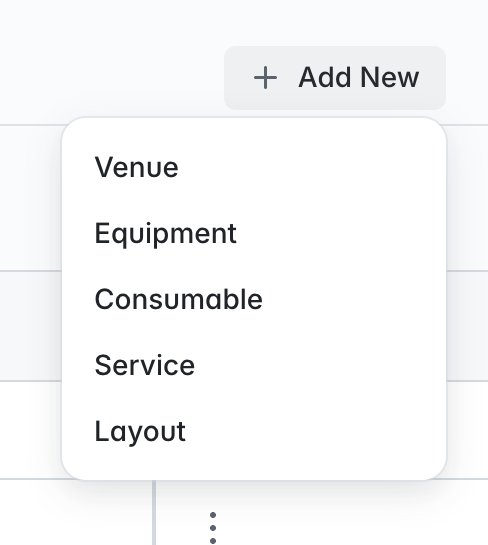
Each 'Facility' type has its own form and requires specific requirements, and we go over building each type in the following section.
So how do I begin building my facilities for my organization's Event Requests?
As mentioned above, when in the 'Facilities' area of your Site Settings, click on the '+ Add New' button to begin adding your facility. We will demonstrate four examples here to show how the flow can be used and how the facilities will appear on your Event Request form.
Adding a 'Venue' Facility
- After selecting to create a new 'Venue', populate the following fields/configuration options:
- Name - the name that will be displayed for the venue when being viewed by an event requestor. This is a mandatory field.
- Description - add a general description of the venue if desired. This is an optional field.
- Capacity - sets the maximum number of people that the venue can accommodate. The capacity will be shown to the event requestor when preparing their Event Request, and will be filtered out from selection where the requested capacity for their event exceeds the capacity of the venue.
- Location - add location details for the venue if desired. This is an optional field.
- Building - add details on the venue building if desired. This is an optional field.
- Floor - add floor details for the venue if desired. This is an optional field.
- Resources - add any resources available at the venue that you'd like the event requestor to be aware of, separated by a comma. This is an optional field.
- Active - when selected/enabled, the venue will be displayed in the 'Venue' area of your Event Request form when viewed by an event requestor.
- Bookable - when selected/enabled, the venue will be available to be requested for booking in the 'Venue' area of your Event Request form when viewed by an event requestor.
- Day Rate - add the cost of booking the venue for a full day in this field. All costs will be captured against the invoice for the Event Request. This is an optional field.
- Half Day Rate - add the cost of booking the venue for half a day in this field. All costs will be captured against the invoice for the Event Request. This is an optional field.
- Selectable Room Layouts - allows you to select what room layouts are available to be requested for the current venue. When layouts are selected on this section of the form, only these layouts will be presented to the requestor when they select the venue.
- Room Layouts Available By Request - allows you to select if room layouts are only available by request for the current venue. When layouts are selected on this section of the form, if a requestor selects a 'by request' layout for the venue as part of their event request, this will need to be explicitly approved by the reviewer before the event request can be approved.
- Default Layout - allows you to set a pre-selected room layout as a default when a requestor selects the related venue as part of their event request.
- Venue Conflicts - allows you select venues that cannot be booked at the same time as the current venue (e.g. shared walls, combined spaces).
- Terms & Conditions - add a set of terms and conditions for the venue in this text area. When this area is populated, an event requestor must read and accept before they can request to book the venue. This is an optional field.
- Photo - add a thumbnail image that will be shown on the 'Venue' page when the event requestor selects the associated venue. This is an optional field.
- Floor Plan - add a floor plan image that will can be viewed on the 'Venue' page when the event requestor selects the associated venue. This is an optional field.
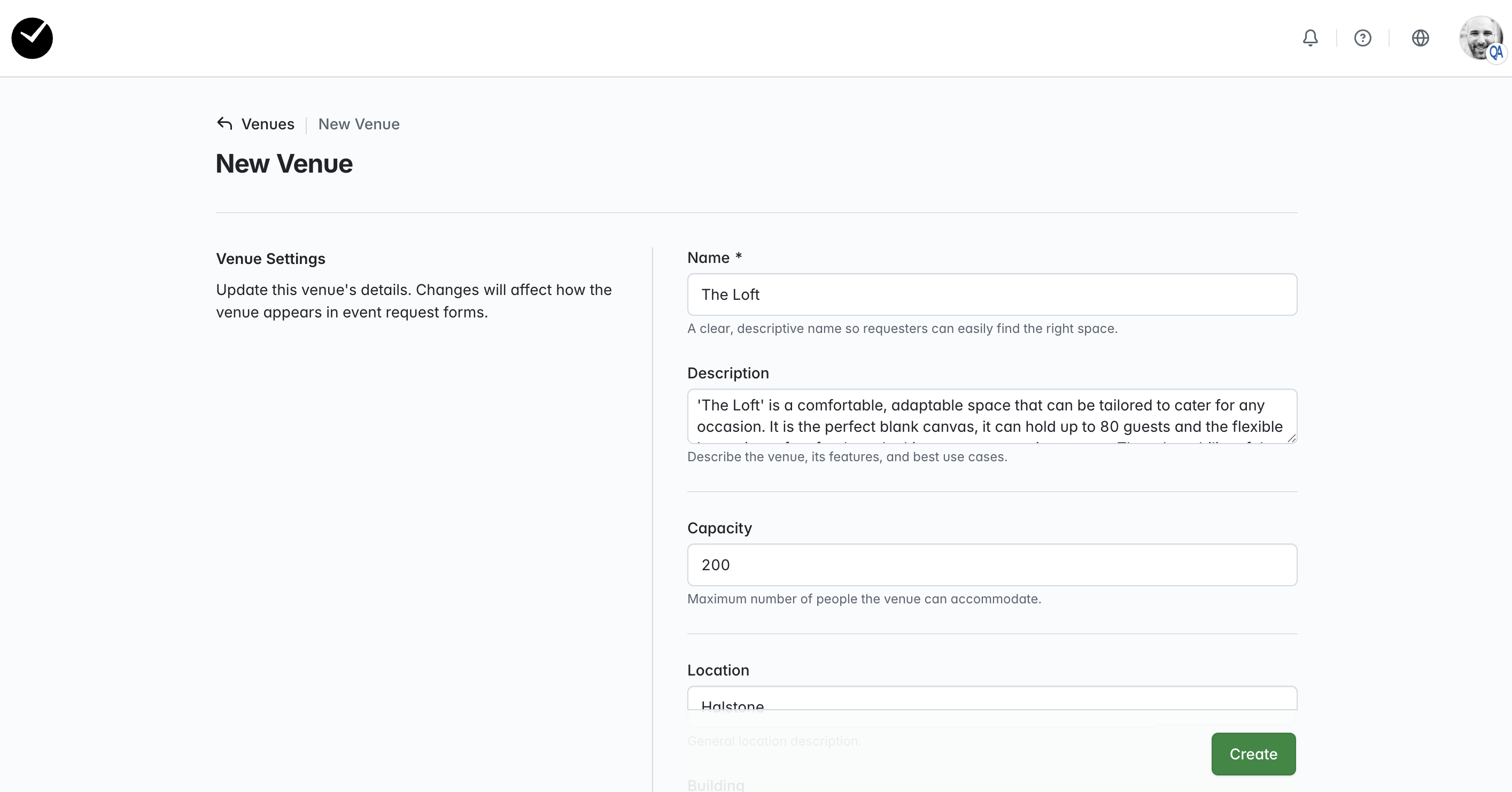
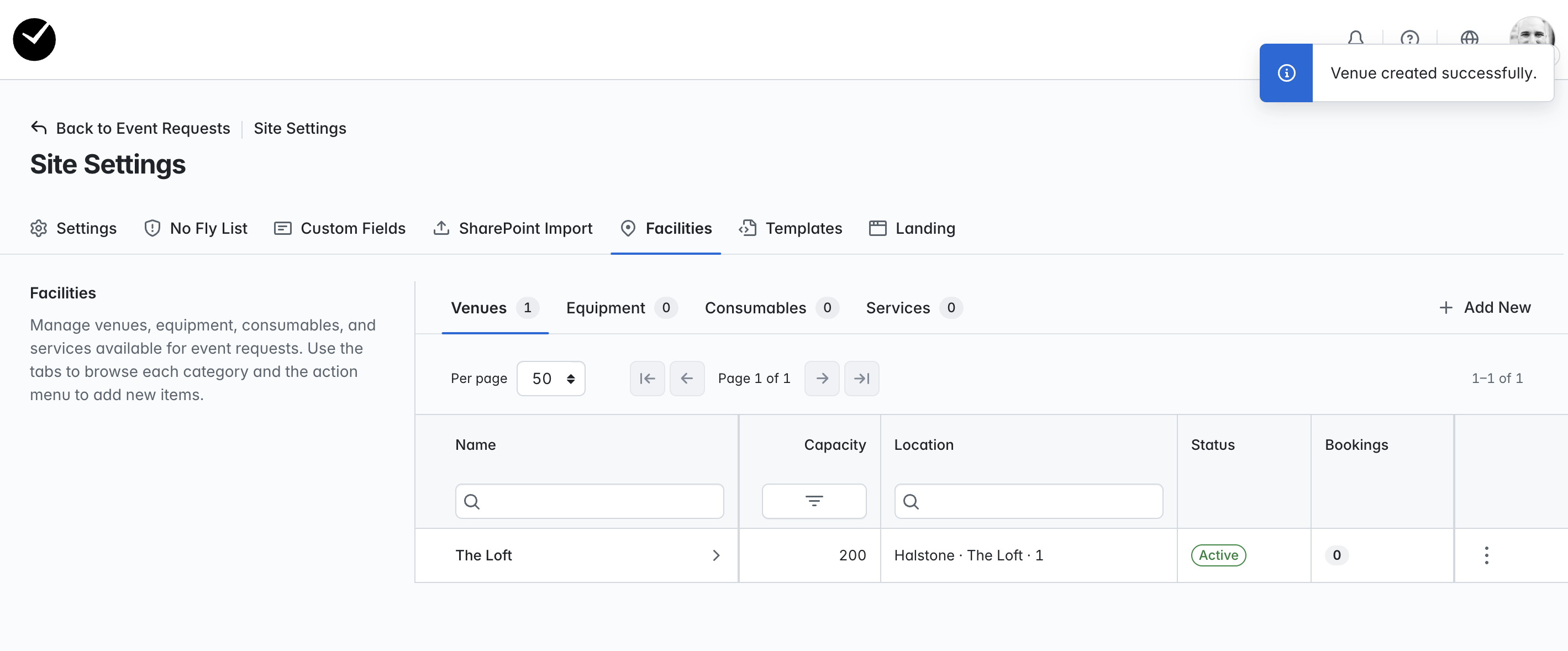
- Next we save the facility, and we are returned to the Facilities area, with the new facility showing on the grid.
- Now when a requestor begins to create their Event Request, you can see the venue is displayed as expected on the 'Venue' tab. As you can see, the venue is listed, with a thumbnail and floor plan available, as well as some Terms & Conditions that must be accepted before the venue can be requested:
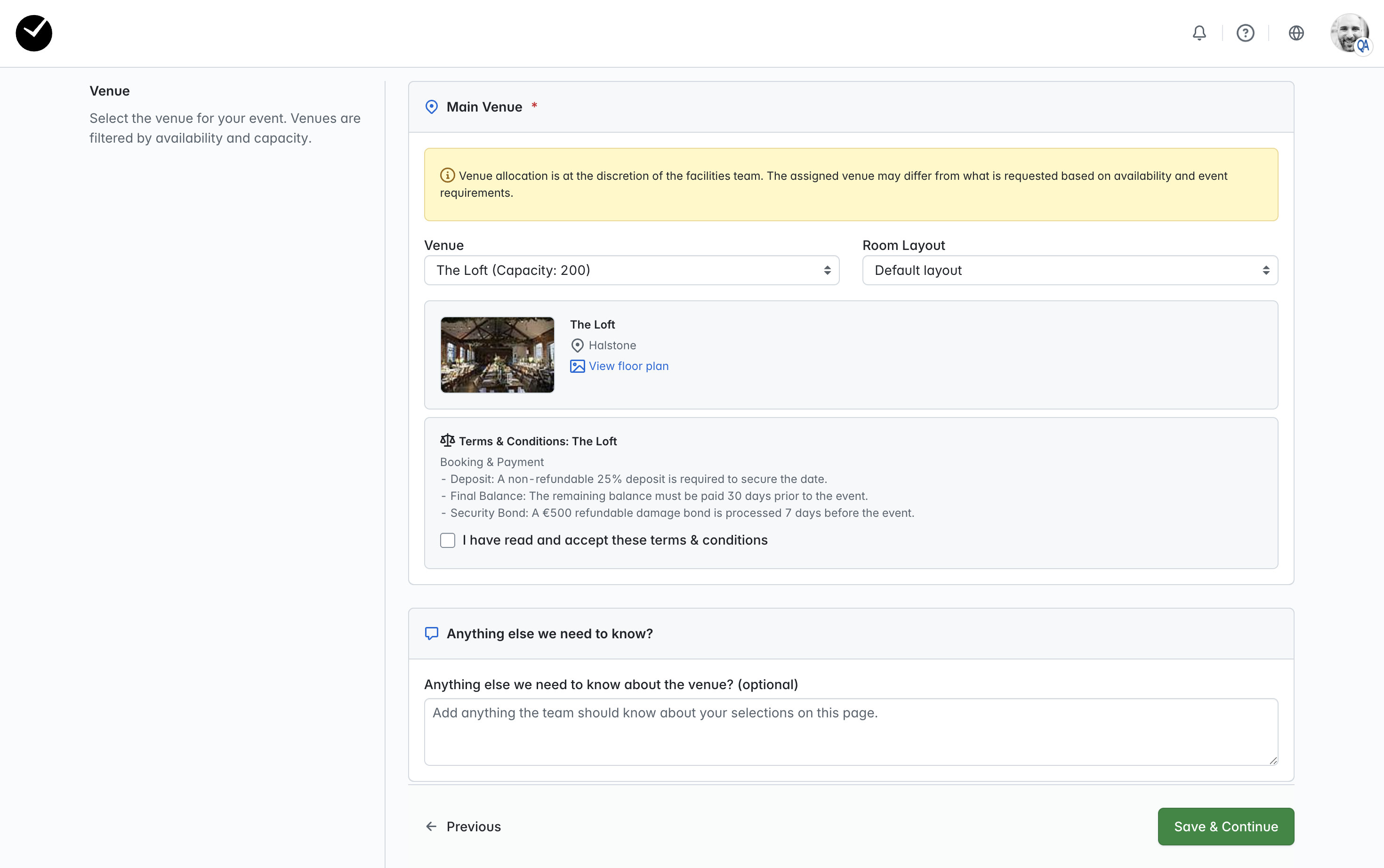
As mentioned earlier, if the venue is not set as 'Active' and 'Bookable', the event requestor will not be able to request the venue. And also, if the dates submitted for the the event match an already active booking for the venue, the venue will not be available to be requested.
Adding an 'Equipment' Facility
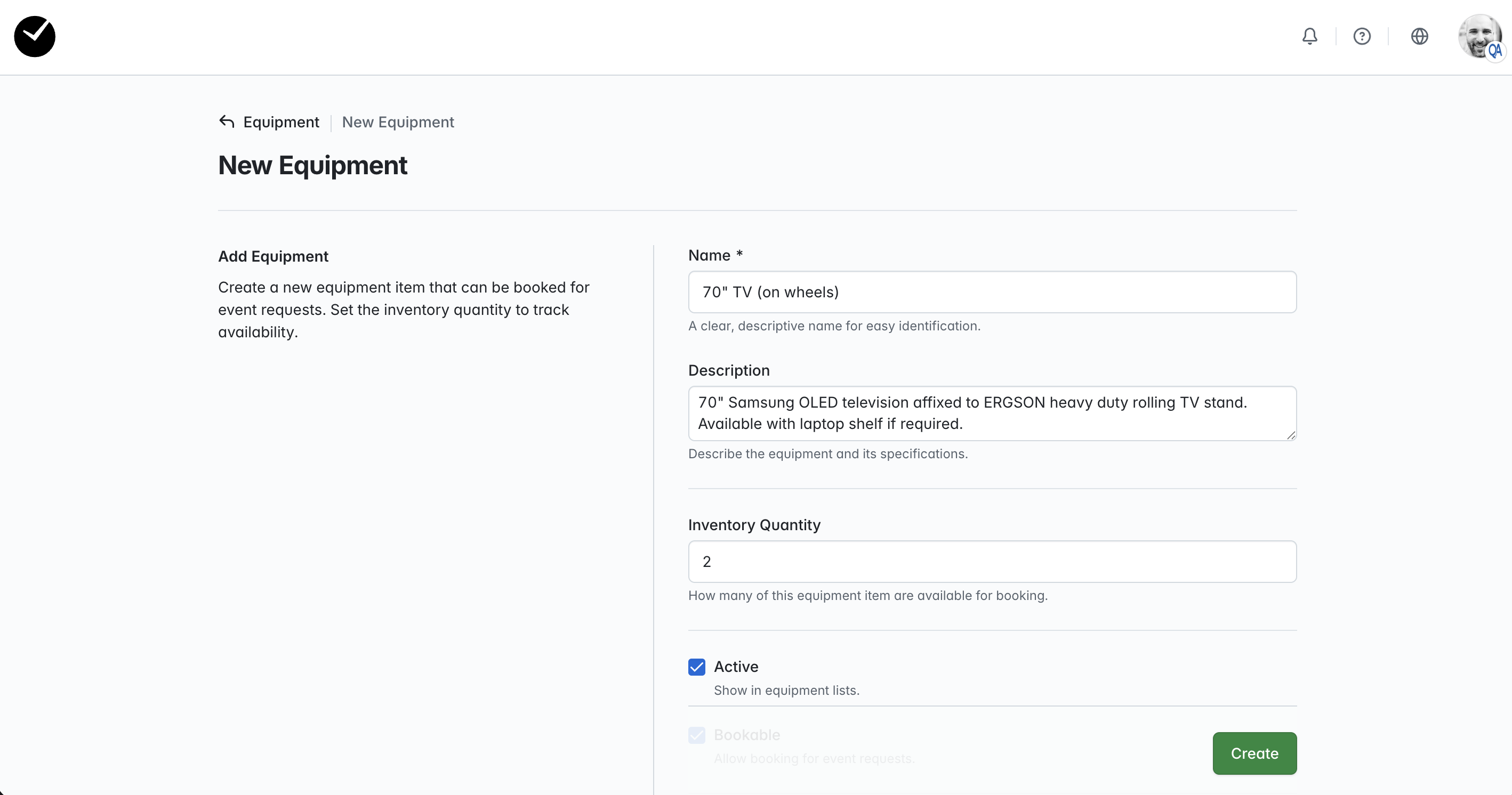
- After selecting to create a new 'Equipment' facility, populate the following fields/configuration options:
- Name - the name that will be displayed for the equipment when being viewed by an event requestor. This is a mandatory field.
- Description - add a general description of the equipment if desired. This is an optional field.
- Inventory Quantity - sets the quantity of the equipment that can be provided for the event. The quantity will be shown to the event requestor when preparing their Event Request, and will be able to be adjusted if multiple quantities are available for a specific equipment type.
- Active - when selected/enabled, the equipment will be displayed in the 'Equipment' area of your Event Request form when viewed by an event requestor.
- Bookable - when selected/enabled, the equipment will be available to be requested for booking in the 'Equipment' area of your Event Request form when viewed by an event requestor.
- Day Rate - add the cost of booking the equipment for a full day in this field. All costs will be captured against the invoice for the Event Request. This is an optional field.
- Half Day Rate - add the cost of booking the equipment for half a day in this field. All costs will be captured against the invoice for the Event Request. This is an optional field.
- Restrict to specific venues - allows you restrict availability of equipment at specific venues. When enabled, you will see a set of venues below, toggle the venues you wish to show as having the equipment available for requesting.
- Terms & Conditions - add a set of terms and conditions for booking the equipment in this text area. When this area is populated, an event requestor must read and accept before they can request to book the equipment. This is an optional field.
- Photo - add a thumbnail image that will be shown on the 'Equipment' page for the associated equipment when selected. This is an optional field.
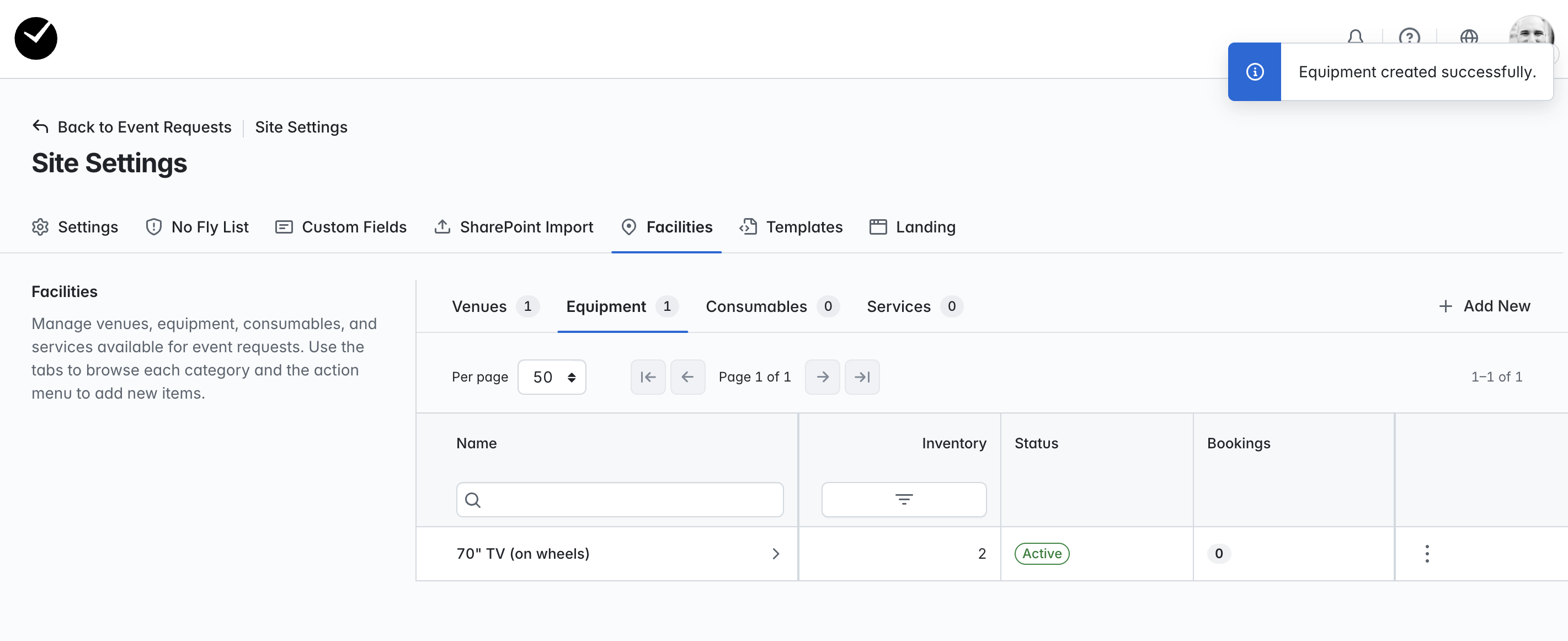
- Next we save the facility, and we are returned to the Facilities area, with the new facility showing on the grid.
- Now when a requestor begins to create their Event Request, the 'Equipment' is listed and available for selection to be requested:
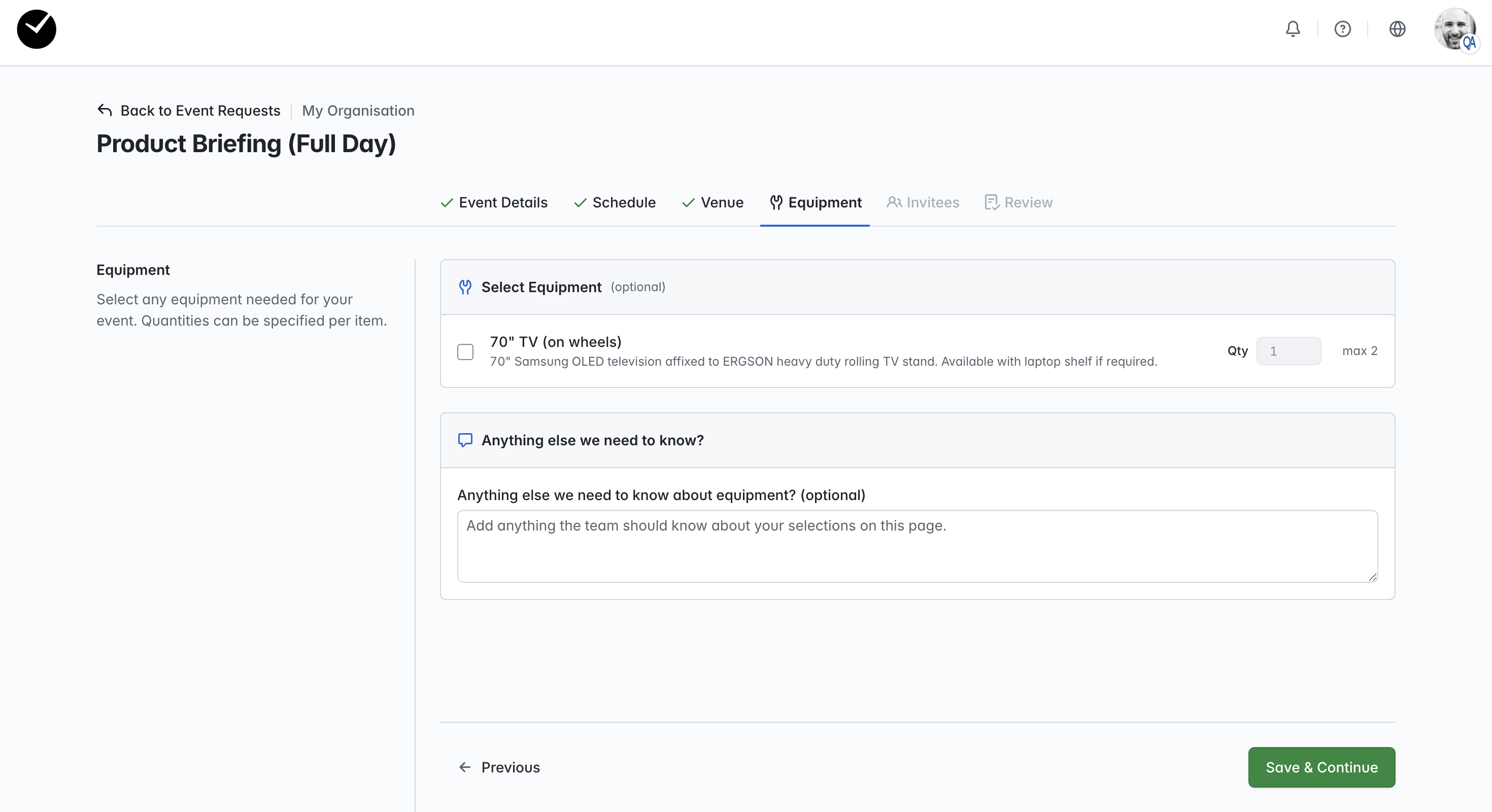
- If you have added an image and/or terms and conditions, these will be displayed when the event requestor selects the checkbox for the equipment:
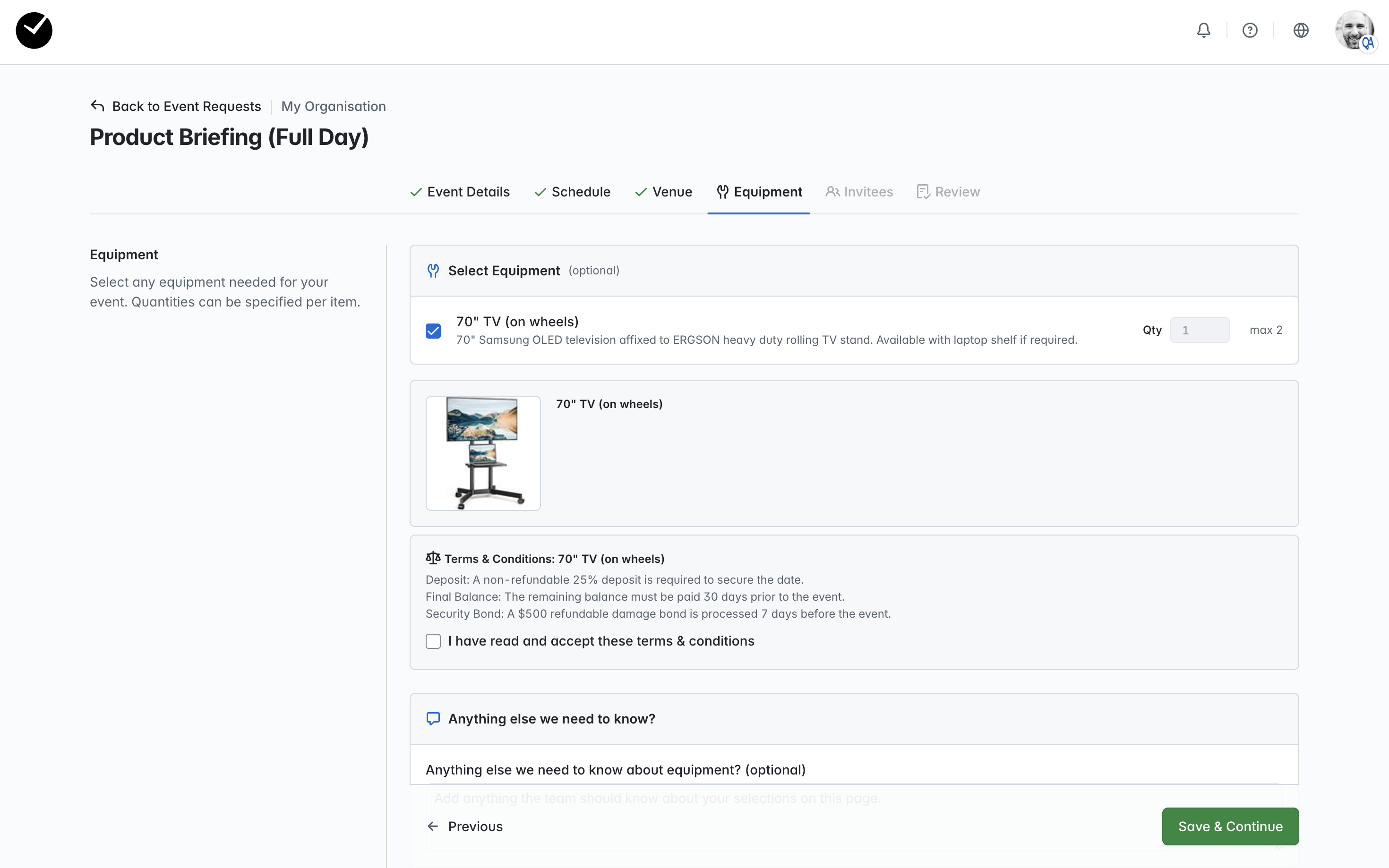
As mentioned earlier, if the 'Equipment' item is not set as 'Active' and 'Bookable', the event requestor will not be able to request the equipment.
Adding a 'Consumable' Facility
- After selecting to create a new 'Consumable' facility, populate the following fields/configuration options:
- Name - the name that will be displayed for the consumable when being viewed by an event requestor. This is a mandatory field.
- Description - add a general description of the consumable if desired. This is an optional field.
- Daily Capacity - sets the maximum number of people that the consumable item can accommodate. The capacity will be shown to the event requestor when preparing their Event Request, and will be unable to be selected when the requested capacity for their event exceeds the capacity of the consumable.
- Per-Person Rate - add the cost of using the consumable facility per person in this field. All costs will be captured against the invoice for the Event Request. This is an optional field.
- Hide price from requestors - displays the item when 'Active' and 'Bookable' to the event requestor, but does not show the price.
- Active - when selected/enabled, the consumable will be displayed in the 'Consumables' area of your Event Request form when viewed by an event requestor.
- Bookable - when selected/enabled, the consumable will be available to be requested for booking in the 'Consumable' area of your Event Request form when viewed by an event requestor.
- Terms & Conditions - add a set of terms and conditions for booking the consumable facility in this text area. When this area is populated, an event requestor must read and accept before they can request to book the consumable. This is an optional field.
- Photo - add a thumbnail image that will be shown on the 'Consumables' page for the associated consumable when selected. This is an optional field.
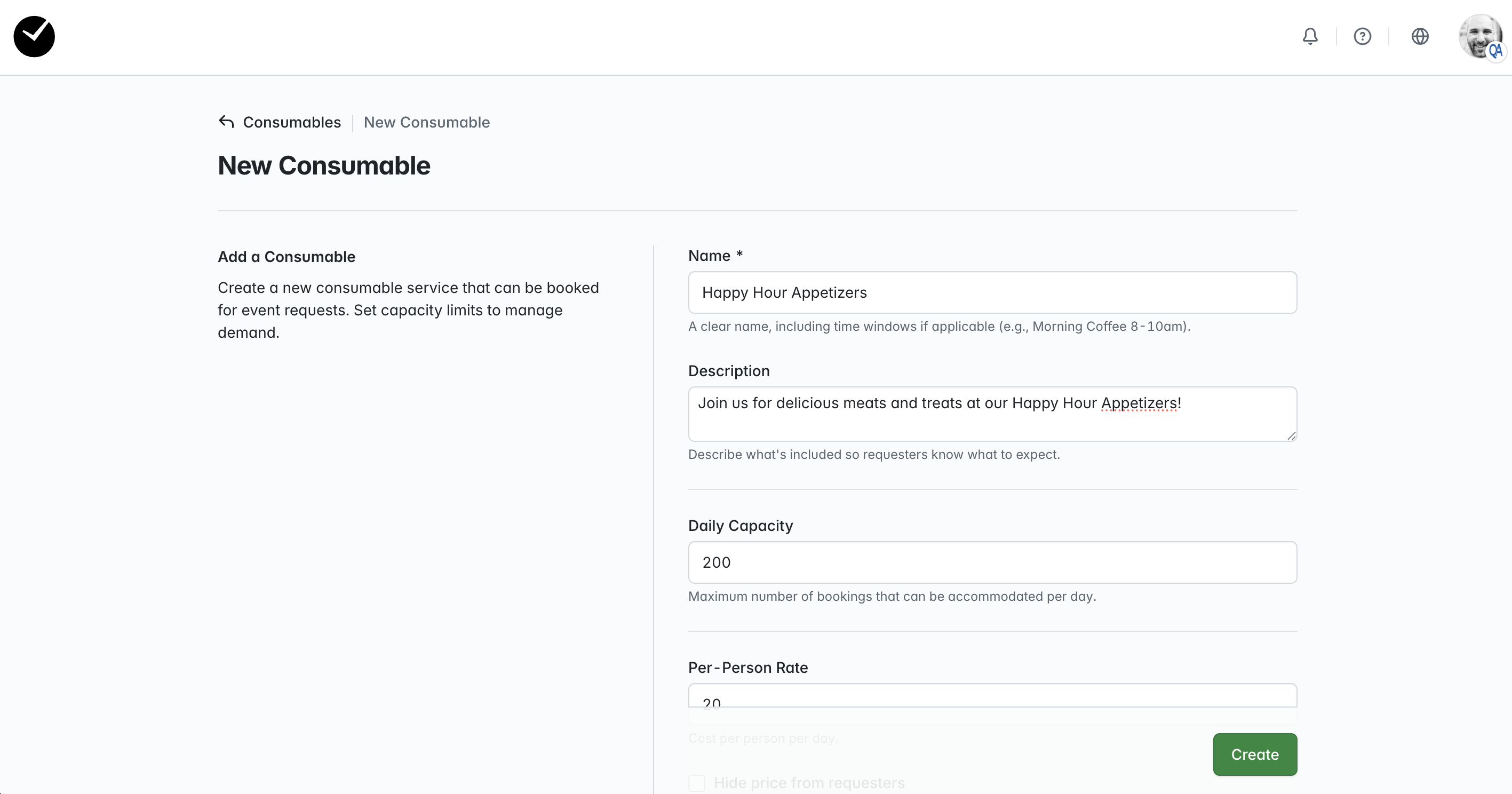
- Next we save the facility, and we are returned to the Facilities area, with the new facility showing on the grid.
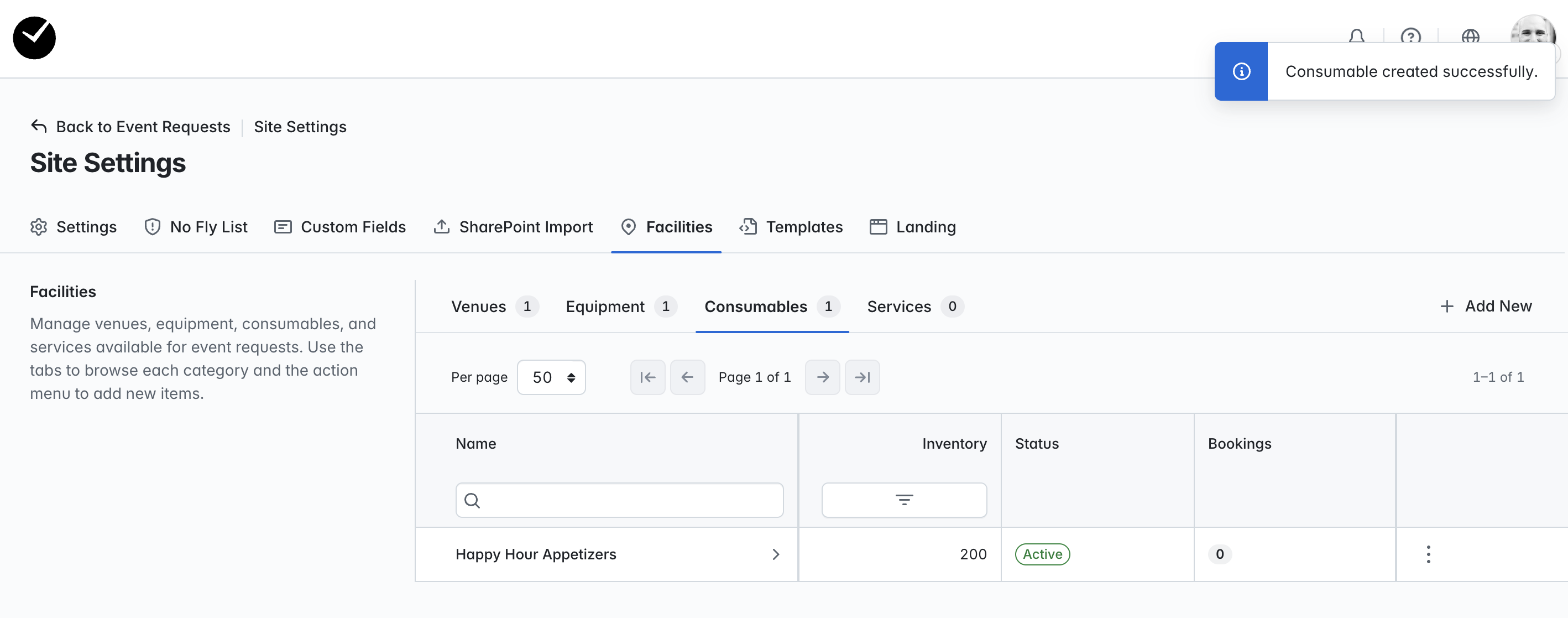
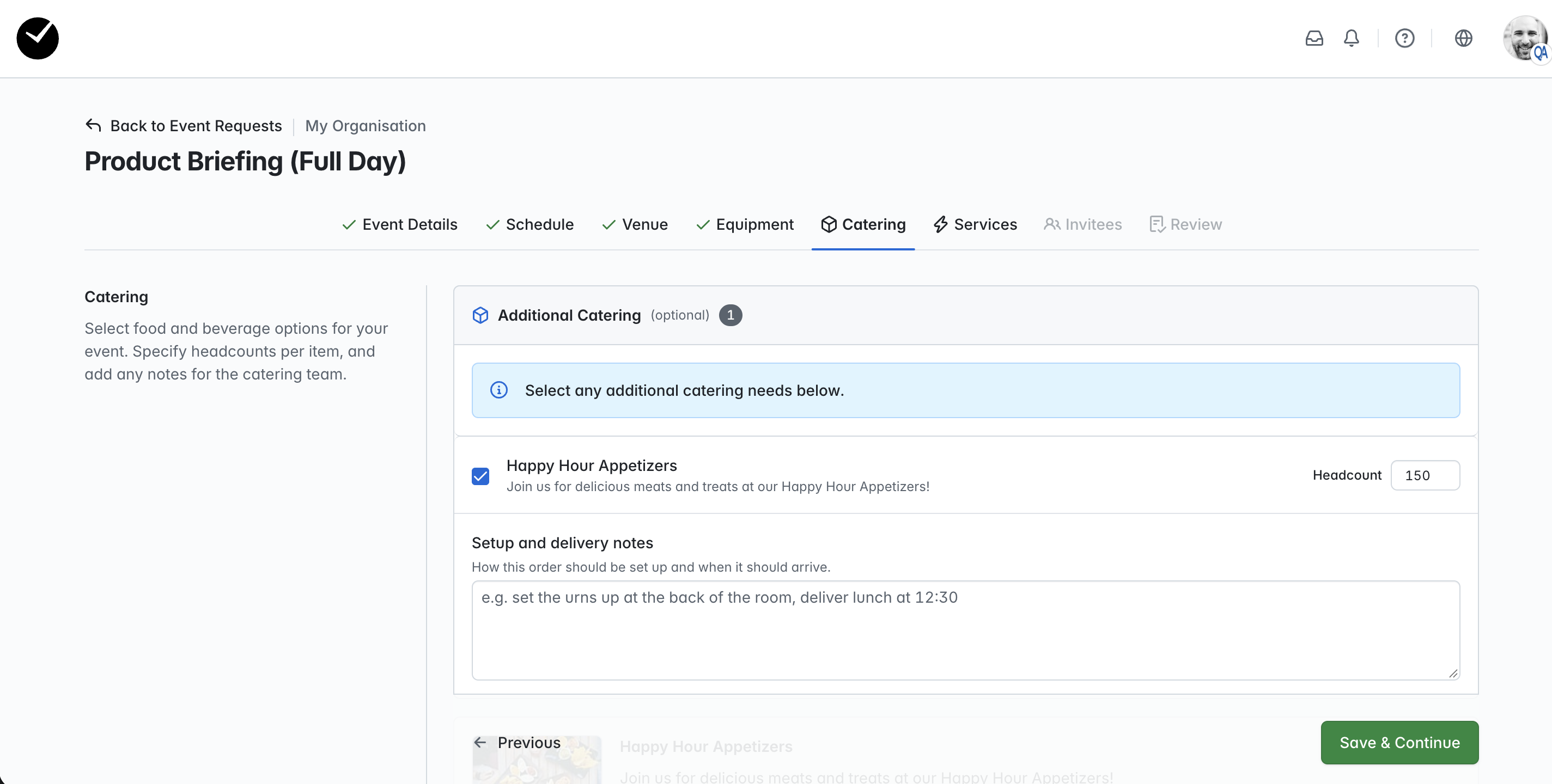
- Now when a requestor begins to create their Event Request, the 'Consumable' is listed and available for selection to be requested. We also provide a 'notes' area for noting any setup or delivery requirements if needed:
- If you have added an image and/or terms and conditions, these will be displayed when the event requestor selects the checkbox for the consumable:
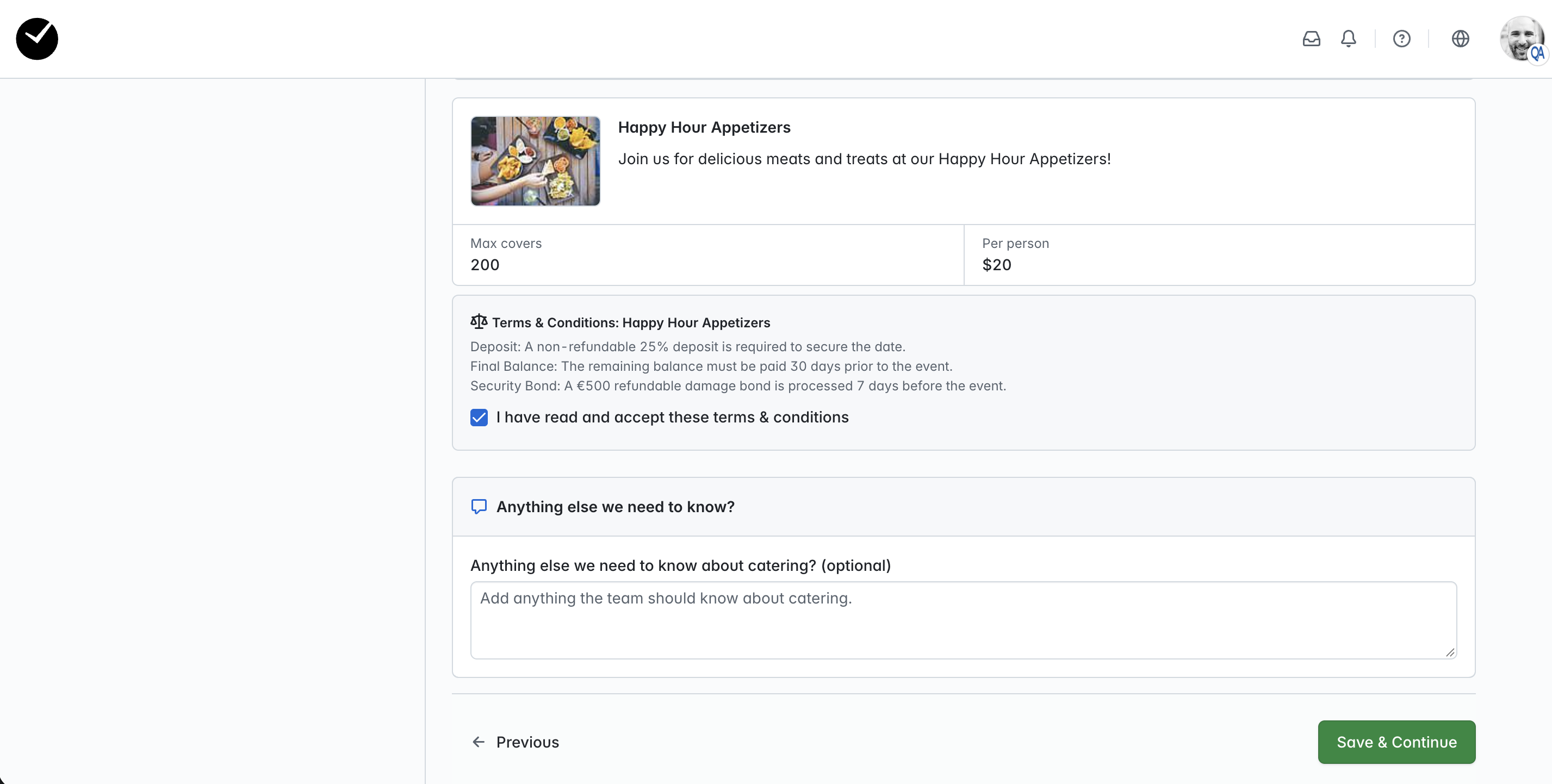
As mentioned earlier, if the 'Consumable' item is not set as 'Active' and 'Bookable', the event requestor will not be able to request the consumable.
Adding a 'Services' Facility
- After selecting to create a new 'Service' facility, populate the following fields/configuration options:
- Name - the name that will be displayed for the service when being viewed by an event requestor. This is a mandatory field.
- Description - add a general description of the service if desired. This is an optional field.
- Availability - sets the quantity of the service item available for requesting. The availability will be shown to the event requestor when preparing their Event Request, and will be able to be adjusted if multiple quantities are available for a specific service type.
- Day Rate - add the cost of booking the service for a full day in this field. All costs will be captured against the invoice for the Event Request. This is an optional field.
- Half Day Rate - add the cost of booking the service for half a day in this field. All costs will be captured against the invoice for the Event Request. This is an optional field.
- Active - when selected/enabled, the service will be displayed in the 'Service' area of your Event Request form when viewed by an event requestor.
- Bookable - when selected/enabled, the service will be available to be requested for booking in the 'Service' area of your Event Request form when viewed by an event requestor.
- Terms & Conditions - add a set of terms and conditions for booking the service in this text area. When this area is populated, an event requestor must read and accept before they can request to book the service. This is an optional field.
- Photo - add a thumbnail image that will be shown on the 'Service' page for the associated service when selected. This is an optional field.
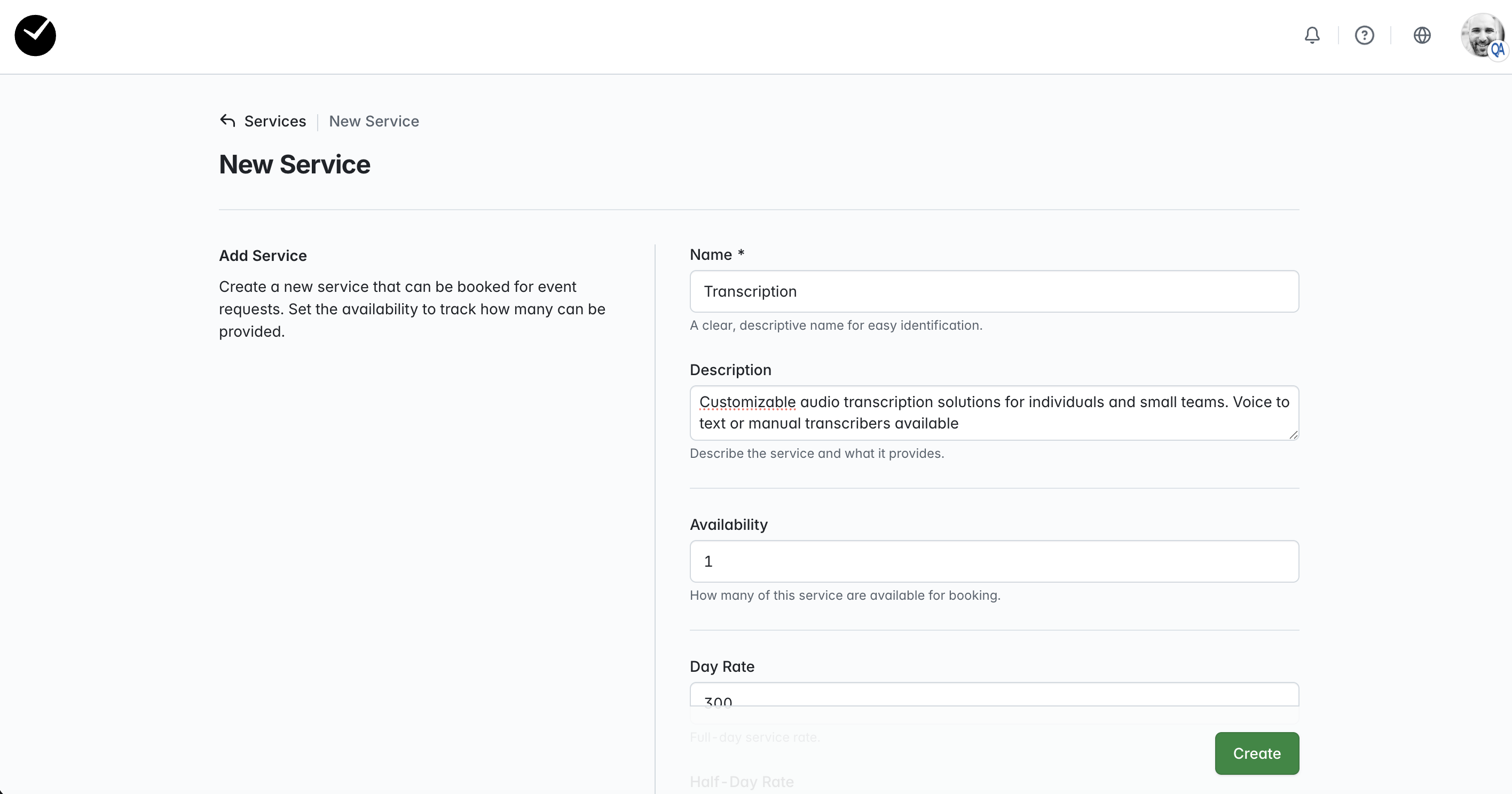
- Next we save the facility, and we are returned to the Facilities area, with the new facility showing on the grid.
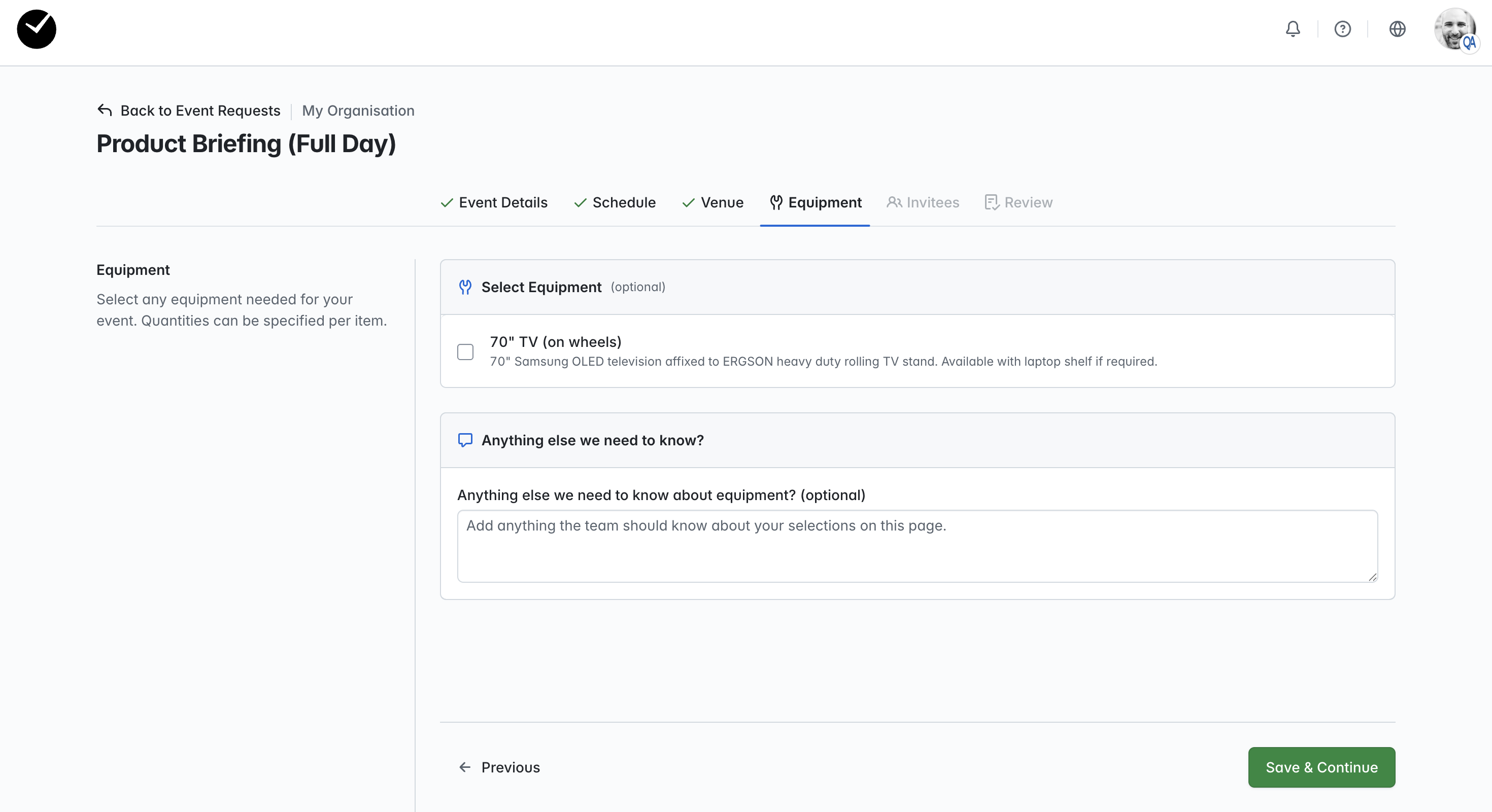
- Now when a requestor begins to create their Event Request, the 'Service' is listed and available for selection to be requested:
- If you have added an image and/or terms and conditions, these will be displayed when the event requestor selects the checkbox for the service:
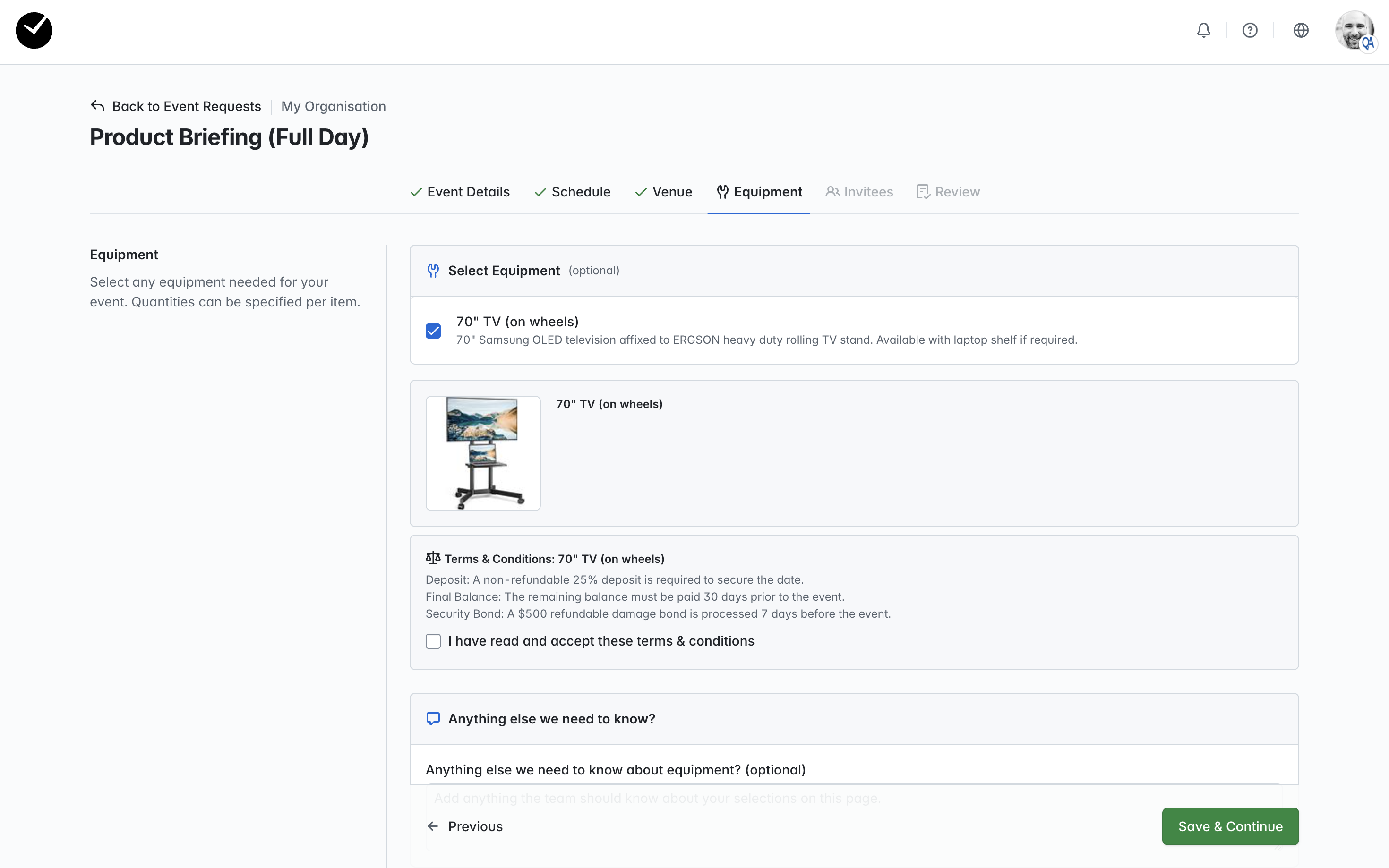
As mentioned earlier, if the 'Service' item is not set as 'Active' and 'Bookable', the event requestor will not be able to request the service.
Adding a 'Layout' Facility
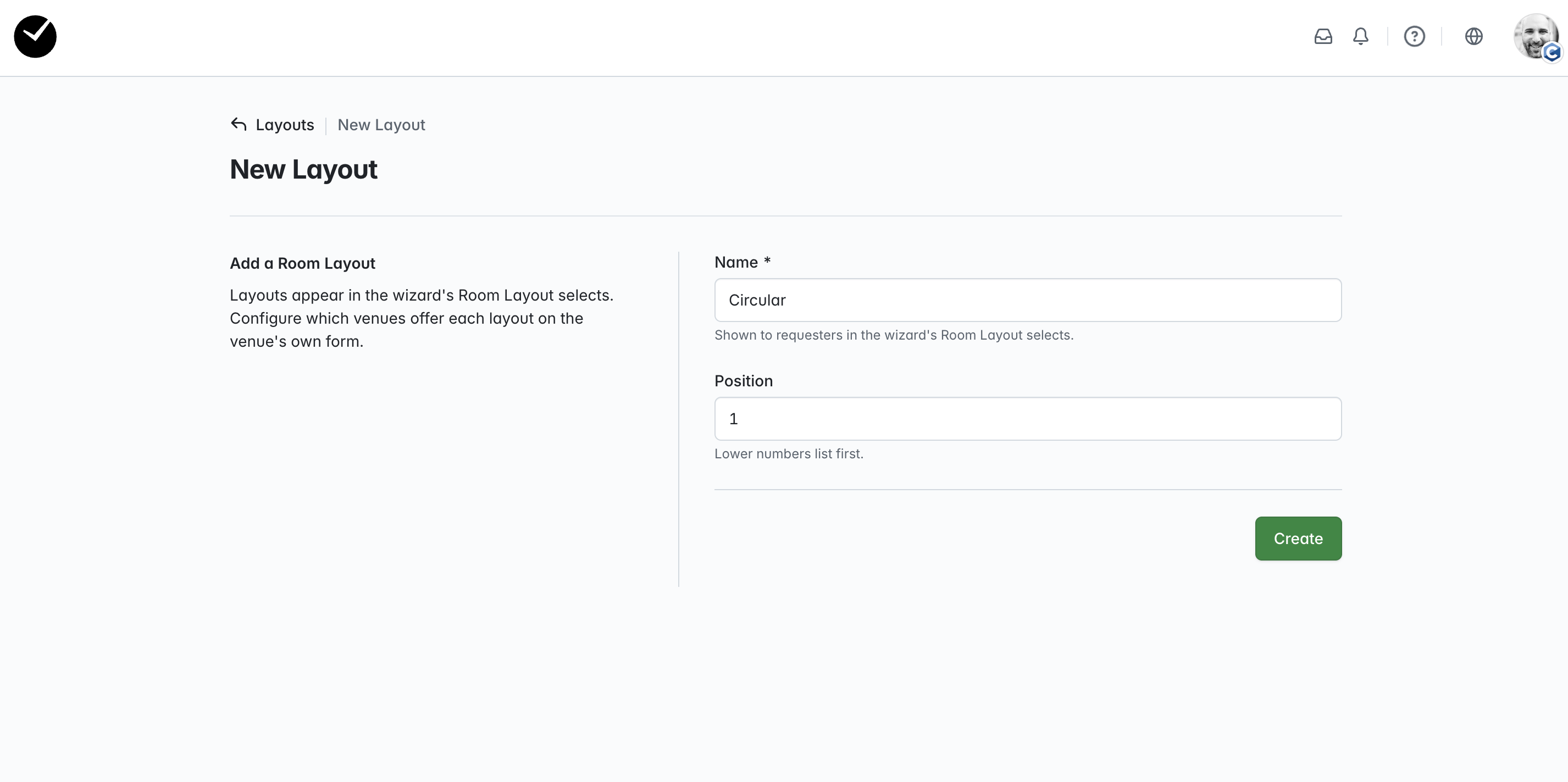
- After selecting to create a new 'Layout' facility, populate the following fields/configuration options:
- Name - the name that will be displayed for the layout when being viewed by an event requestor. This is a mandatory field.
- Position - set the position in which the 'Layout' will be displayed on the 'Layouts' list when viewed by an event requestor. The default position applied when creating will be 'last', just enter a number in the field that matches the position you wish for it to be displayed (enter '1' to display first etc).
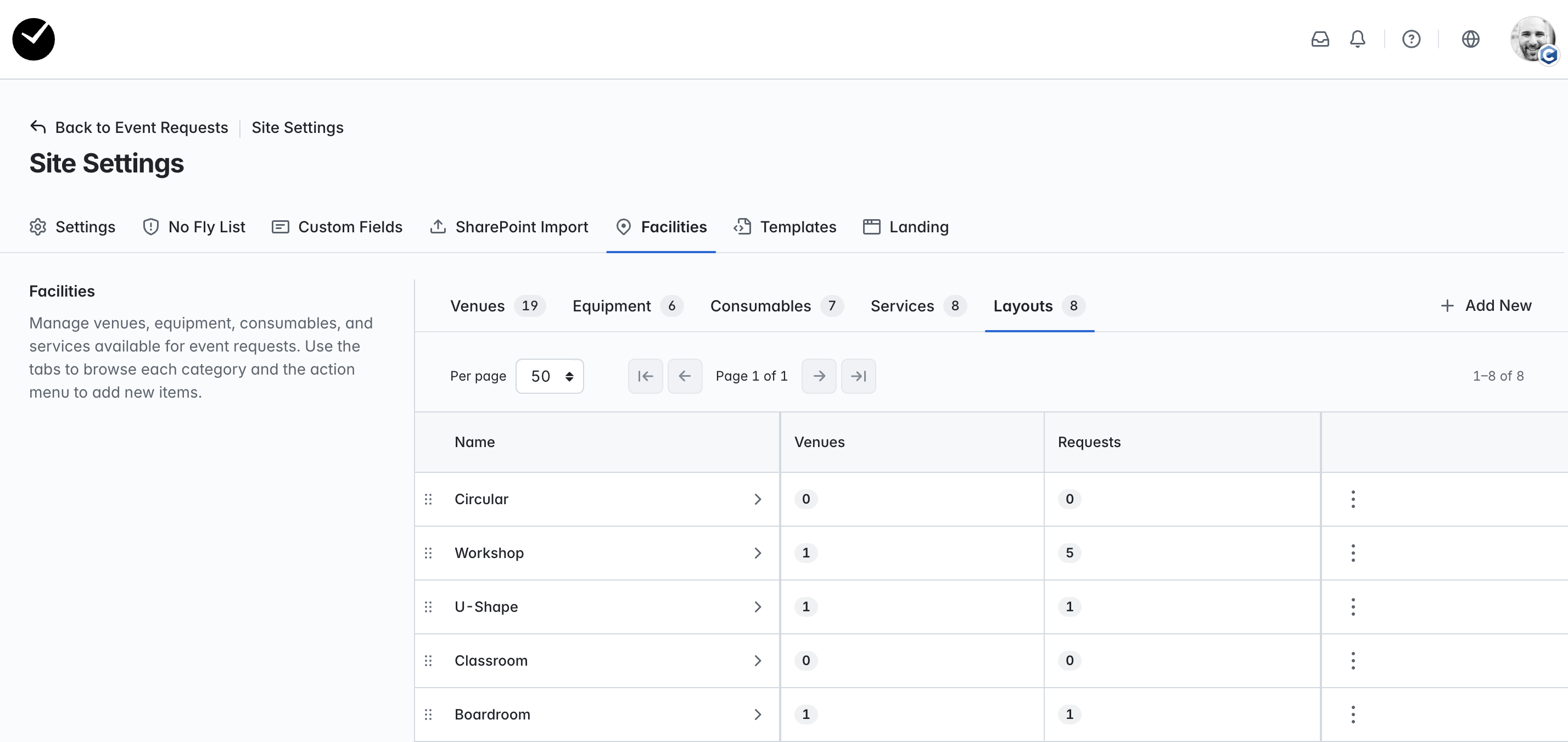
- Next we save the layout, and we are returned to the Facilities area, with the new layout showing on the grid.
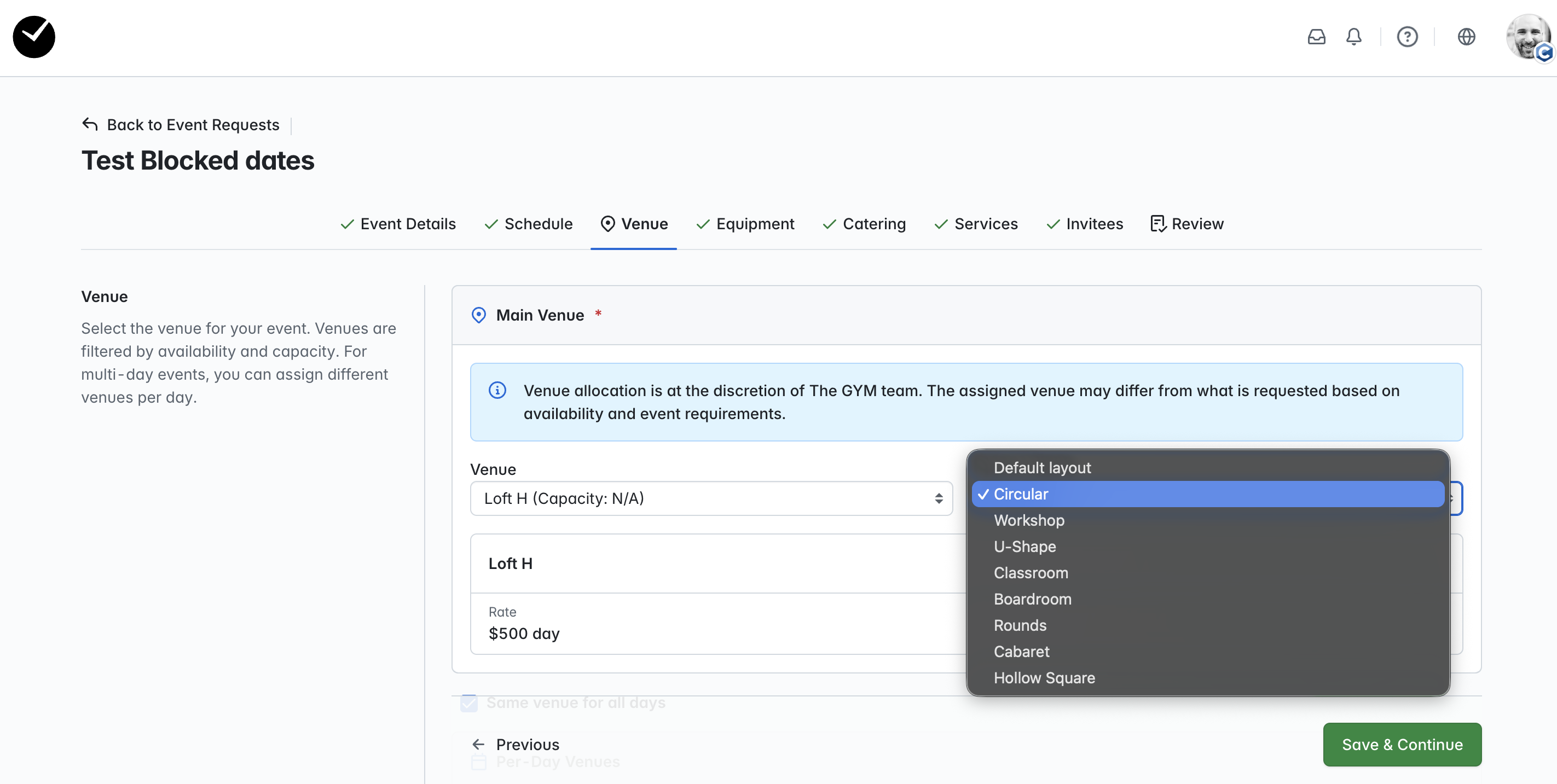
- Now when a requestor begins to create their Event Request, the 'Layout' is listed and available for selection to be requested:
How do I manage my facilities once they have been added to the Event Request form?
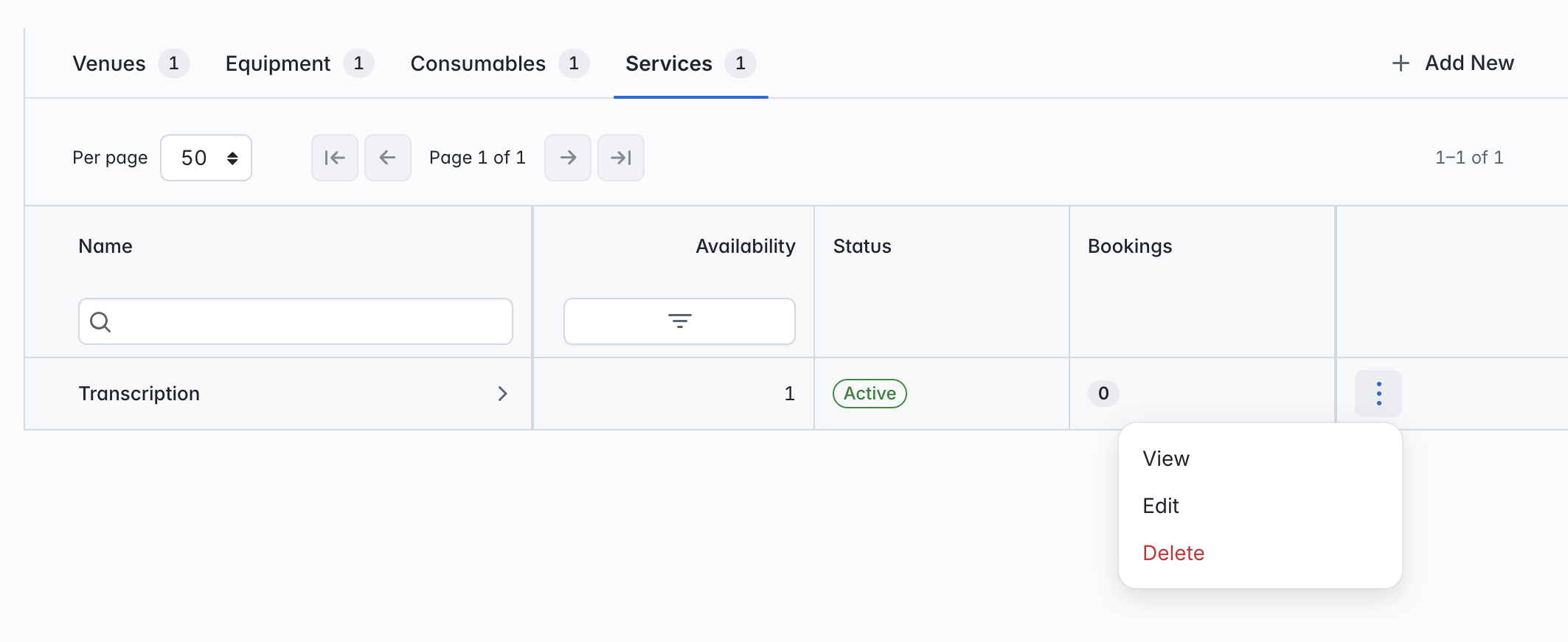
To view, edit or delete a facility, click on the 3 dots at the end of the row for the field you wish to manage, and select the option you wish to action:
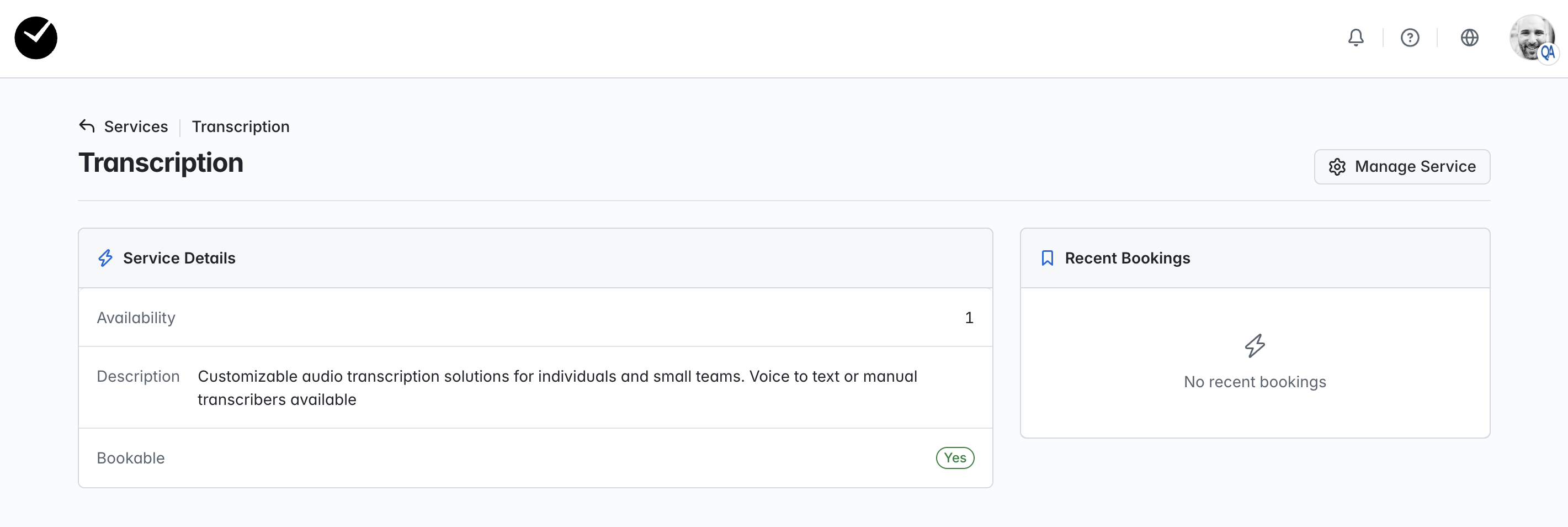
Selecting to 'View' a facility will show a summary page for the facility item, showing a brief description and booking summary, as well as a link to edit under the 'Manage ...' button at the top right of the page:
Selecting 'Edit' will take you to the 'Edit' page for the selected facilityx, where you can make your changes as needed and save. Selecting 'Delete' will destroy the facility following confirmation.