.png)
How do I create and configure event Templates for Event Requests?
Notes: To use the 'Event Requests' feature, it must be enabled for your organization first. Please contact support if you are interested in activating the feature for your organization.
Only administrators can create and configure event Templates for Event Requests.
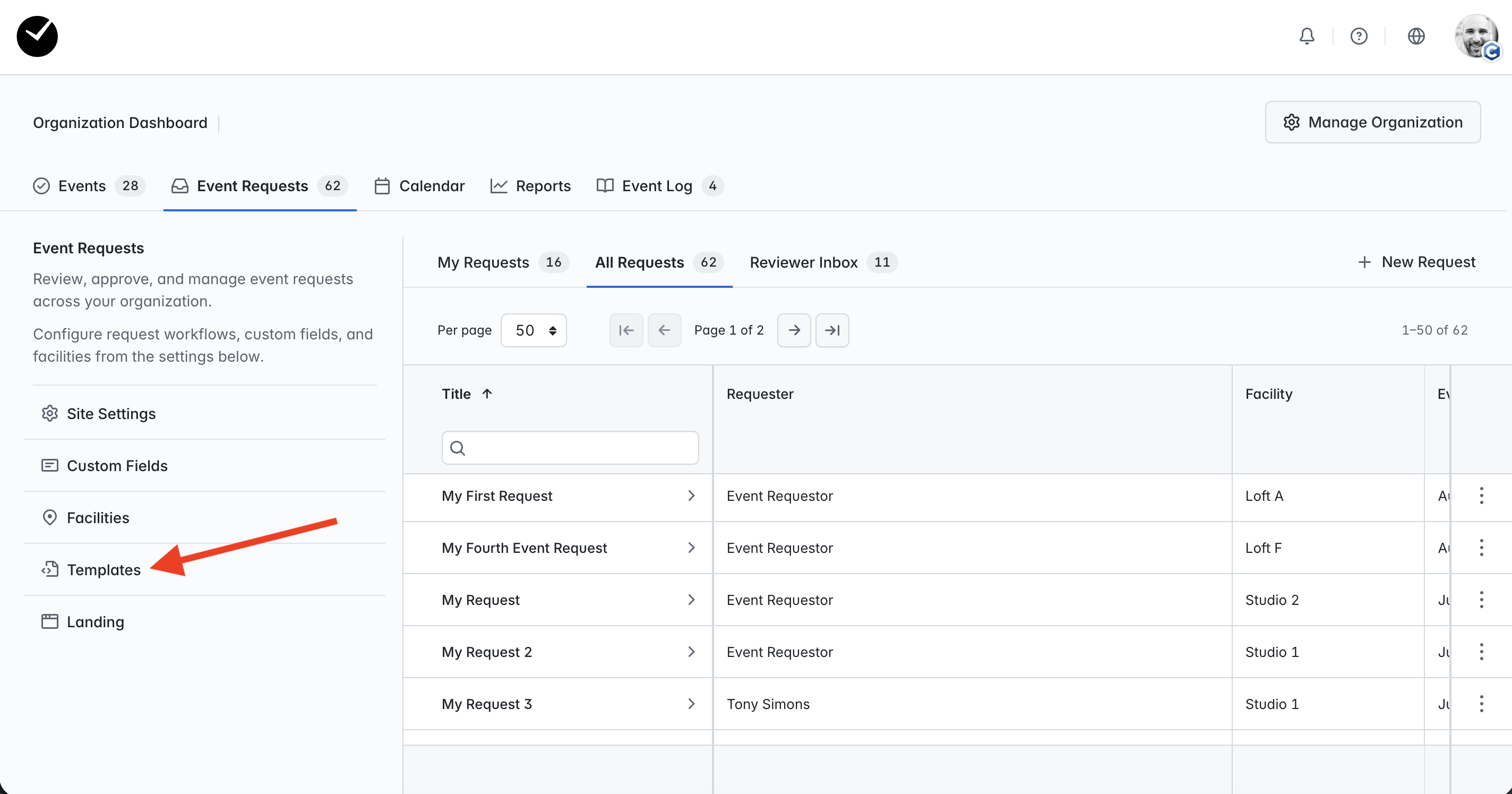
If you'd like to add some event templates to be used when converting your organization's Event Requests into events, you can begin configuring this in your Site Settings -> Templates area. This can be accessed from the left column in your Event Requests area or by selecting the 'Templates' tab on your Site Settings page:
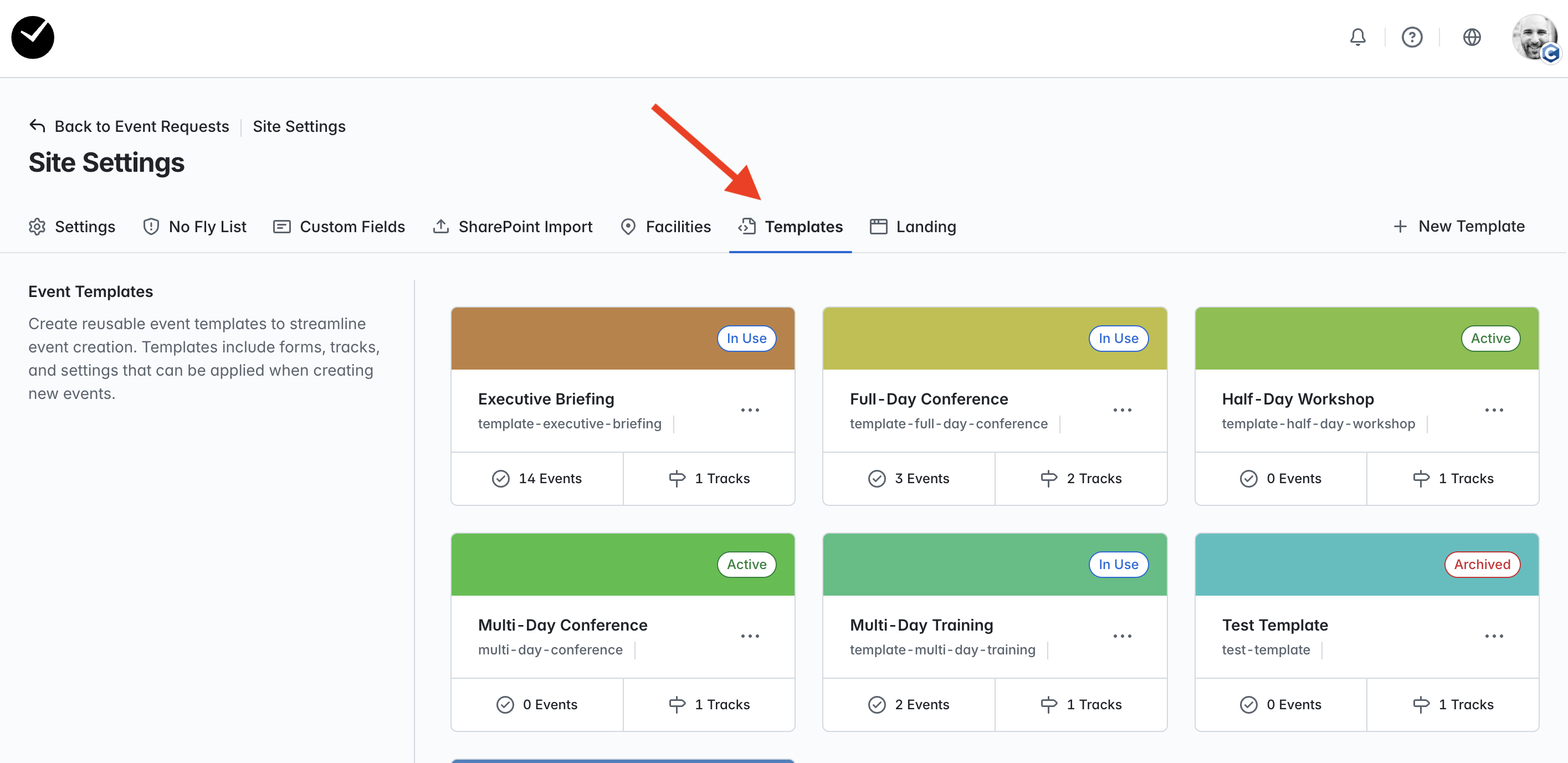
To begin creating new event Templates, click on the '+ New Template' button at the top right of the page. You will then see something like the following:

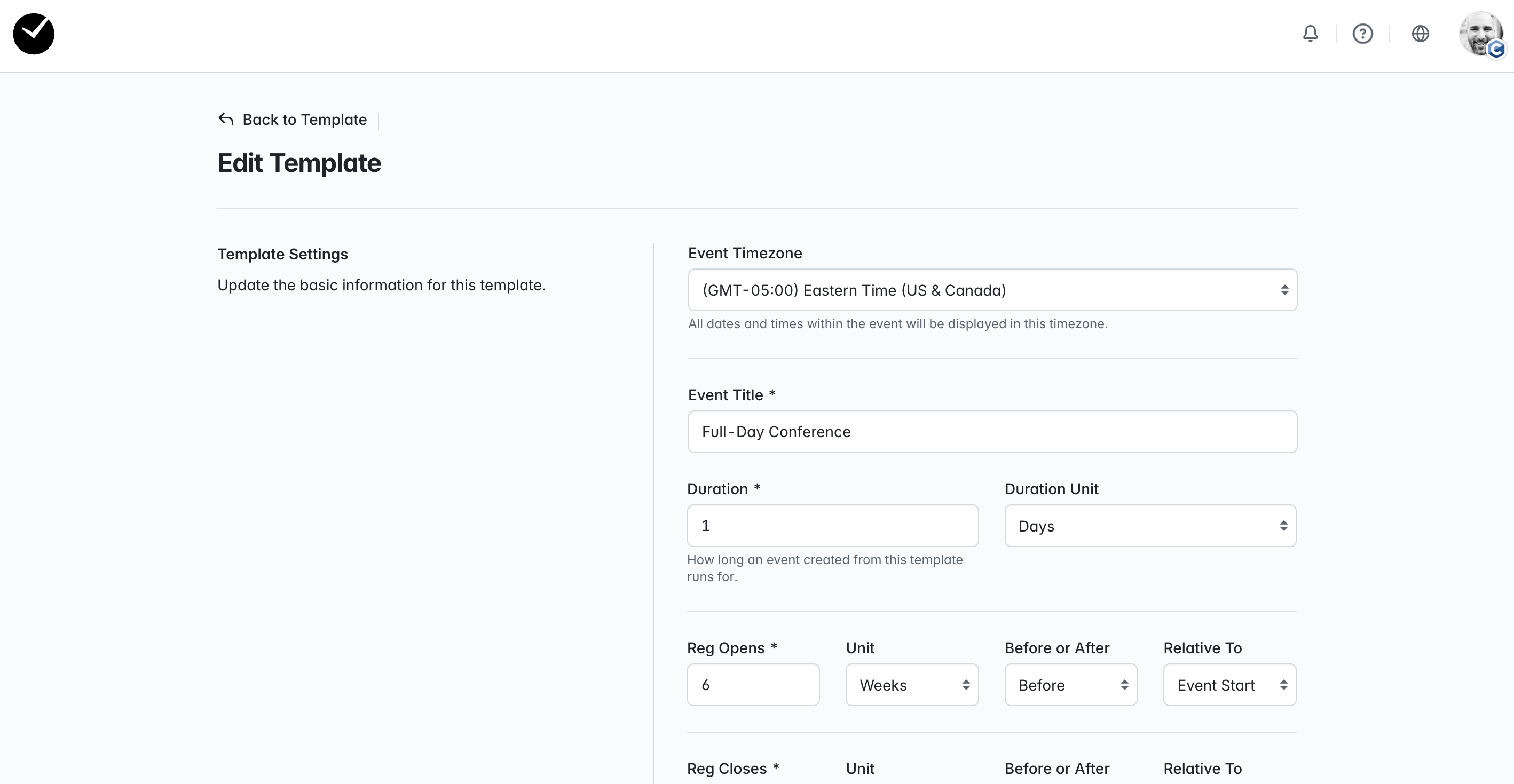
The following can be configured as follows, any field noted with an asterisk (*) is mandatory and must be completed to successfully save your field:
- Event Timezone - this is the timezone that will be applied to your event template. All event times will be returned in the event in the time selected, including registration dates/times. This is a mandatory field.
- Event Title - this is the name you wish to give your event Template. This is a mandatory field.
- Duration - allows you to set the duration of the template event (hours or days). This is a mandatory requirement. Please note that this will be overridden by the requested event duration if it exceeds the selected duration of the template.
- Reg Opens - using the dropdown options and fields provided, you can select the date that your event will begin allowing registrations to be taken. By default, this will be set to 6 weeks before the start of the event.
- Reg Closes - using the 2 options and fields provided, you can select the date that your event will close the ability to register for it. 'Fixed Offset' will allow you to set a set amount of time before the event starts or after the event begins using the fields provided. 'Weekday of the week before' allows you to select a day of the week that registration will close, as well as the amount of weeks and a specific time (eg 12pm). By default this is set to close on the Monday of the week prior to event start at 11:59pm in your event timezone.
When you are ready to proceed, select the 'Create' button and your event template will be created:
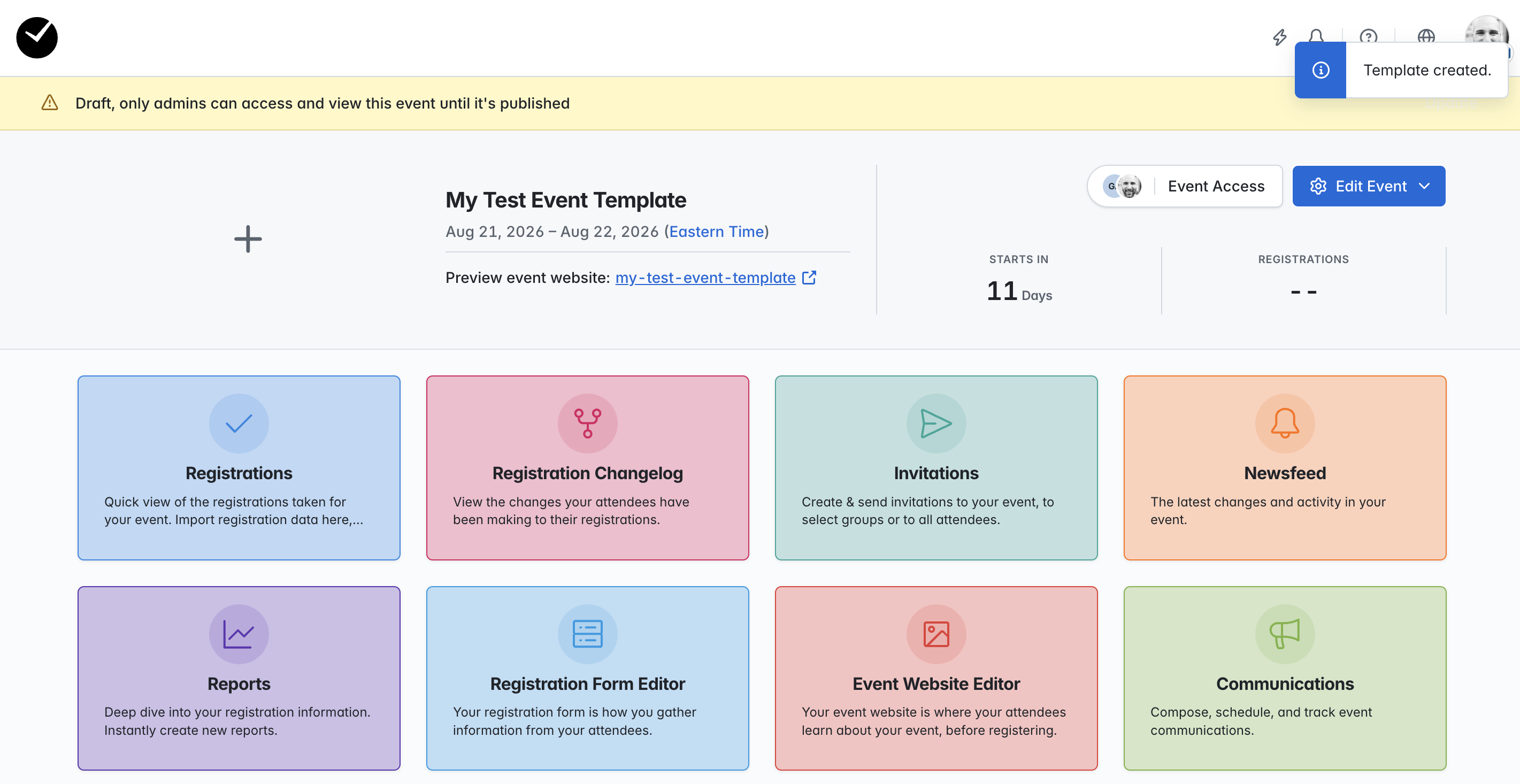
You can now start configuring your event template to your specifications, eg creating the event registration form, event website as well as all other areas you may wish to configure. Please note that the running dates displayed at the top of the event dashboard and within your event settings within the template site are not applied to any event requests converted using the current template, these are just placeholders that are required in our system and can be ignored (they will not be applied to any converted requests)!
When you are ready to return, click on the black getregistered logo at the top left of the page to return to your Organization Dashboard.
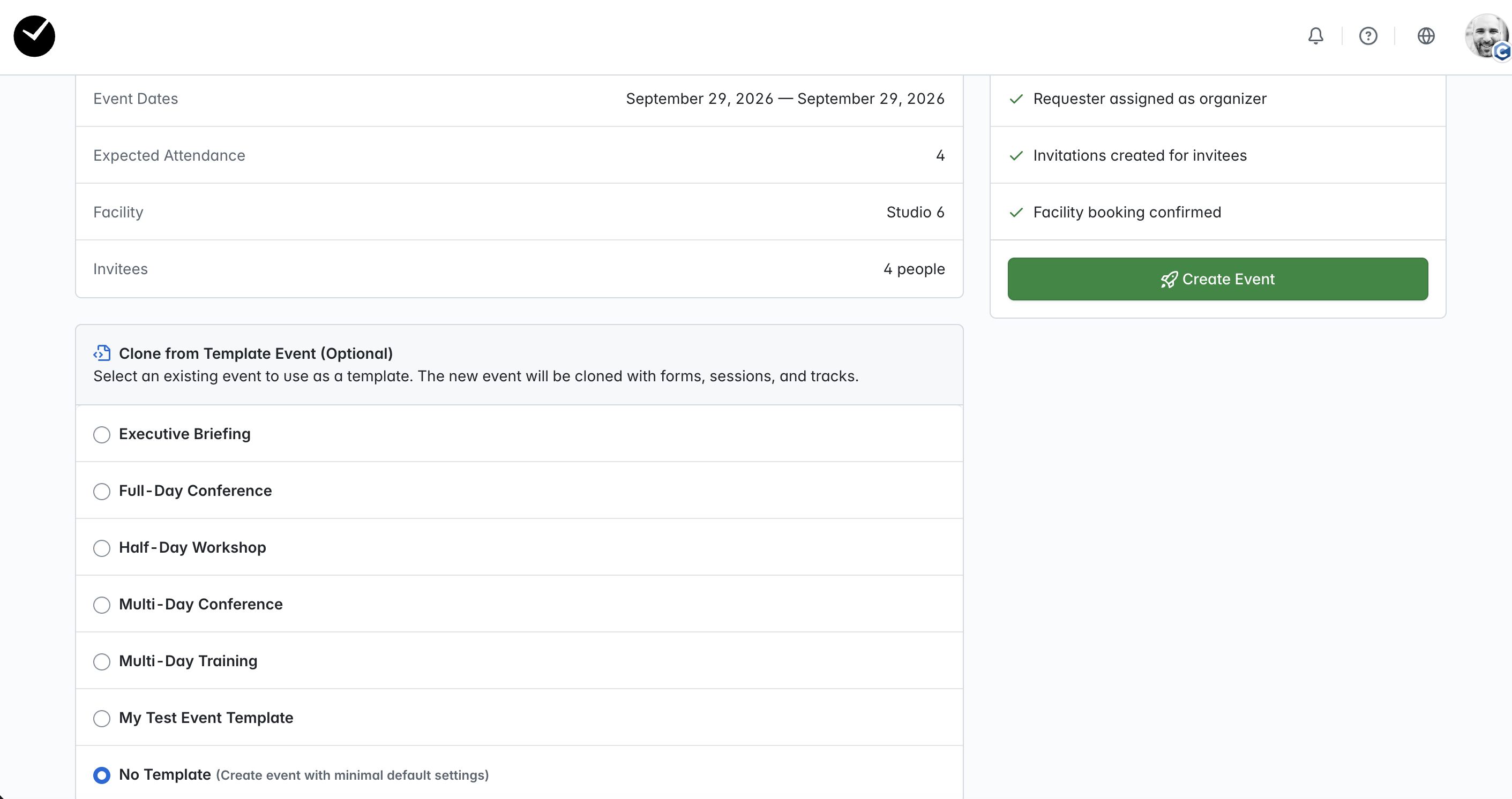
Your event Template is now active and available for selection when converting approved Event Requests to events:
How do I manage my event Templates?
As mentioned previously, enter the 'Templates' area by clicking on the 'Templates' option on the main 'Event Requests' page of your Organization Dashboard, or select the 'Templates' tab when interacting with the 'Site Settings' page:
In your Templates area, you will see tiles displayed for all event Templates in your organization, sorted alphabetically. Each event will show the current status (Archived/Active/In Use) as well as the number of events/bookings using the template.
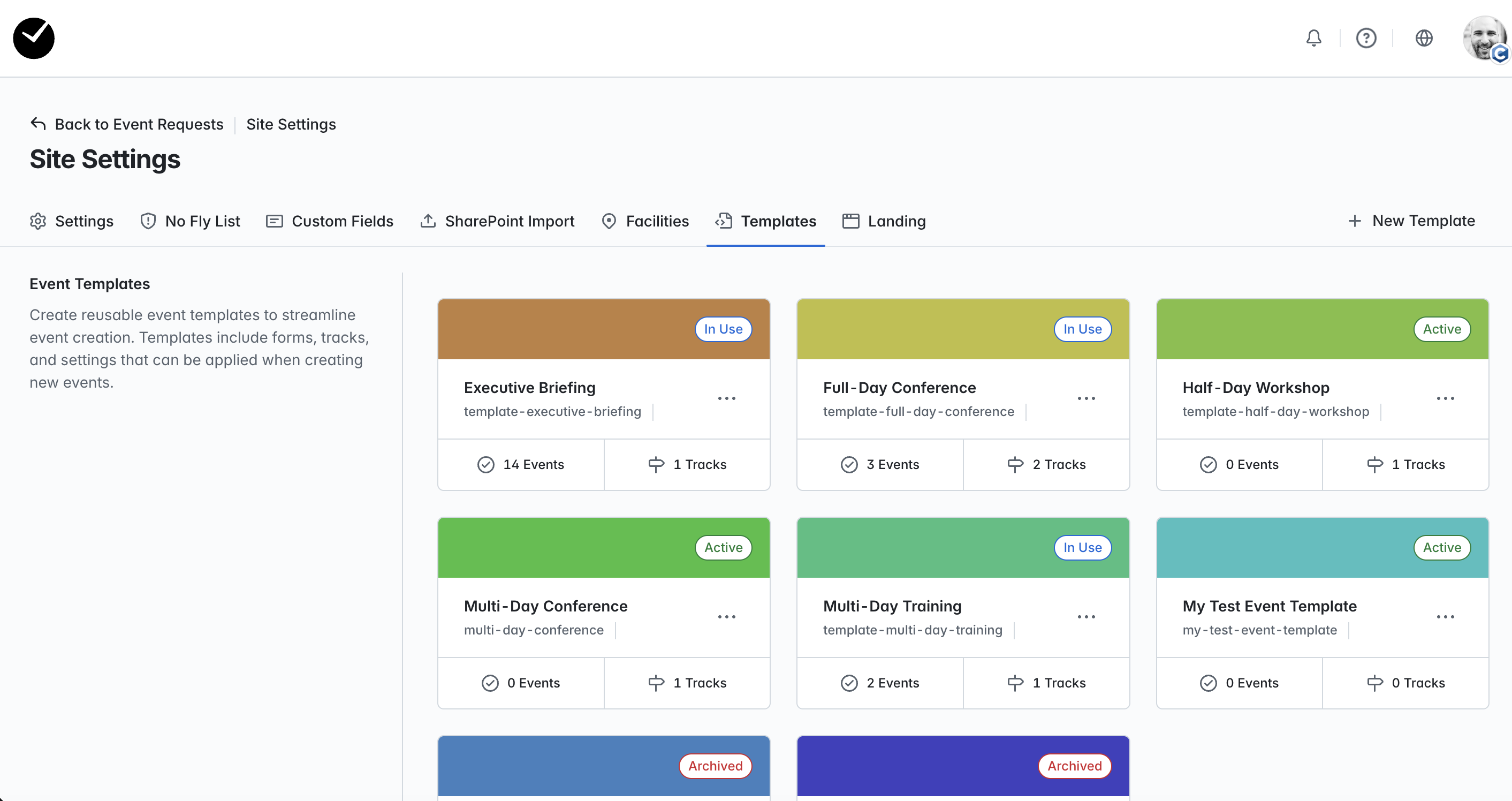
- Archived - the event template has been archived and can no longer be used as a template when converting events.
- Active - the event template is active but has not been used for any event request conversions.
- In Use - the event template has actively been used for event request conversions.
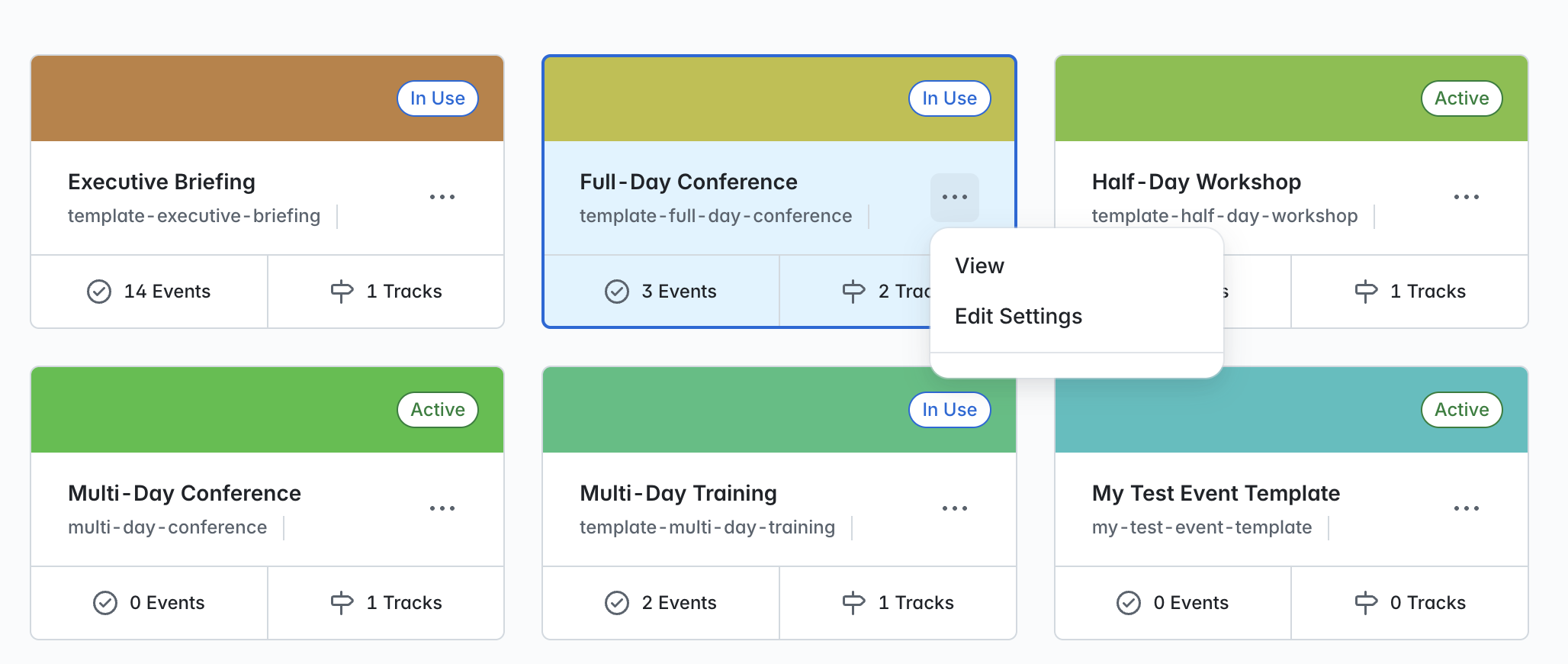
You can view any event directly by clicking on the tile, and you also have this option available by clicking on the three dots on the tile, as well as the ability to 'Edit Settings':
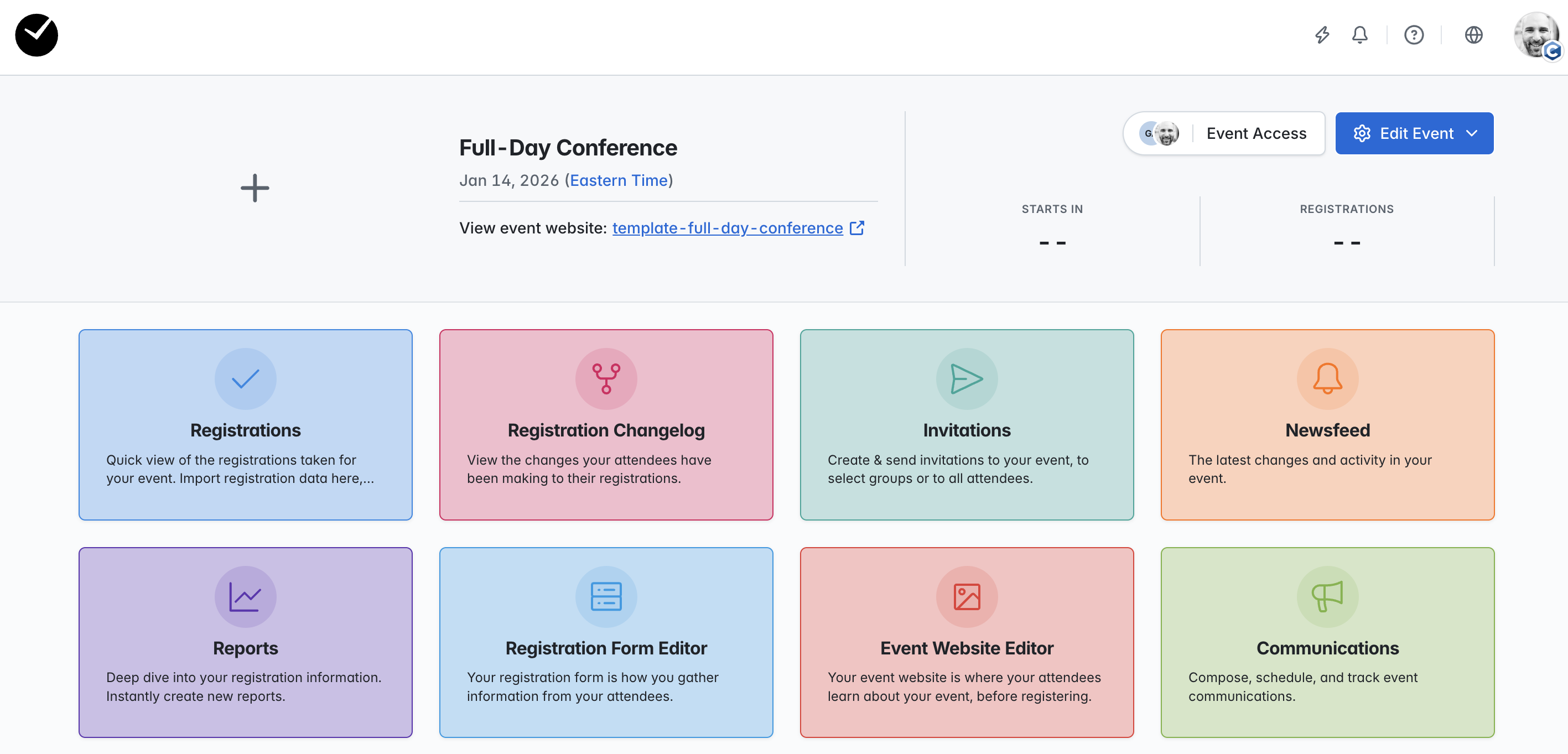
Selecting to 'View' either via the tile or the menu will take you directly to the Event Dashboard for the template:
Selecting to 'Edit Settings' via the menu will take you to the 'Edit Template' page: