.png)
Is there a way I can 'bulk' manage my event Invitations?
Note: Your organization must have our 'Bulk Inivitation Actions' feature enabled to manage multiple invitations on your Inivitations page. Please contact support if you are interested in having this feature enabled.
If you have the 'Bulk Actions' feature enabled in your Invitations, you will see a set of checkboxes displayed next to each row on your Invitations grid:

When you select a checkbox or multiple checkboxes, you will see the 'Actions' menu available to the right of the page:

From here you can perform the following bulk actions:
Bulk Send/Resend Invitations
- Select the attendees you wish to send/resend invitations to using the checkboxes provided and select 'Send/Resend':

- On the following window, confirm that you wish to proceed, checking that the details presented to you are correct:

- Click on the green confirmation button, and your bulk action will be actioned. You will then see the 'Operations' icon (lightning bolt) appear at the top of the page. This will inform you of the bulk actions progress, and when complete, your invitations will be sent:

- If you wish to check on the progress or history of your bulk actions, head to the 'Operations' page (accessed from the bottom of the 'Operations' menu:

Create a bespoke report (selected invitees only)
- Select the attendees you wish to capture in your report using the checkboxes provided and select 'Download CSV'/'Download XLSX':

- You will then see a new report generated, available either from the 'Downloads' menu or by clicking on the button displayed on the green 'Success' message:

Bulk Delete Invitations
- Select the attendees you wish to delete invitations for using the checkboxes provided and select 'Delete':

- On the following window, confirm that you wish to proceed by entering the text displayed into the field provided, checking that the details presented to you are correct:

- Click on the confirmation button, and your bulk action will be actioned. You will then see the 'Operations' icon (lightning bolt) appear at the top of the page. This will inform you of the bulk actions progress, and when complete, your invitations will be deleted:

Is there a way I can monitor my 'bulk actions' progress and past actions that have been completed?
Yes - at the top of the page, you will see a 'lightning bolt' icon displayed when a bulk action is made. This is your 'Operations' menu:
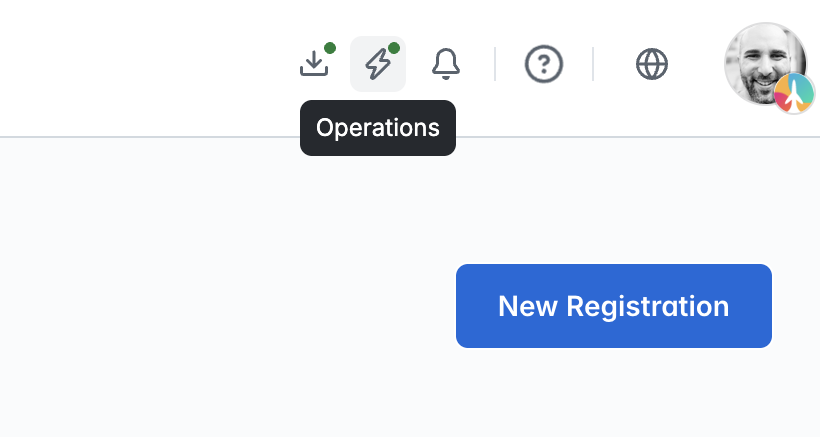
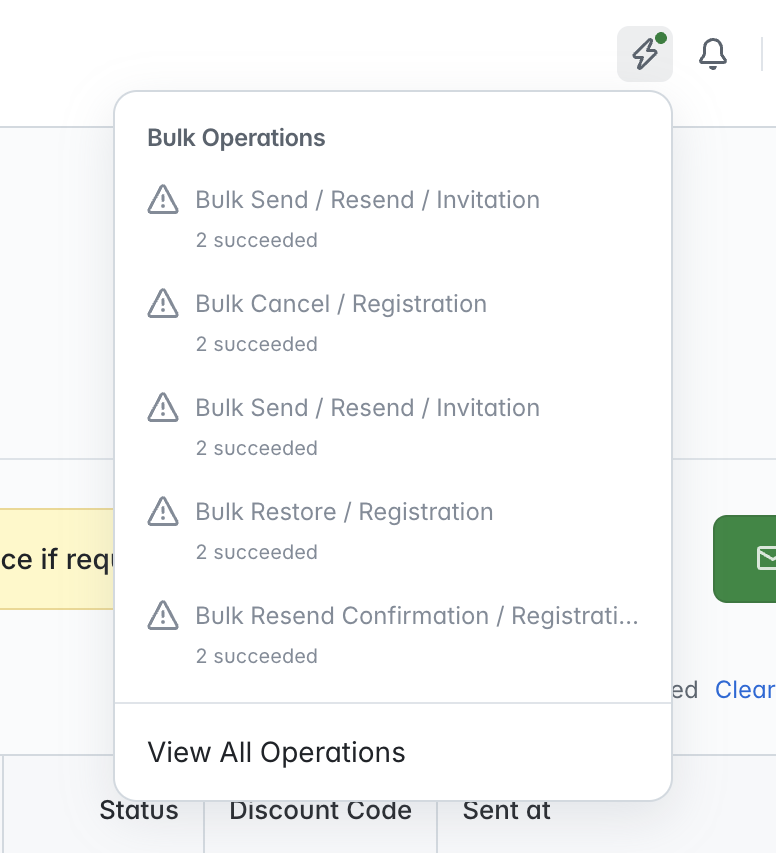
This only displays when bulk actions have been made in your event - clicking on this icon will show you a list of the last few bulk actions that have been made, with the ability to view all current and past bulk actions made by clicking on the 'View All Operations' option:
In the main 'Operations' area (accessed from the 'View All Operations' option), you will see a list of all bulk actions that have been made in your event, including the bulk operation type, actor, status, current progress and creation date. All columns on this page can be sorted and filtered with the exception of the 'Progress' column:
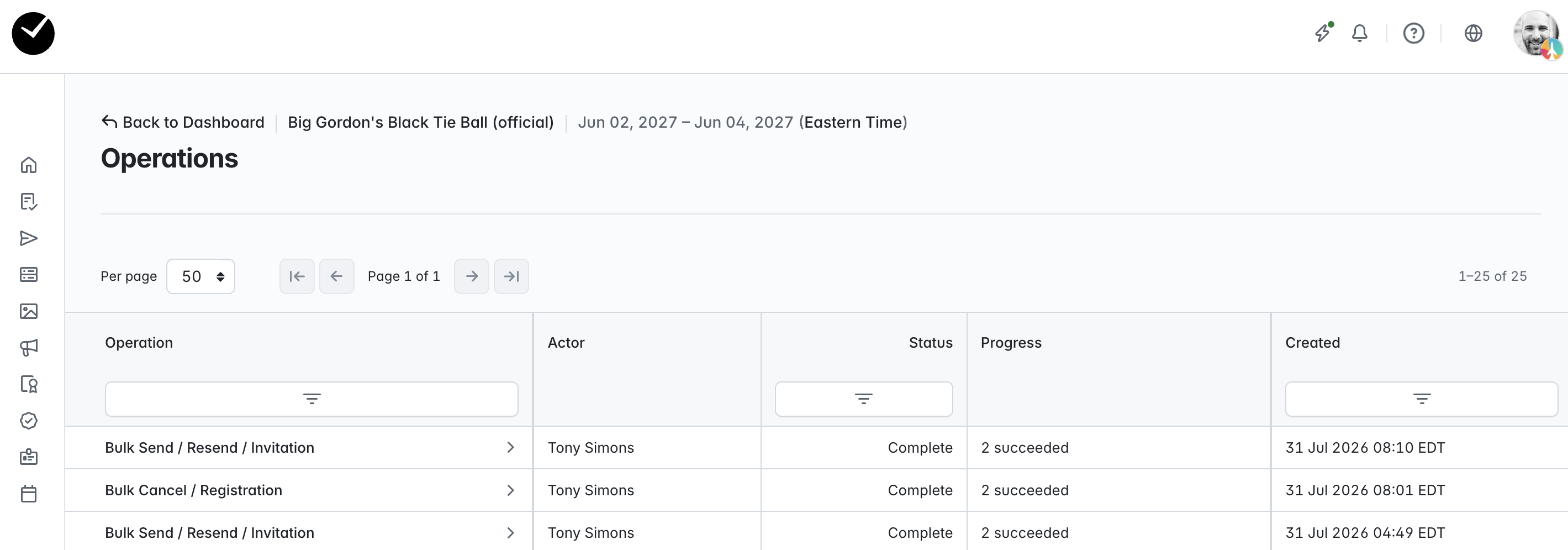
You can also drill deeper into each bulk operation by simply clicking on the '>' arrow displayed inline with the bulk action:
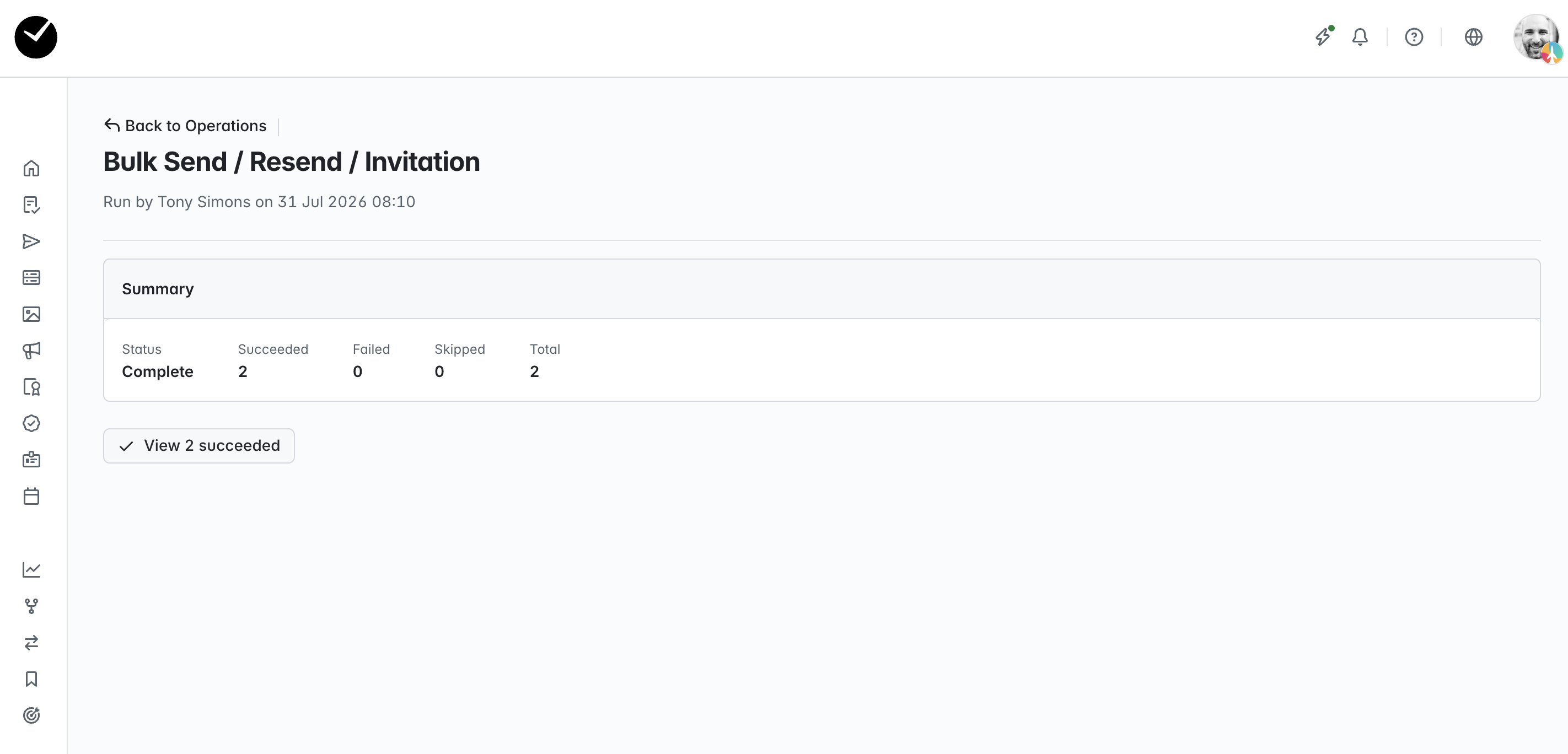
In here, you can see a summary of the action, including and skipped or failed details where they have occurred during the bulk action process. You can also view the affected attendees by clicking on the 'View succeeded'/'View failed' button, which will take you to a filtered version of your event Invitations area, returning only the invitees that have passed or failed during the bulk action.