.png)
Can I import a list of Event Requests to my organization?
Notes: To use the 'Event Requests' feature, it must be enabled for your organization first. Please contact support if you are interested in activating the feature for your organization.
Only administrators can import Sharepoint files for Event Requests.
If you'd like to import a set of Event Requests from a Sharepoint CSV file, you can begin your import your Site Settings -> Sharepoint Import area. This can be accessed from the left column in your Event Requests area by selecting the 'Site Settings' option, following by the 'Sharepoint Import' tab on your Site Settings page:
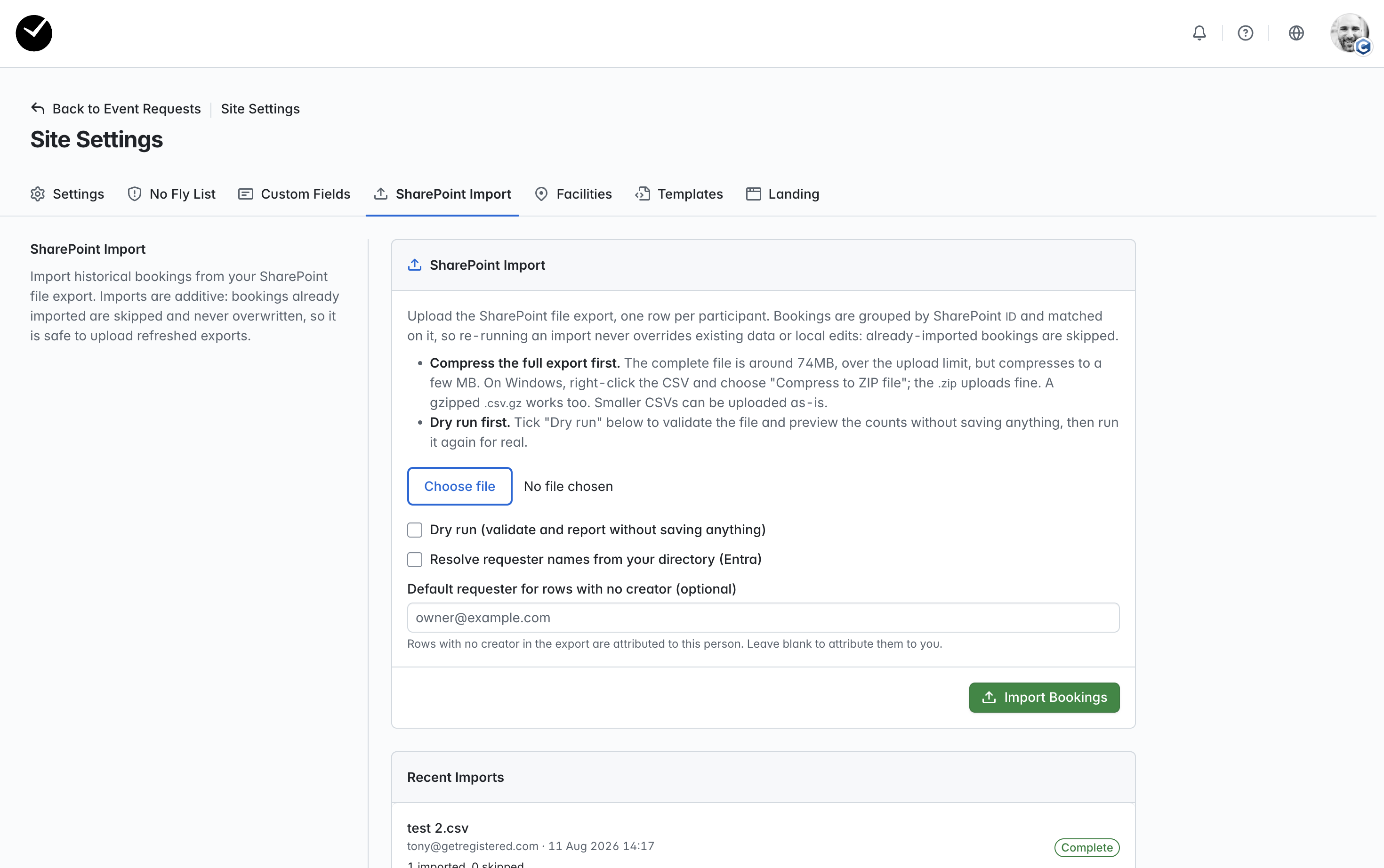
In here, you see the following options:
- Choose File - select the file you wish to import.
- Dry run - enable this if you wish to test the file import validity without actually importing the data to your organization, allowing you to identify any errors and correct before attempting a full import.
- Resolve requester names from your directory - if you have Entra enabled for your organization in getregistered, selecting this option will ensure that requester names imported match users from your Entra directory.
- Default requester for rows with no creator - this is an optional field that allows you to add a default user to be applied to any imported event requests that have no 'creator' data added on the CSV file. The default 'creator' added will fall back to the user submitting the file if left blank.
To begin your import, select the 'Choose File' button and select the CSV file you wish to import. We recommend that you compress your file first if it is large (eg 74mb) to ensure that the import is processed swiftly, we accept both .zip and GZip compressed file formats.
Next, configure your Dry Run/Resolve names options and select 'Import Bookings'. A summary will display at the bottom of the page, detailing the current progress, and when completed, all successful/skipped rows will be totalled in the summary box. 'Dry Run' imports will show the 'Dry Run' label on the summary card:
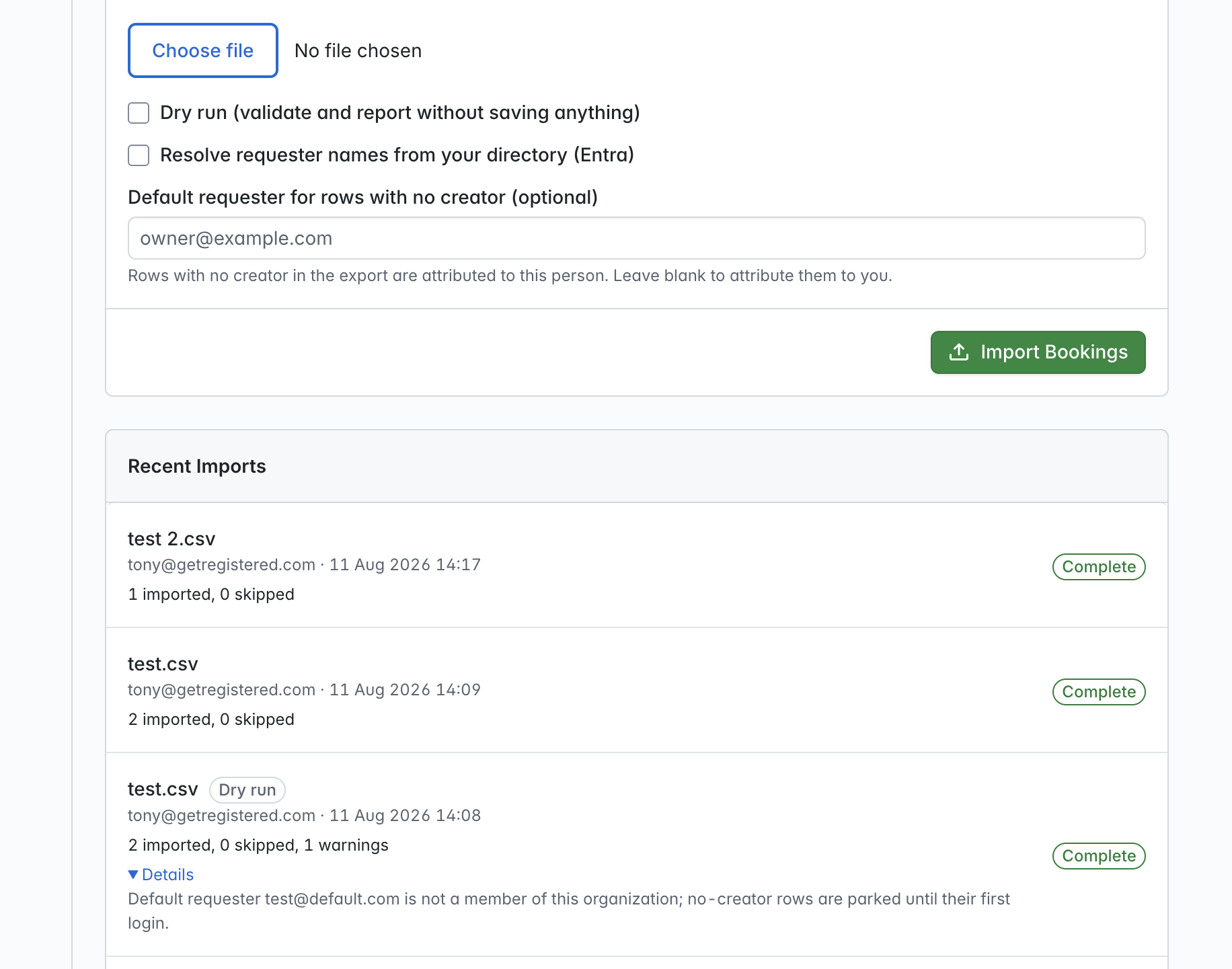
When your import shows as 'Complete', all successfully imported event requests will now be present in your event and ready to be reviewed and converted. Any import items flagged with a warning during an import will display a 'Details' drop down with warning message displayed within.