.png)
How do I view and edit an Event Request invoice?
Notes: To use the 'Event Requests' feature, it must be enabled for your organization first. Please contact support if you are interested in activating the feature for your organization.
Only administrators can view and edit invoices for Event Requests.
When an event request is either in 'Submitted', 'Rejected', or 'Changes Requested' status, you will see the option to 'View Invoice' under the 3 dots menu at the end of the row for the request:
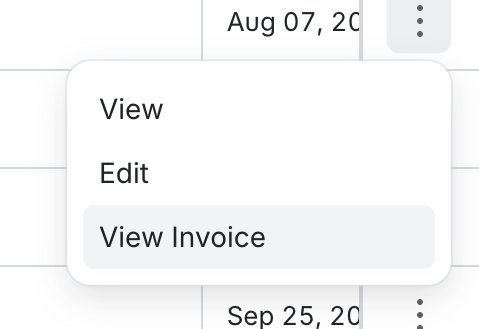
Selecting 'View Invoice' will take you to the following page:
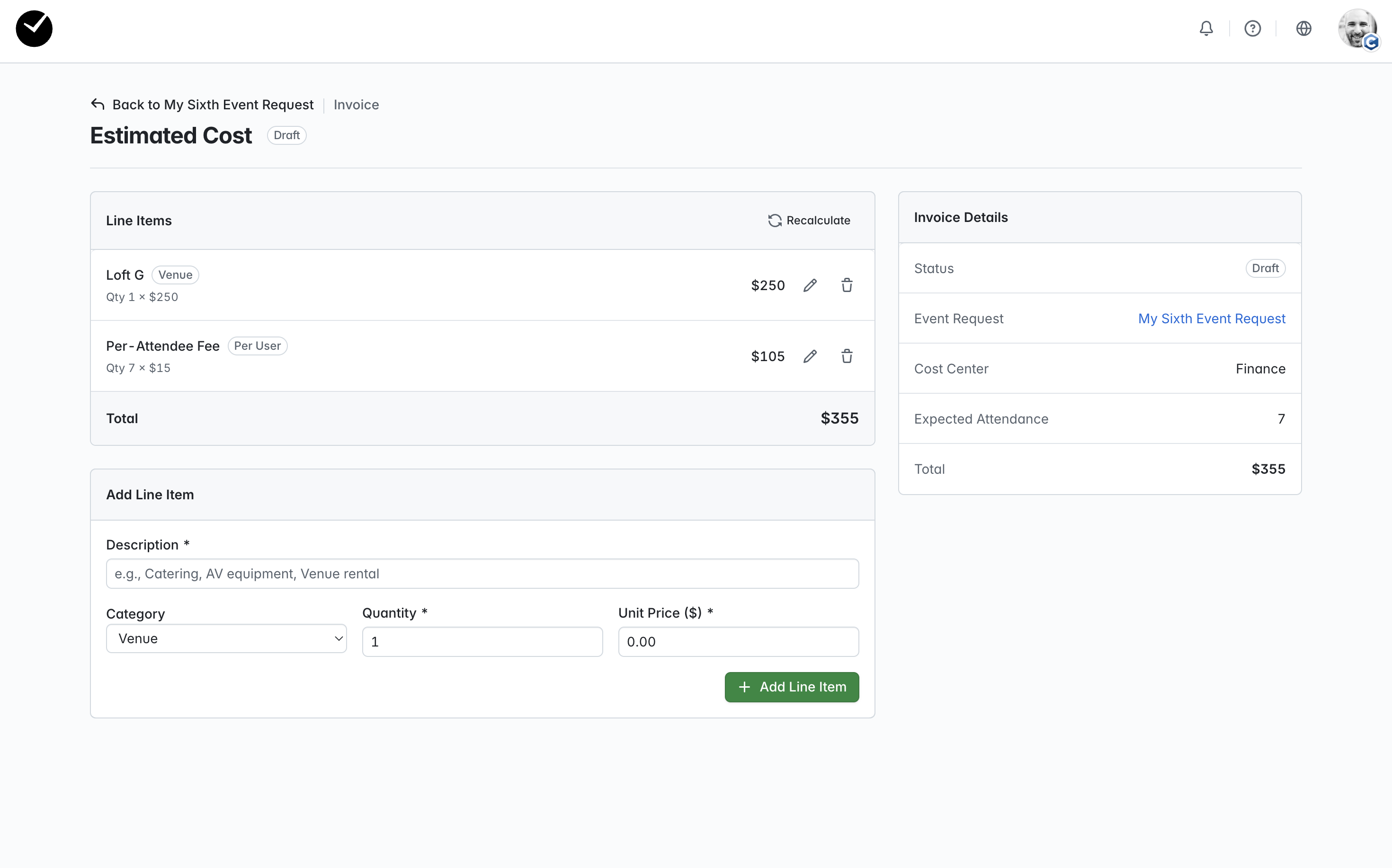
In here you can view, review, and modify the current invoice for the request, as well as add additional line items. The top section displayed is the 'Line Items' section - in here, you will see all line items related to the request (Facilities costs and additional line items where added). In here you can choose to amend or remove a line item by clicking on the 'pencil' icon (edit) or 'trashcan' icon (delete) and confirming your changes. To recalculate the invoice after the changes, click on the 'Recalculate' button at the top right of the section.
To the right you will see the invoice summary for the request - this includes the request name and status, expected attendance and total projected cost.
At the bottom of the page, you will see the 'Add Line Item' area - to add a line item, enter a 'Description', select the appropriate 'Category' from the dropdown menu, and then add the 'Quantity' and 'Unit Price'. You can then submit via the '+ Add Line Item' button, and the line item will be added in the section above. If the price is not recalcuated, click on the 'Recalculate' button at the top right of the section.
Is there a way I can view all invoices generated for event requests in my organization?
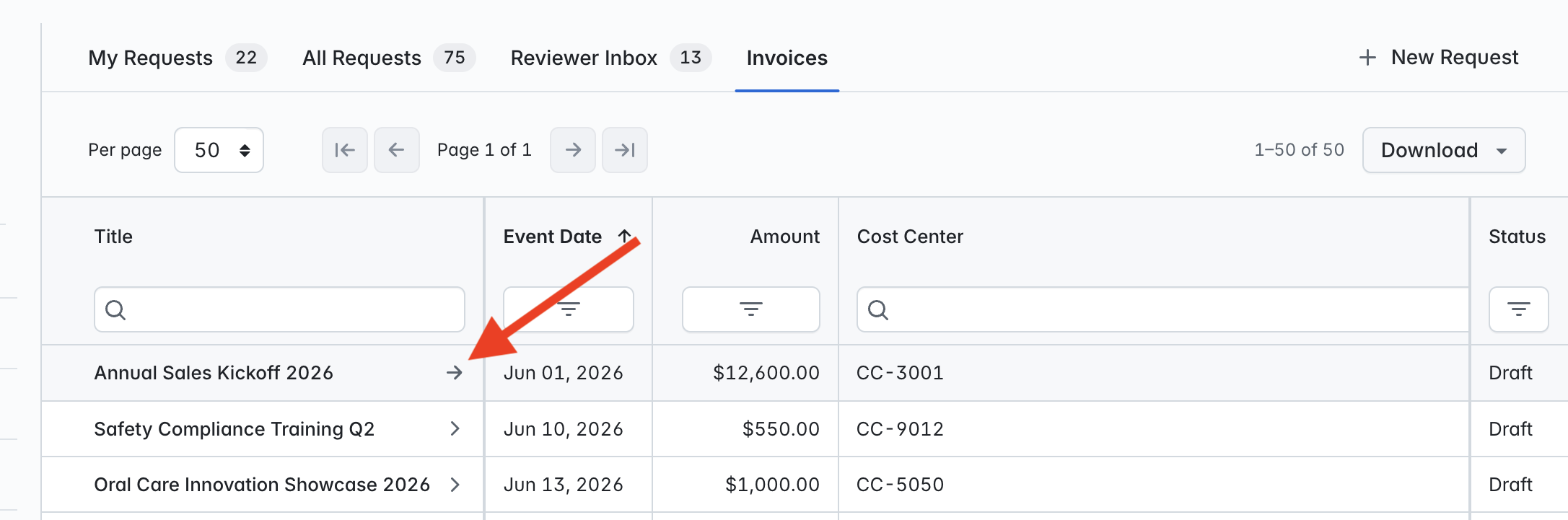
Yes - when interacting with the main 'Event Requests' area, you will see the 'Invoices' tab available:
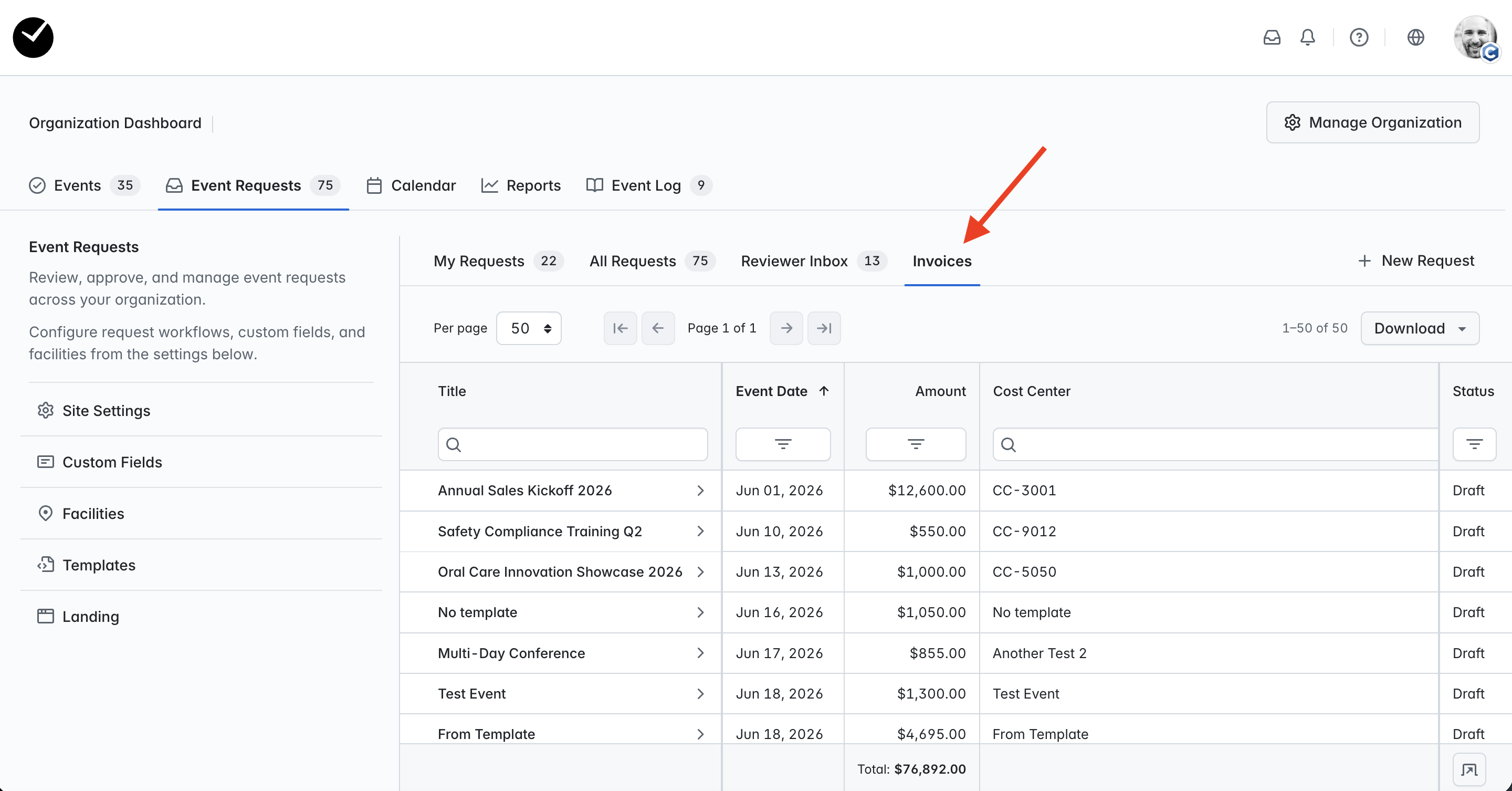
When selected, this area returns all invoices created by event requests in your organization, and can be sorted and filtered as required, as well as the ability to download the grid as a CSV or XLSX sheet.
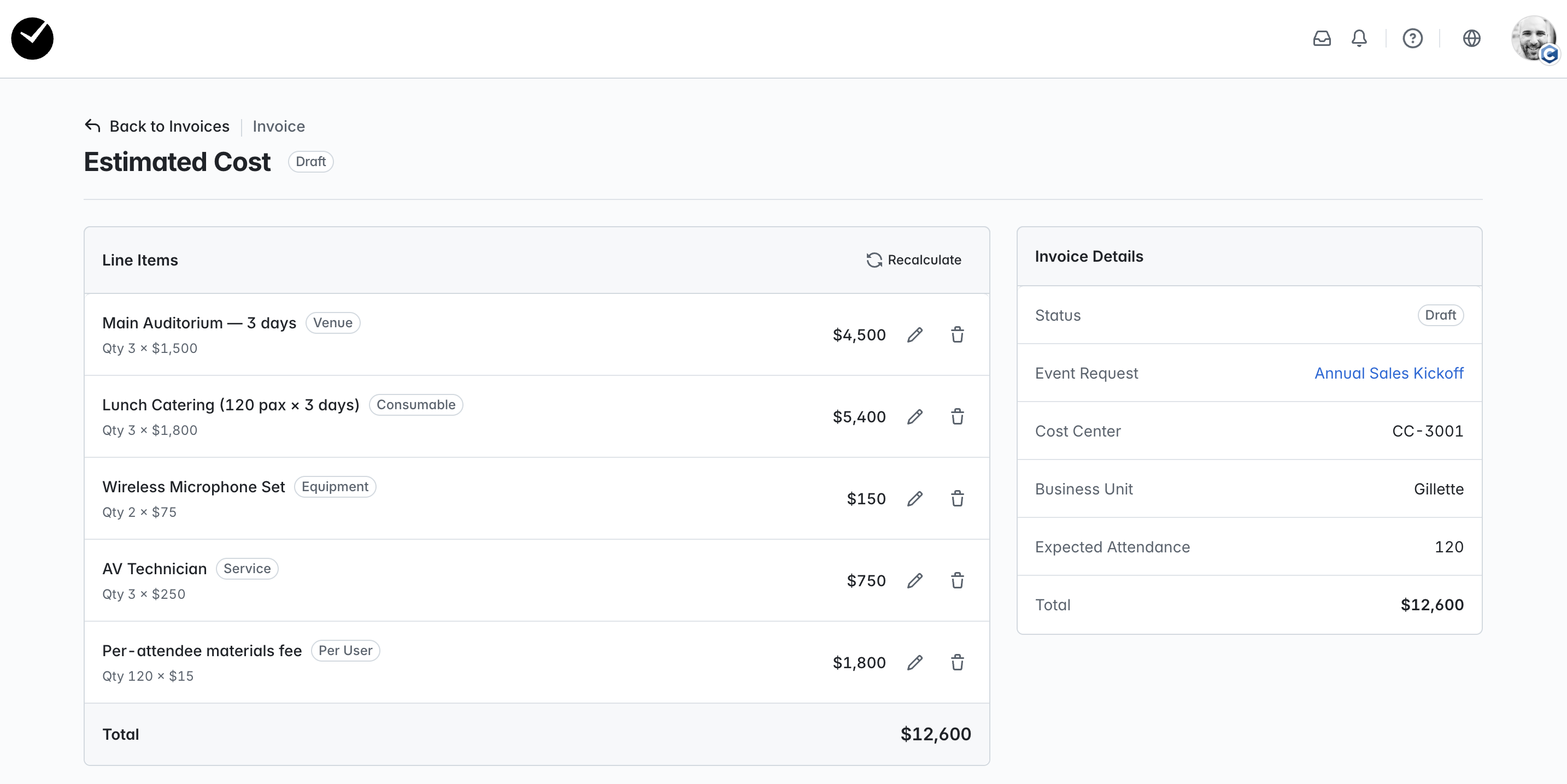
To view an individual invoice for an event request, select the arrow displayed next to the title of the event request invoice you wish to view and you will be taken to the relevant invoice summary page: