.png)
What is the 'Onsite' area in my Event Settings?
Note: the 'Onsite' area is only displayed for events that have the 'GR Check-in' and/or 'GR Leads' app enabled for an event. Please contact support if you are interested in using either of these apps in your organization.
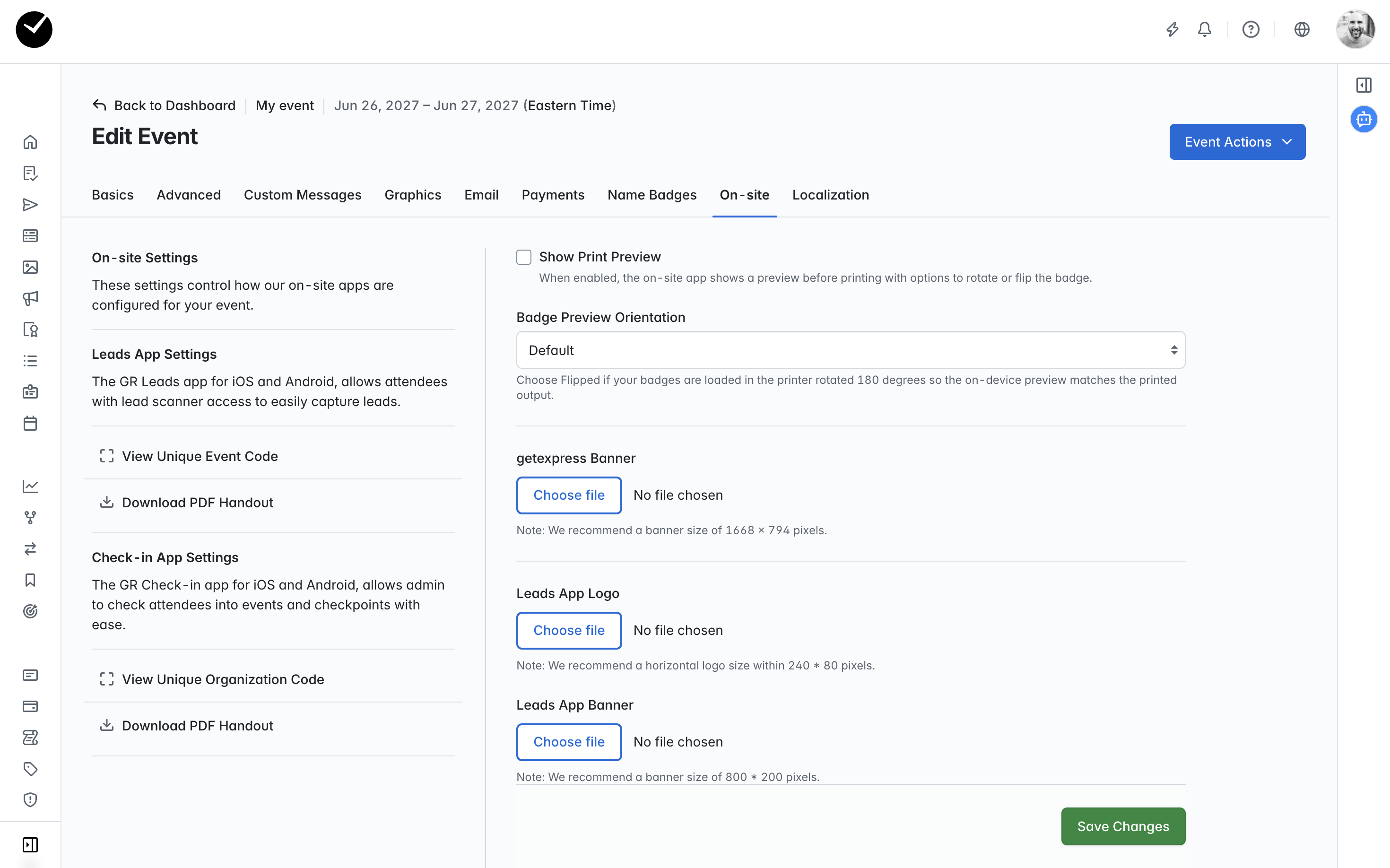
If your event is using the 'GR Leads' and/or 'GR Check-in' apps, when entering your Event Settings, you will see the 'Onsite' tab available. This area allows you to select the branding images used in the app for your event, as well some other minor configurable options.
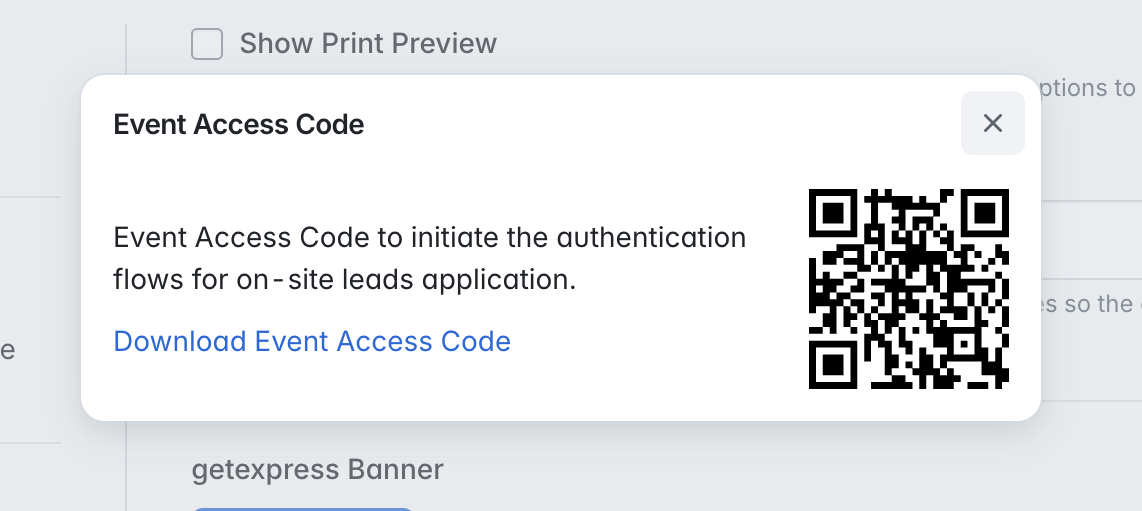
On the left hand column, you will see the options to 'View Unique Event Code' and 'Download PDF Handout'. Selecting the 'View Unique Event Code' option will display the QR code that should be scanned in the event app for the user/attendee to link the app to your event. You also have the option to download the QR code as a PNG file, which you can then distribute to your users/attendees as you wish:
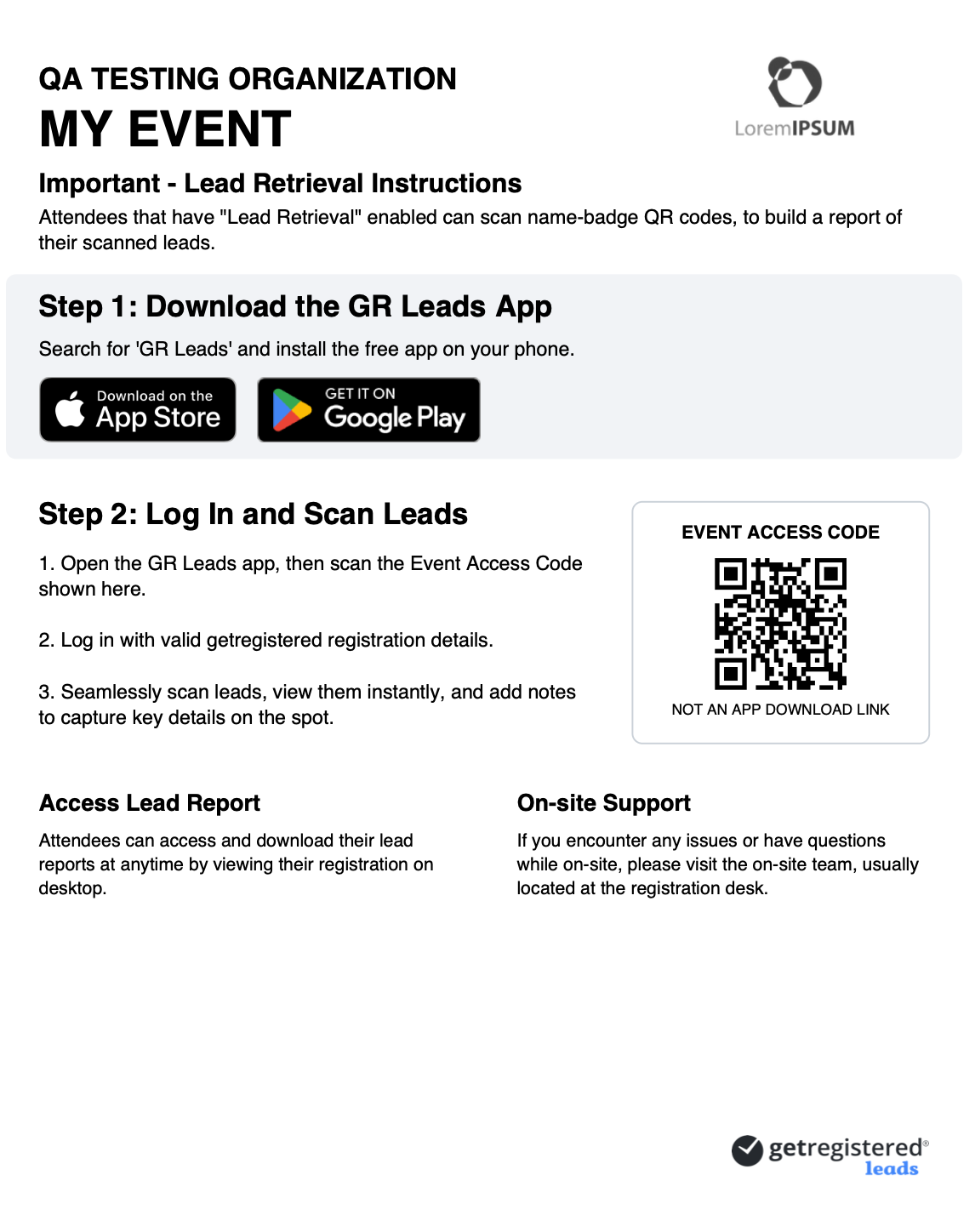
If you wish to provide your users/attendees with a step-by-step method to install your event app(s) and include the access code, select the 'Download PDF Handout' option. This will generate a PDF for you that contains all the information required to get going, including branding from your event graphics and the access code to connect to the event, eg:
On the main section of this area, you will see the following options available:
- Show Print Preview - when enabled, this option will display a preview of the attendee's badge in the app before printing, allowing you to check orientation etc.
- Badge Orientation Preview - allows you to change the orientation of the badge if required, either 'Default' (standard) or 'Flipped' (rotated 180 degrees).
- getexpress Banner - allows you to upload a banner image that will be displayed on all scanning stations using the getexpress app.
- Leads App Logo - allows you to upload a logo image that will be displayed for your event in the Leads app.
- Leads App Banner - allows you to upload a banner image that will be displayed for your event in the Leads app.