
Accessing and using the Regi Event Assistant
Note: the Regi Event Assistant feature is only available by request. Once enabled for your organization, Regi will be available in all areas of your organization. If you wish to have Regi enabled for your organization, please contact our support team.
What is Regi?

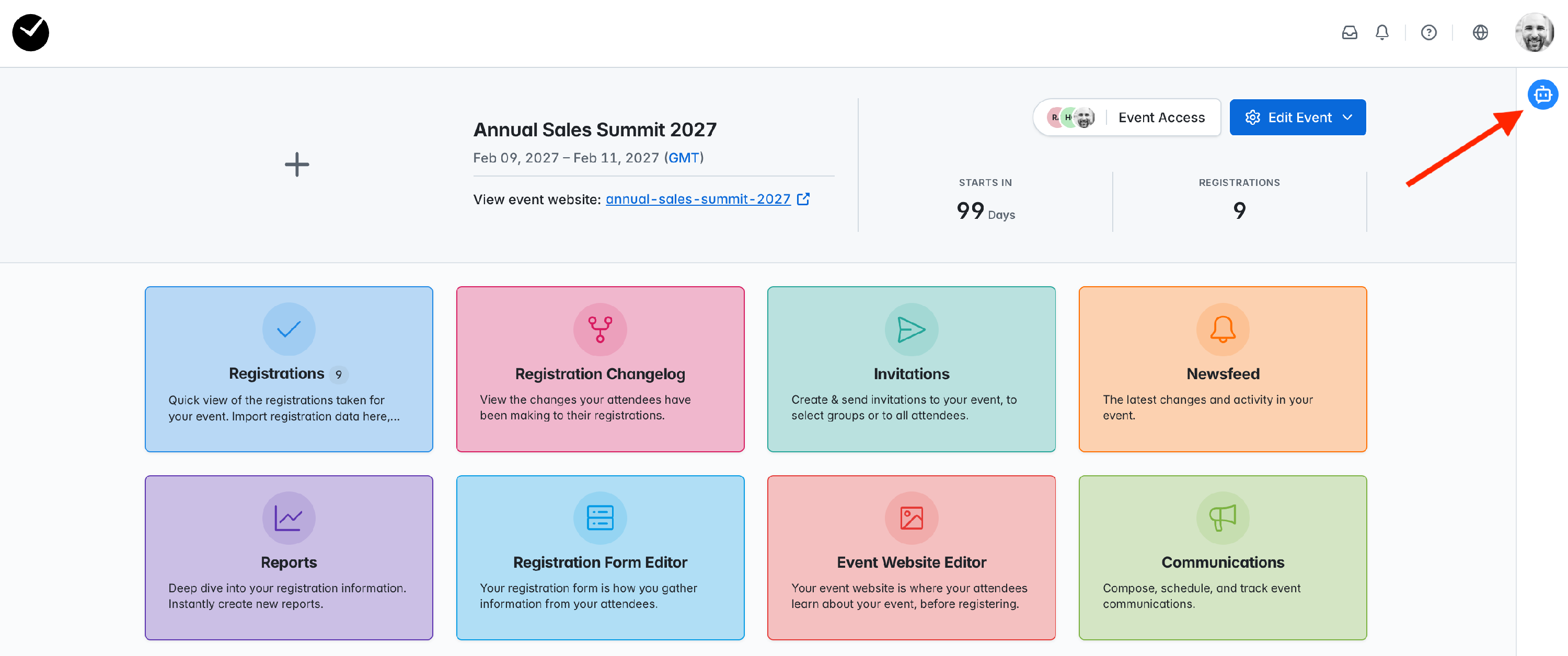
Regi is a friendly AI assistant that is available in all areas of getregistered once you are logged in. Regi is activated by clicking on the blue 'Regi' icon on the top right side of the page, opening a new window for you to start interacting with him.
What can Regi do?
Regi is extremely flexible in what he can do - you can ask him to locate or provide information on your event registrations or invitations, assist with changing your event settings, and much more.
Regi really comes into his own when creating your event registration forms - he can edit and create your event form fields and pages for you, including multiple changes in a single prompt. You can even upload pictures/diagrams of fields you'd like to set up on your form, and Regi will recreate them for you!
And if you ever get stuck - just ask Regi! Regi has full access to our knowldege base, so can answer questions on using getregistered as well as providing links to our documentation if you want to take a deeper dive into learning how a specific feature works.
How do I use Regi then?
Note: when using Regi to make changes to your registration form, you must be on the registration form editor page. Regi cannot make changes to your registration form outside of the registration editor area!
As mentioned previously, just click on the blue 'Regi' icon on the top-right hand side of the page and you'll see the Regi window open.
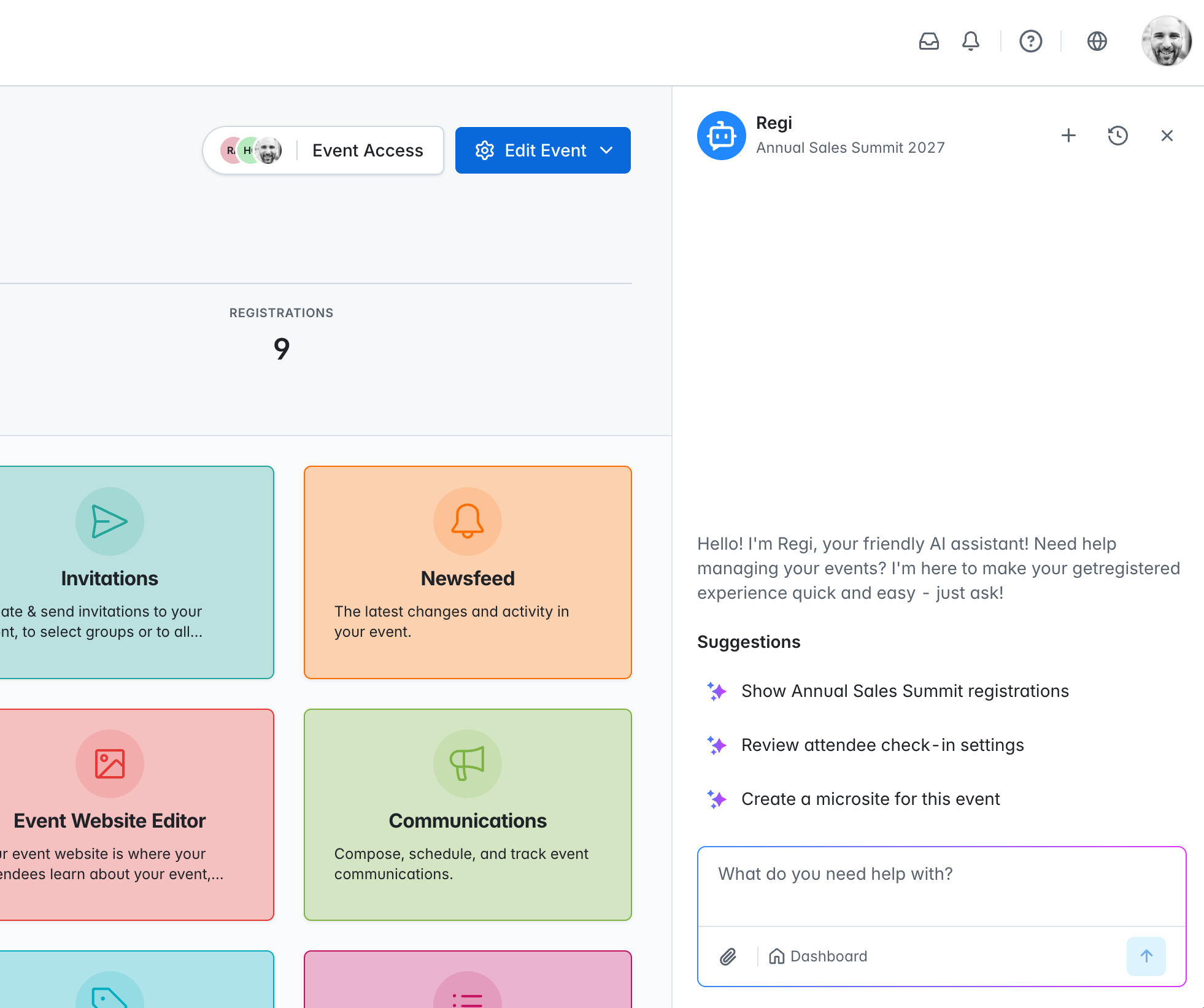
You will see the following options available to you:
- '+' icon (New Chat) - select this option to start a new chat thread with Regi. On opening the Regi window, Regi will either show you a new chat window (as shown in the example above) or a continuation of your last chat with him, depending on whether you've interacted with Regi before, and when you last interacted with him.
- 'Clock' icon (Chat History) - select this option to access your previous chats with Regi, ordered by date (newest first). When you click on a historical chat, it will open on the last post created within the chat.
- 'X' icon (Close Regi) - closes the Regi window when selected. If you have a ongoing chat with Regi, this will be retained and displayed when you next open Regi.
- 'Suggestions' - When you first open a new chat with Regi, he'll provide a few suggestions to get you started. Simply click on the 'suggestion' listed if you want to use a suggested query.
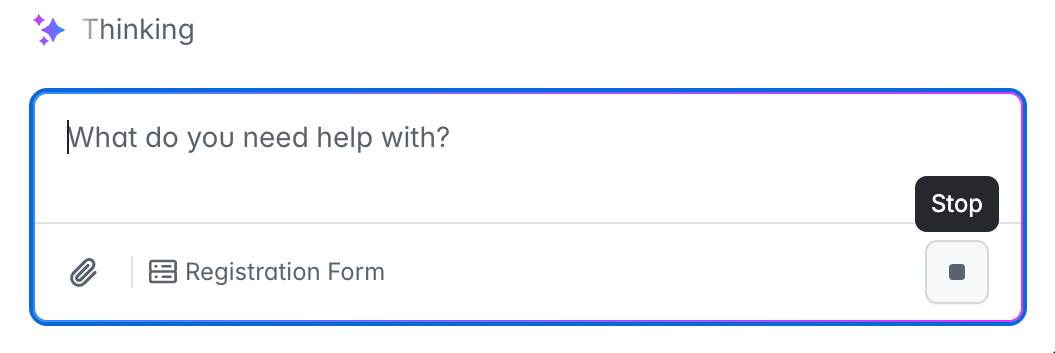
- 'Chat' area (prompt field) - this is the area where you will be creating your questions and requests to be submitted to Regi. The top portion of this area is the text area where you will type your questions/requests. Below this you will see an 'attachment' icon (paperclip) which is what you'll select to upload files for Regi to use/review (file size limit is 5mb), and to the right of this is some text telling you the current area you and Regi are interacting with (eg 'Dashboard'). Finally, to the right of this is your submit/stop request button (blue button), which you can click on to send your request.
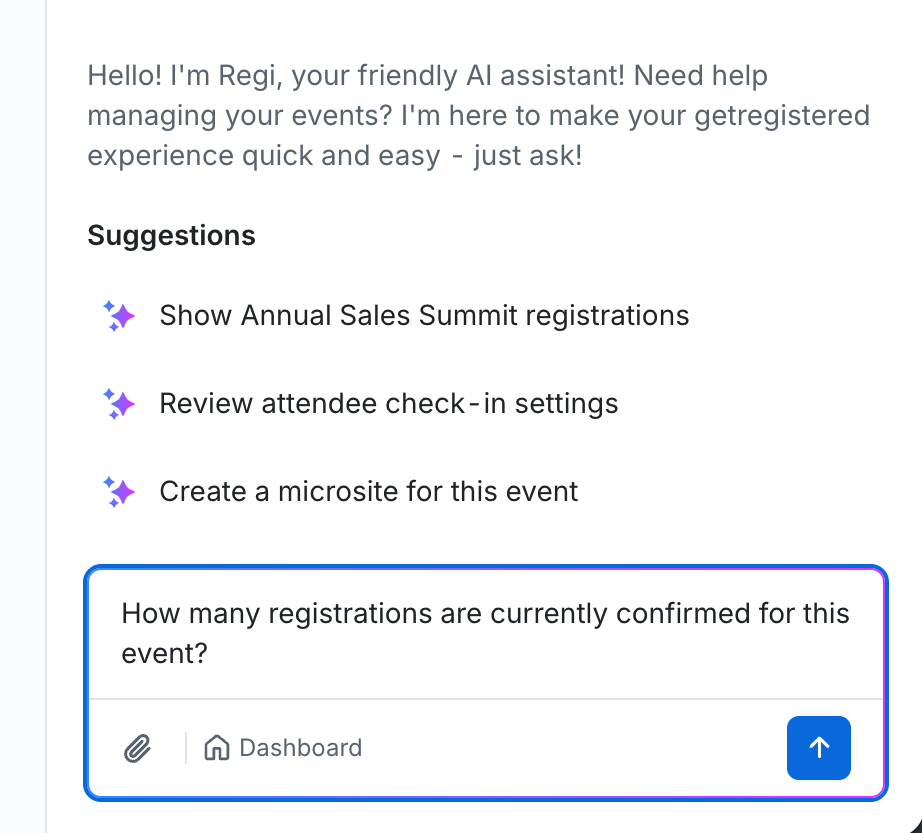
To begin interacting with Regi, enter your question or request into the chat area and either hit Enter/Return on your keyboard or click on the blue 'arrow' button. If you need to add line breaks in your question/request (eg creating a list of items), hold down the 'Shift' button on your keyboard and press Enter/Return to begin typing on a new line.
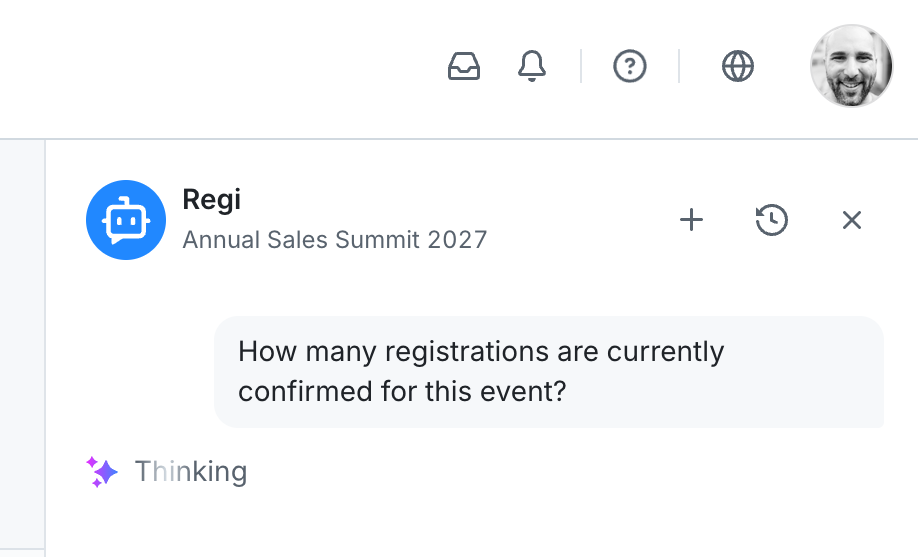
When your question/request has been submitted, you'll see the text 'Thinking...' displayed while Regi reviews your submission, which changes to the action Regi is doing while he is creating a response (eg 'Looking up registrations').
Depending on your question/request, Regi will either:
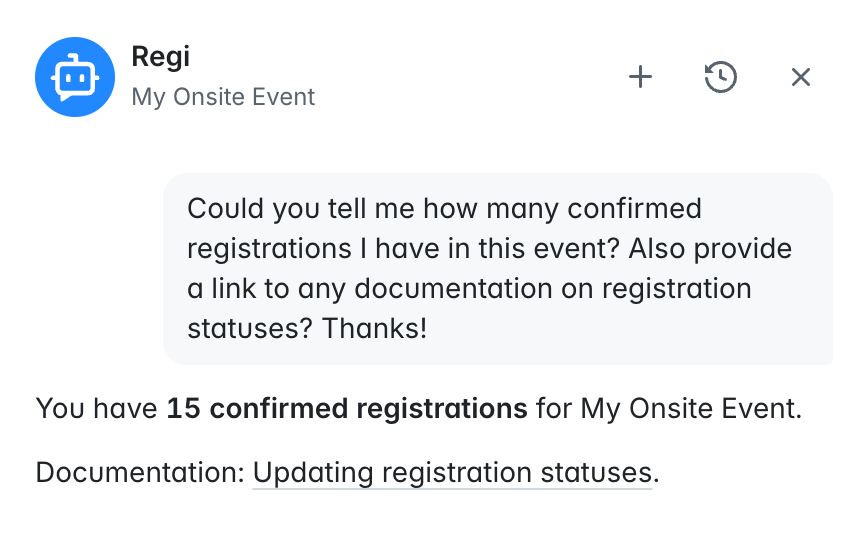
- Return an answer to your question and include a link to a support article where applicable. Underlined items are links to relevant articles:
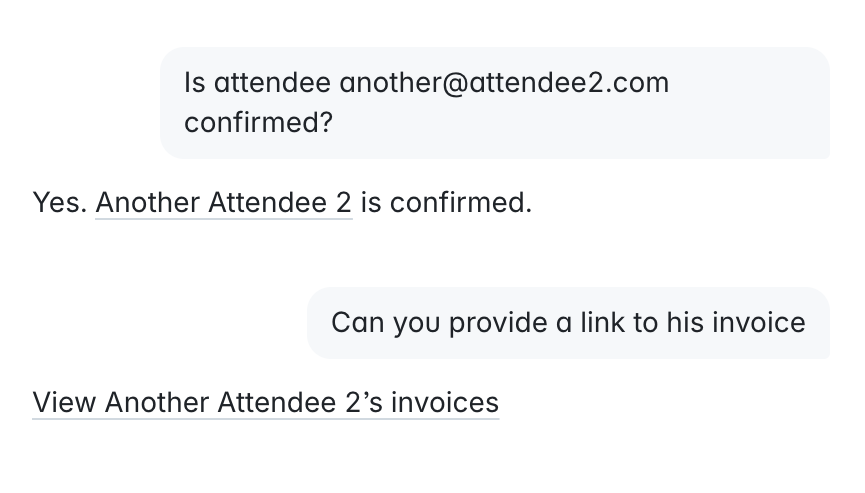
- Return a link to the requested item/page. Underlined items are links to relevant pages/areas:
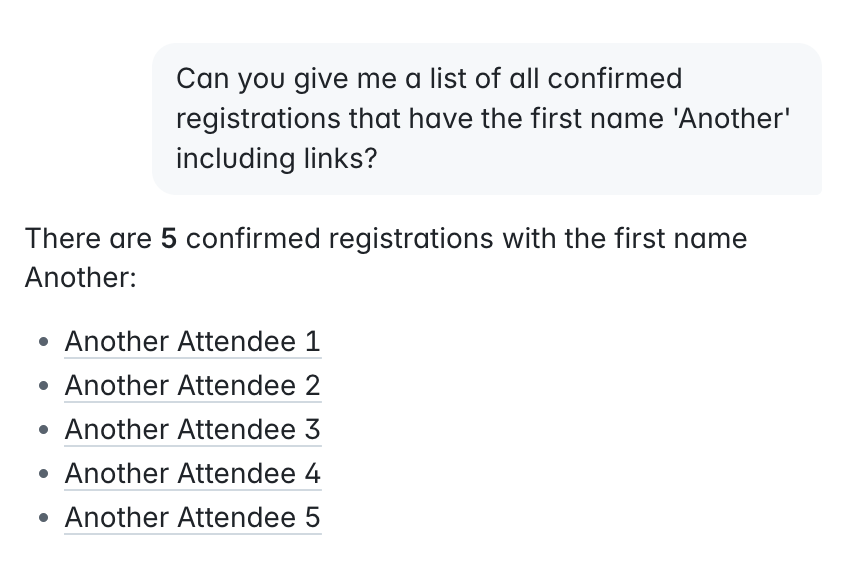
- Return a set of links if requesting for a number of items (eg, if you requested 'can you list all attendees who are pending confirmation', Regi will return a list of links for all related attendees). Underlined items are links to relevant items/areas:
- Return an 'action card' for you to approve (eg, where you have request for Regi to make a change to your event or registration form).
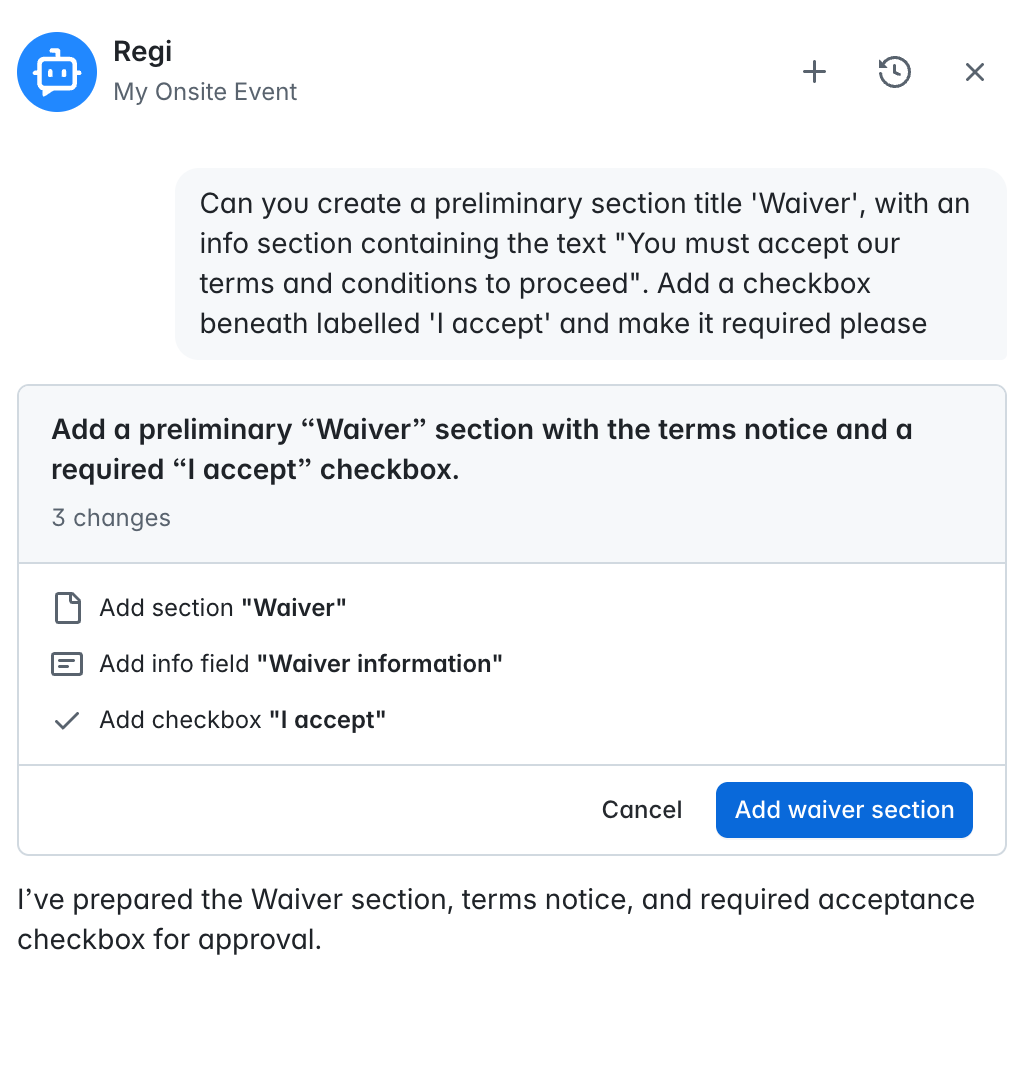
In the case of Regi creating an action card, Regi will list the changes that will be applied to your event. When you click on the blue 'action' button, the change(s) will be applied, and a green 'Applied' label will be displayed on the relevant action card.
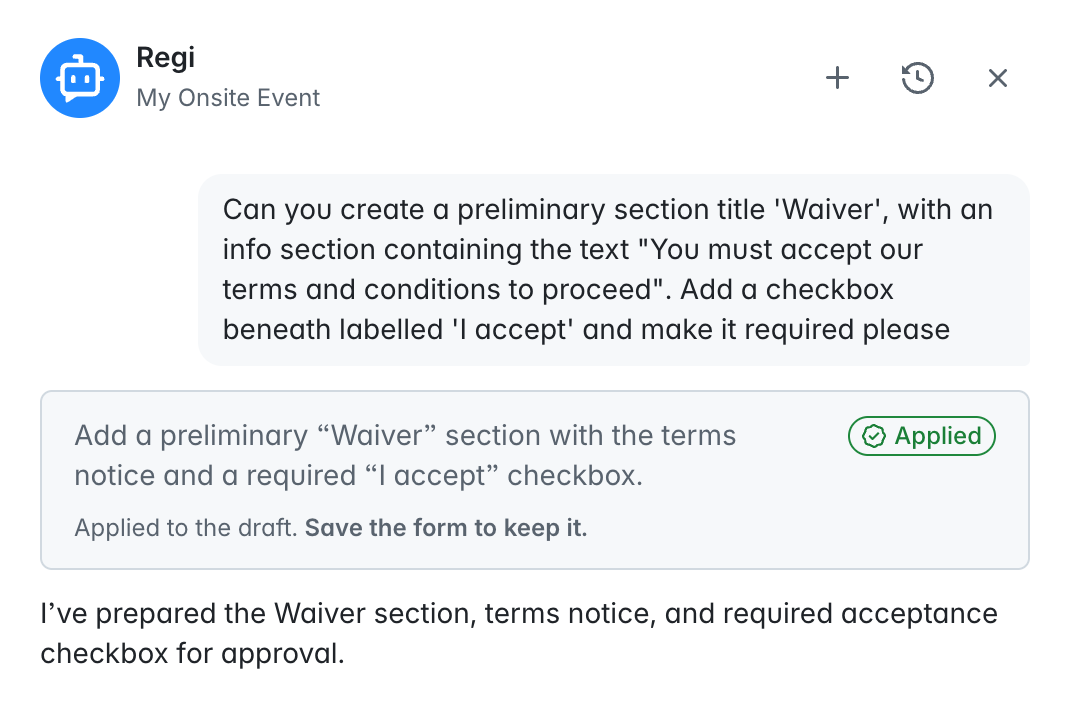
If you are unsure, you can select 'Cancel' and no changes will be made.
If you wish to cancel a question/request to Regi before he returns a result, click on the 'Stop' button in the chat area before the result is returned. The 'Stop' button is positioned in the same place as the 'Submit' button, and can only be actioned when a query has been submitted and Regi is 'Thinking'.
Is there anything Regi cannot do?
Events
Currently, Regi cannot directly:
- Create a new event
- Clone an existing event
- Archive an event
Event Settings
Currently, Regi cannot directly:
- Upload or replace event graphics (logos, banners and PDF logos).
- Setup or select a payment gateway for an event.
- Enable/disable 'Fees & Payments'.
- Select an 'Event Currency'.
- Apply any changes to your event settings without your approval.
Event Features
Currently, Regi cannot directly:
- Create or edit:
- Registrations
- Invitations
- Invoices, payments, or refunds (including recording payments/refunds)
- Discount Codes
- Custom reports
- PDF templates
- Email campaigns
- Agenda items or checkpoints
- Showcase lists, tiers and items
- Organization/event users
- Manage/edit event access for event users
- Manage/edit report access for event users
- Update missing/outdated Website Translations, or add a custom translation to a specific translatable item.
- Import and export files within an event (eg uploading event data imports and/or downloading reports directly).
- Enable or edit event-level Integrations.
- Apply any changes to your events without your approval.
Registration Form Editor
Currently, Regi cannot directly:
- Create or modify registration tracks.
- Create or modify room blocks, room types, nights, or hotel availability.
- Make registration-form edits unless you’re interacting in the Form Editor.
- Apply any changes to your event registration form without your approval.
Event Website Editor
Currently, Regi cannot directly:
- Add, modify or delete any event website content (themes, sections etc)
Organization-level settings
Currently, Regi cannot directly:
- Create or edit organization/event users.
- Create or edit custom user roles.
- Add/edit event access for organization/event users
- Add/edit report access for organization/event users
- Enable or edit organization-level Integrations.
- Manage/edit payment gateways at organization-level.
Event Requests
Currently, Regi cannot directly:
- Create, edit or manage Event Requests, or anything related to Event Requests feature settings.
However, if you do ask Regi to assist via a question or request relating to any of the above, Regi will assist by providing links and instructions to perform any of the actions that he cannot directly create for you!
Frequently asked questions
Can Regi handle multiple changes in one request?
Yes - if you submit a request that requires multiple changes (such as 'change the event start date to Friday 6th November 2026 at 9am and also enable QR codes'), Regi will review and create an action card that will list each change that he will make for you when applied, making your event configuration much more efficient!
Can I start a new chat with Regi, or do I have to use the same one every time?
You can choose to continue a conversation with Regi or start a new chat at any time - at the top of the Regi window, click on the '+' icon to start a new chat.
If I start a new chat, will I lose all the information I received previously?
No - you can access all your previous chats with Regi by clicking on the 'clock' icon at the top of the Regi window. This will display a list of all your previous chats with Regi - each chat can be distinguished by what you entered as your first prompt for the chat, eg, if you initiated the chat with 'can you tell me how to create a new invitation', this is what will show on the chat list. Each chat listed has a timestamp displayed to assist with identifying older chats.
How do I upload a file to use with a Regi question/request?
When you have the Regi window open, click on the 'paperclip' icon in the chat area and then select the file you wish to upload. Once uploaded, you'll see a small icon within the chat area - if you accidentally upload the wrong file, click on the 'X' icon of the icon to remove the file and then attempt your upload again. Don't forget to type in the chat area what you'd like Regi to do with it!
Do I have to save any actions that are applied using Regi?
When using Regi, any changes you apply to settings in your 'Event Settings' area are automatically saved for you. However, when using Regi to apply or edit registration form changes, you must save the changes manually once applied, or they will be lost!
Can Regi assist with anything outside of getregistered?
No - Regi is strictly limited to assist within getregistered only, any questions or requests submitted to Regi that do not relate to your events or organization will not return any meaningful results.
How does Regi handle sensitive information?
As part of the getregistered platform, Regi is entirely secure and safely processes information according to our SOC 2 requirements. More information can be found in our Trust Portal here: https://getregistered.trustshare.com/home