.png)
Can I clone an existing event?
Note: if your organization has the 'Enhanced Event Cloning' feature enabled, please refer to this article in regards to using that feature to clone events.
Yes - click on the 'Clone' option displayed as an option dropdown from the 'Edit Event' box at the top right of the Event Dashboard for the event you wish to duplicate.
Selecting this will create a carbon copy of the event you are currently in, which you can access by returning to the Event Index and selecting the event tile. The only difference between the two events will be the event's 'Slug' settings, which will have [cloned] added to it to ensure that both events do not share the same URL. Also note that all attendee data from the original event (registrations, invitations, invoices etc) will not be carried over as part of the cloning process.

This feature allows Admin Event Users to quickly create a new event using the current event as a template. If you will be regularly creating new events with a similar configuration, this will save you the effort of having to manually configure a new event every time.

You can also clone an event from your organization's event index by clicking on the 3 dots displayed on any event tile and selecting the 'Clone' option.
How do I update the event title and URL slug for a cloned event
As mentioned above, when an event is cloned, you will see the following:
- Your Event Title will be the same as the original, with the text '[cloned]' added after it:
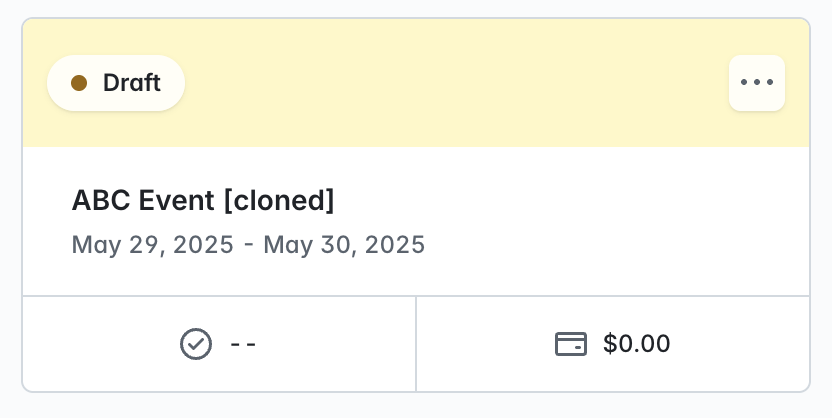
- Your Event Slug will contain the original event URL with the text clone-event_ID added to the end of the slug:

To update your cloned event name and URL to something more fitting, enter your Event Settings area and you will find your Event Name and Event Slug fields under the 'Basics' tab.

To update, simply enter a unique new name and slug and click 'Save Changes'.

Once saved, you will see your new Event Title and Event Slug being used in your event:
