.png)
Accessing and managing Event Users for your organization
Accessing and managing Event Users in your organization
Note - only Administrator role users can manage Event Users at organization level
To access all event users for your organization, click on the 'Manage Users' option under your profile menu at the top right of the page
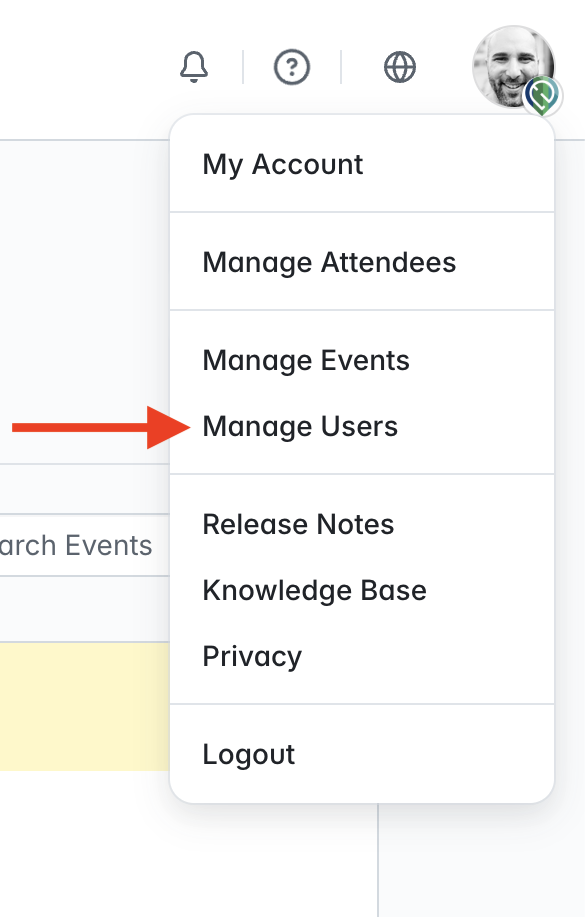
From here, you can view and manage user access to different areas of your event administration site, edit access levels and personal information, and create new users.
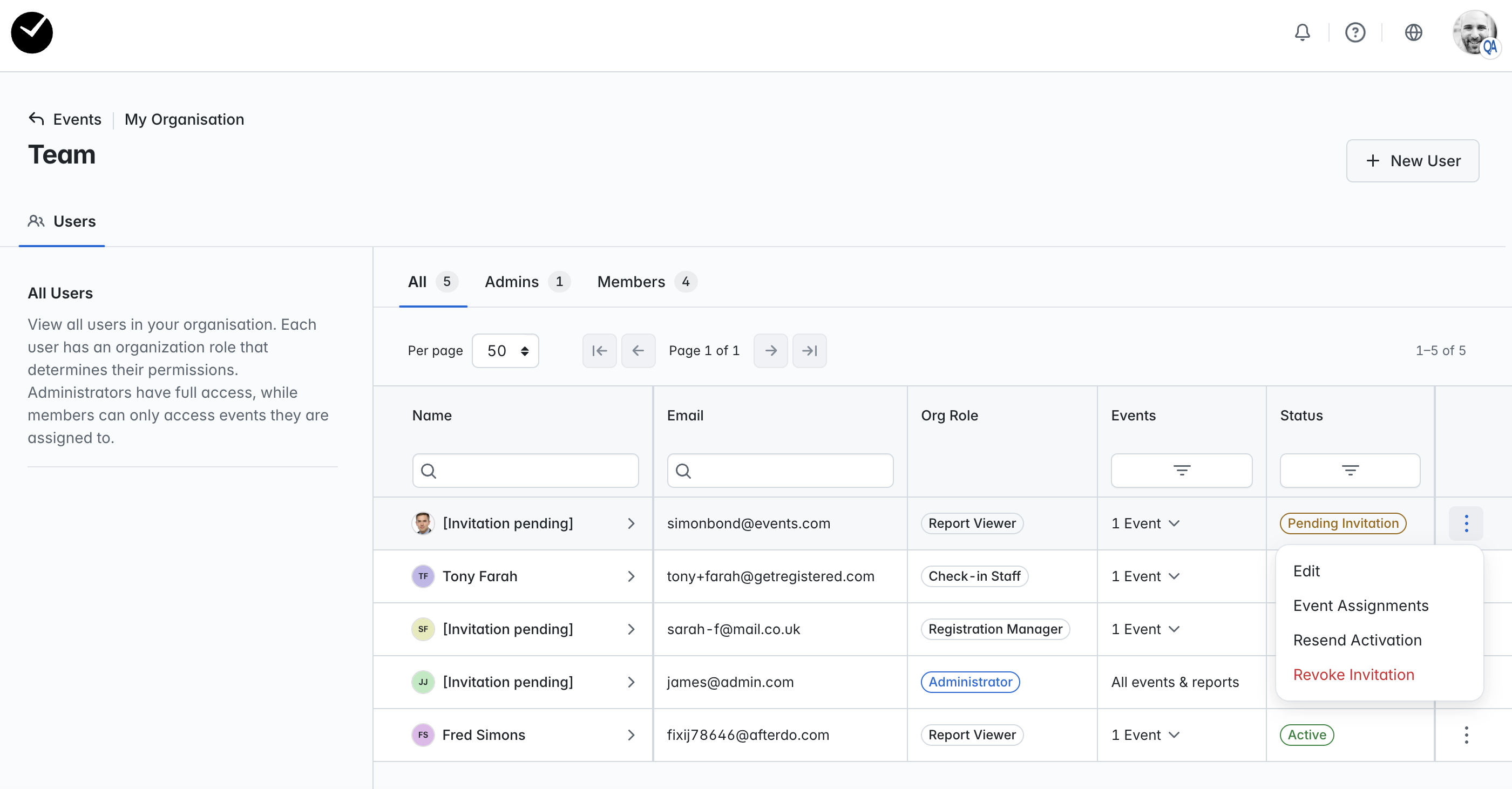
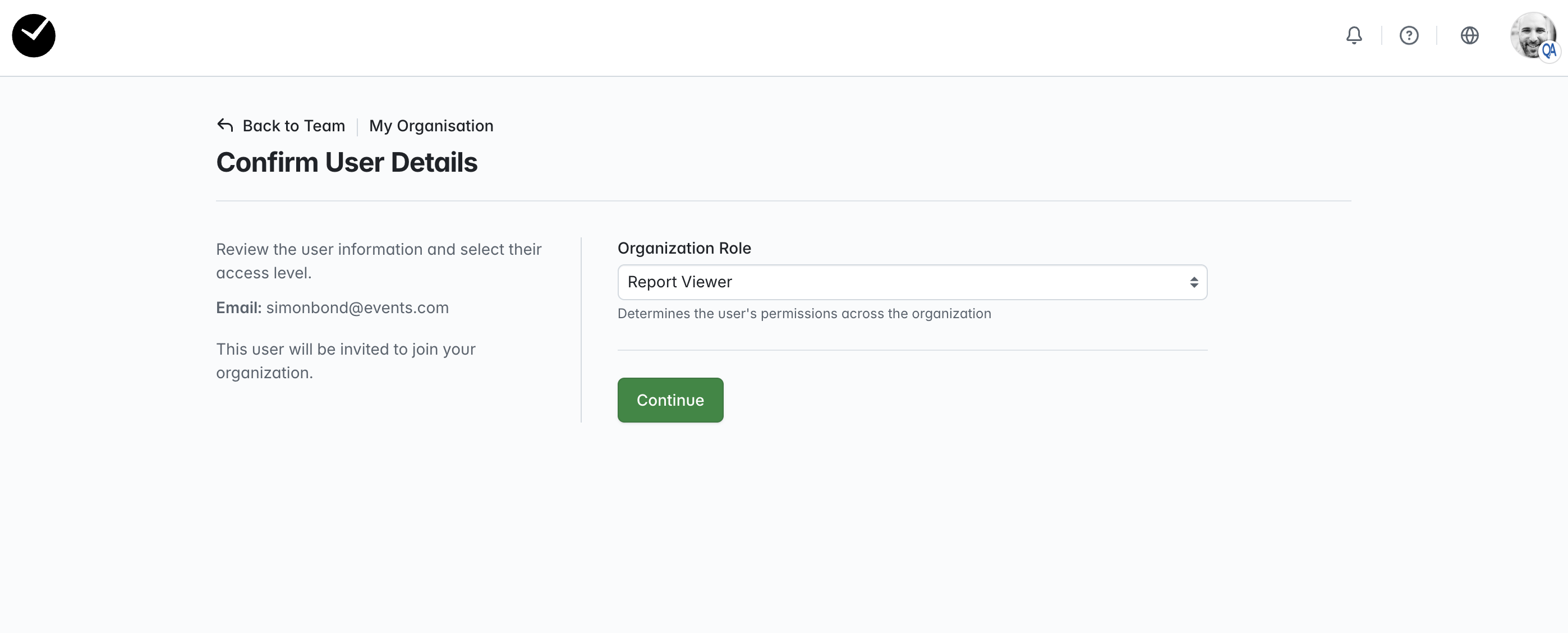
You can create a new user by clicking on the '+ New User' button at the top right corner and enter their email on the following page. You will then be asked to select an 'Organization Role' for the user - this will be the default user role applied to the user's account once they have activated with getregistered®.
Next you will be asked to provide the user's first and last name, as well as telephone number and avatar if desired.
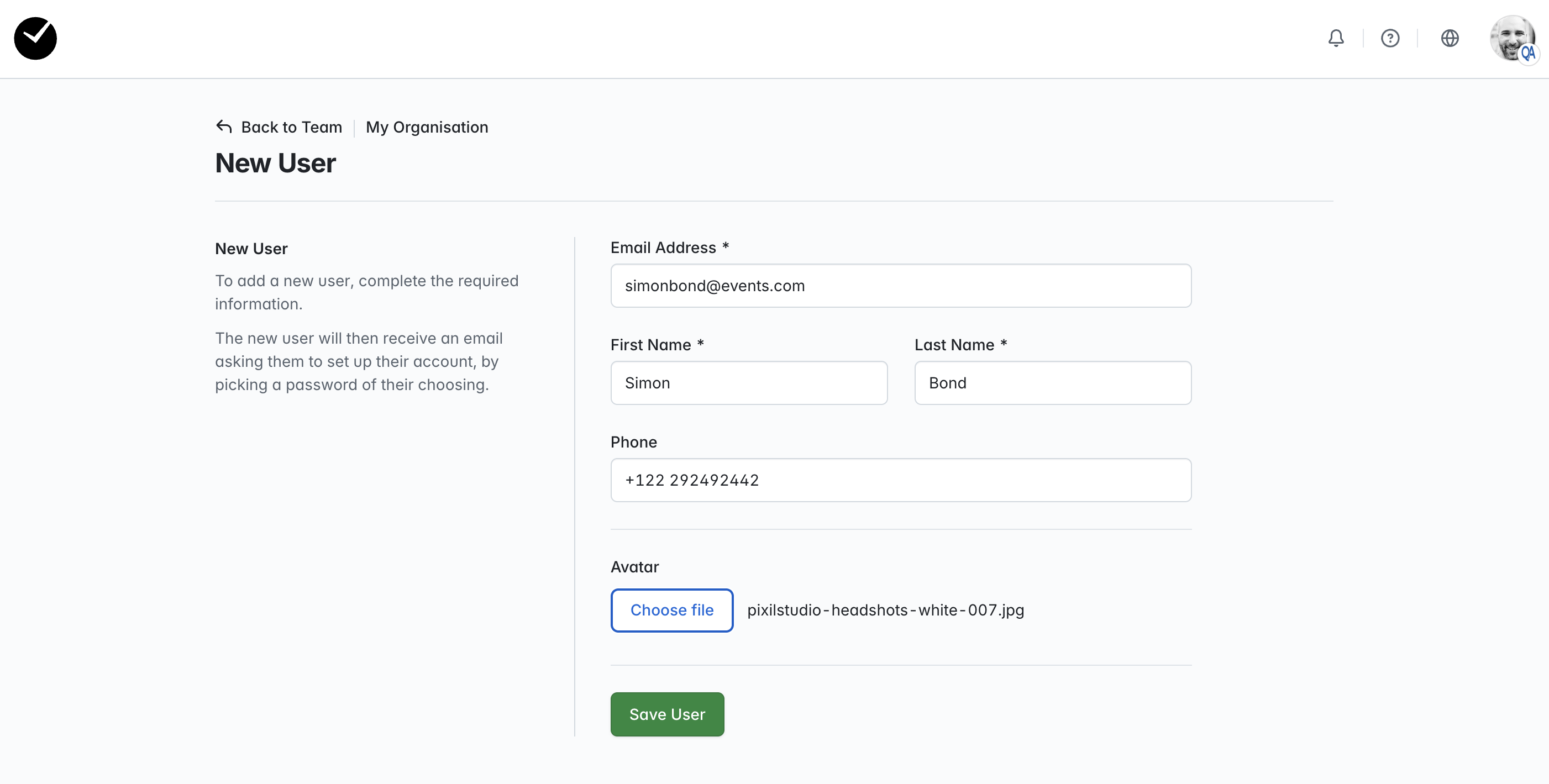
Once the New User is saved they will receive an invitation email to set up their getregistered® account. If the user account added is a Member Event User, you can now assign event and report access (if report access is permitted by the selected role) on the Event Assignments page:
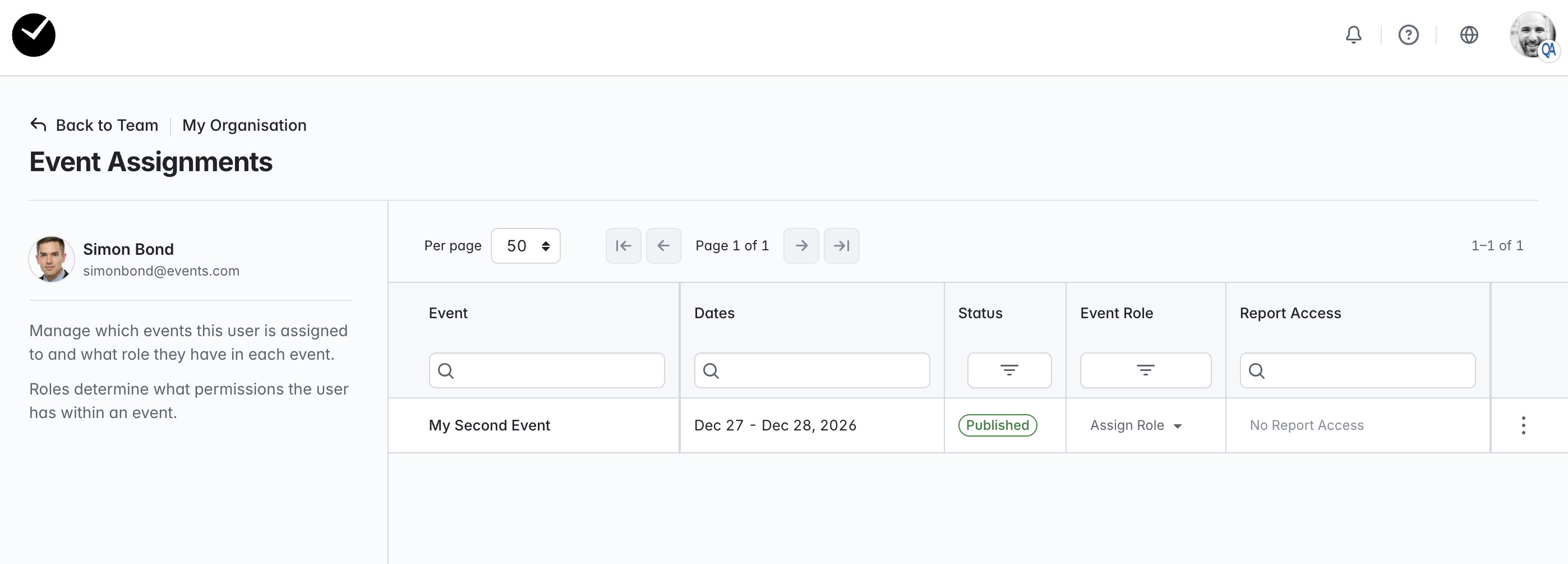
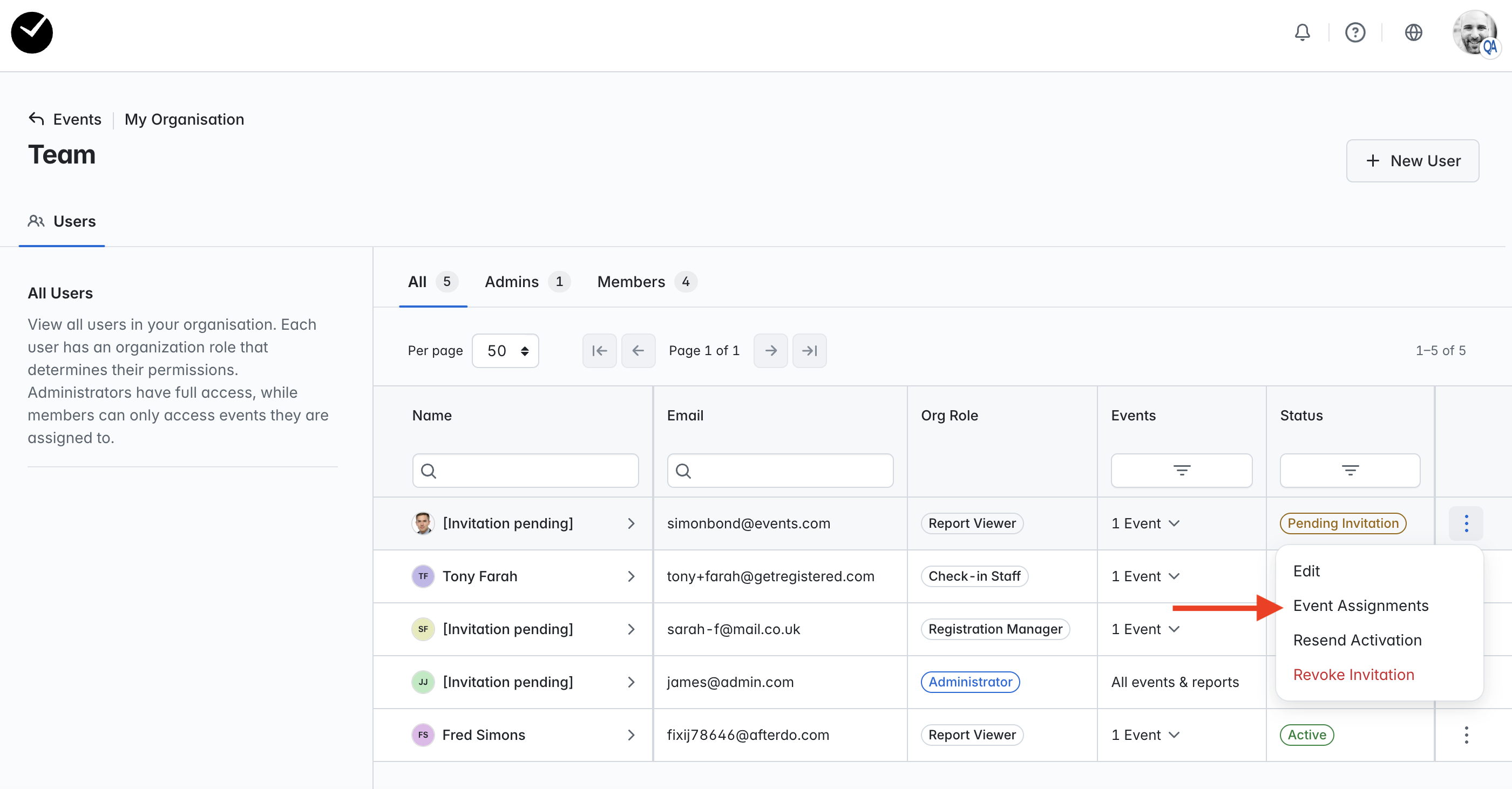
This area can be accessed at any time by clicking on the 3 dots displayed at the end of the row for a user on the Manage Users/Team page and selecting the 'Event Assignments' option:
Viewing and managing Event Users within an event
Note - only Administrator and Event Admin role users can manage Event Users at event level
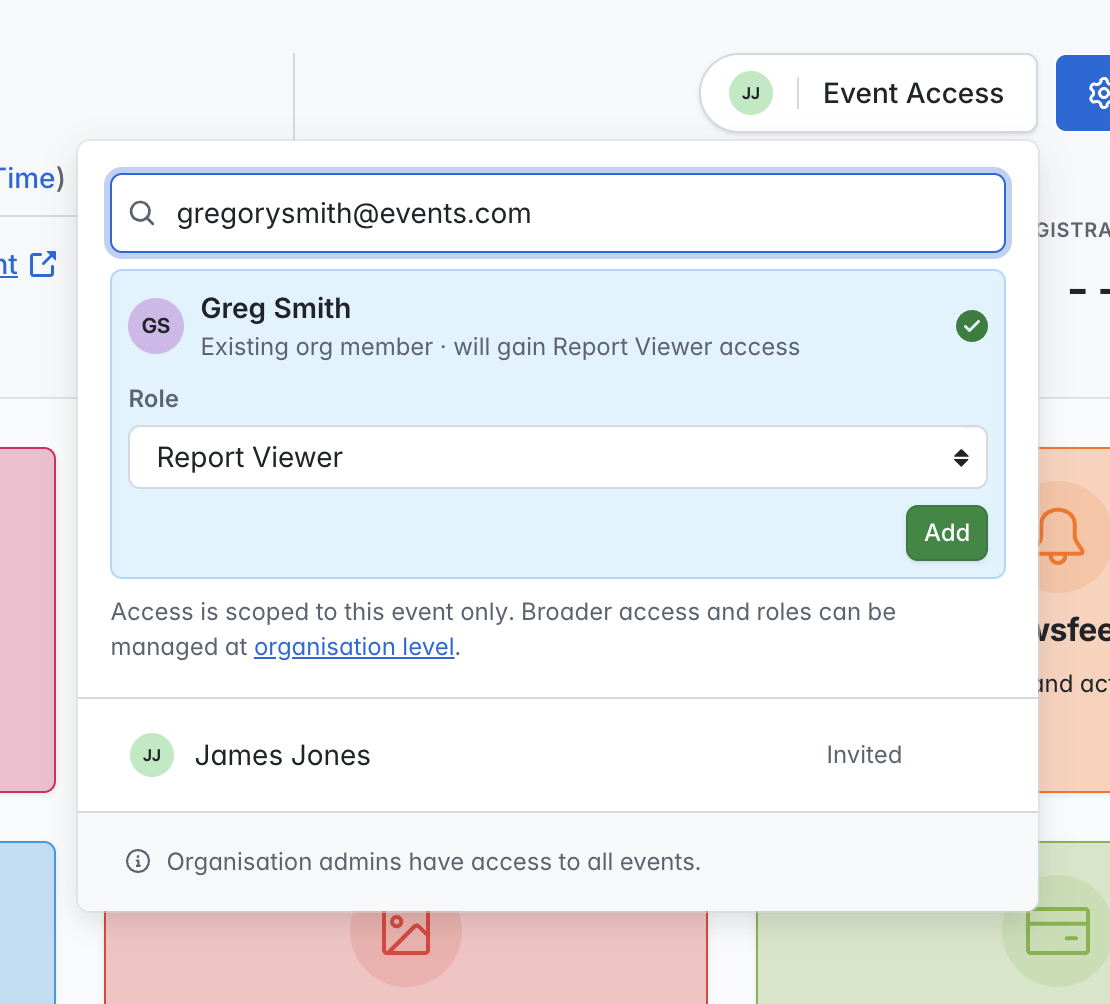
To view access for all event users within a specific event, click on the 'Event Access' option at the top of your Event Dashboard.
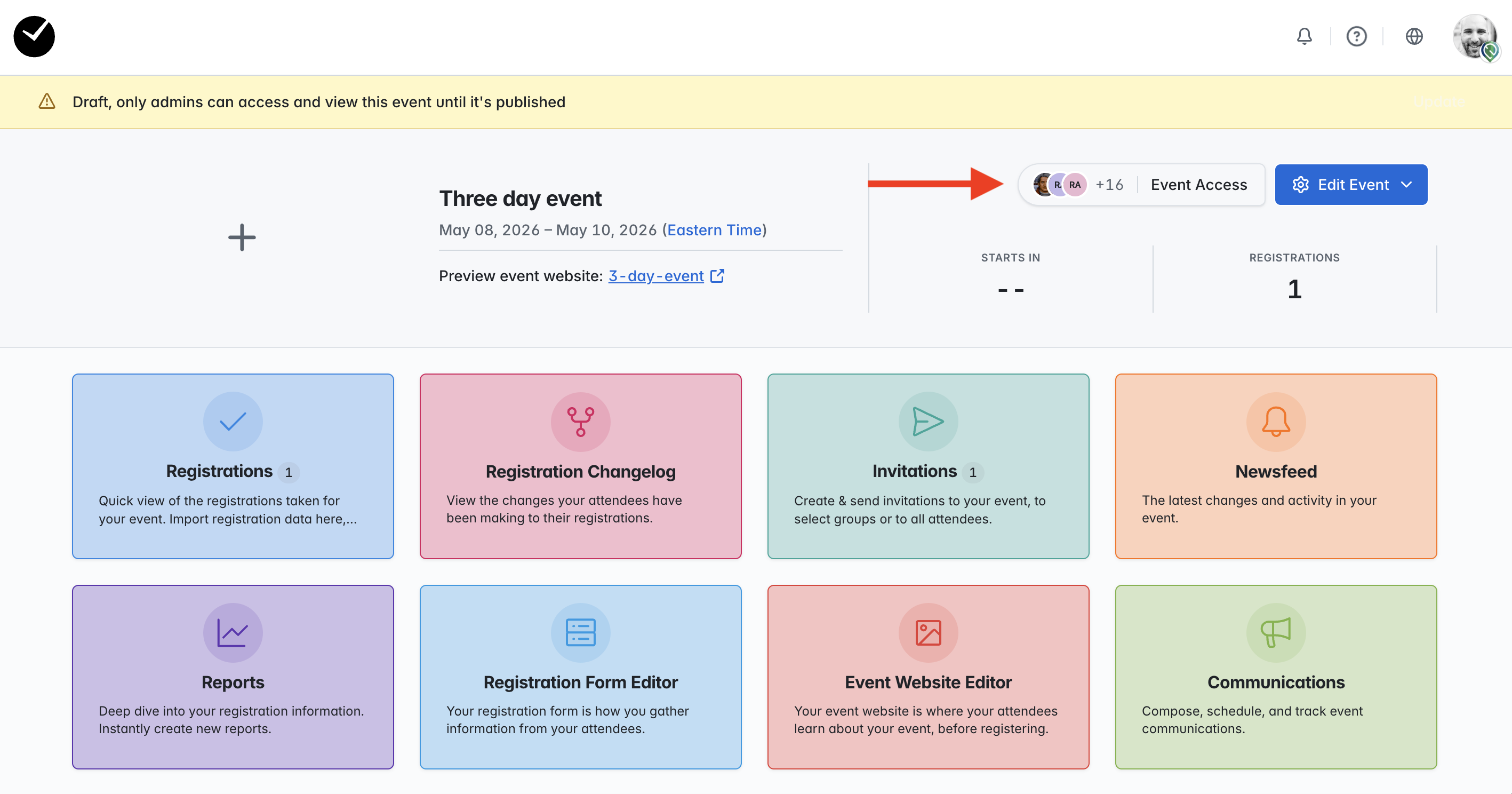
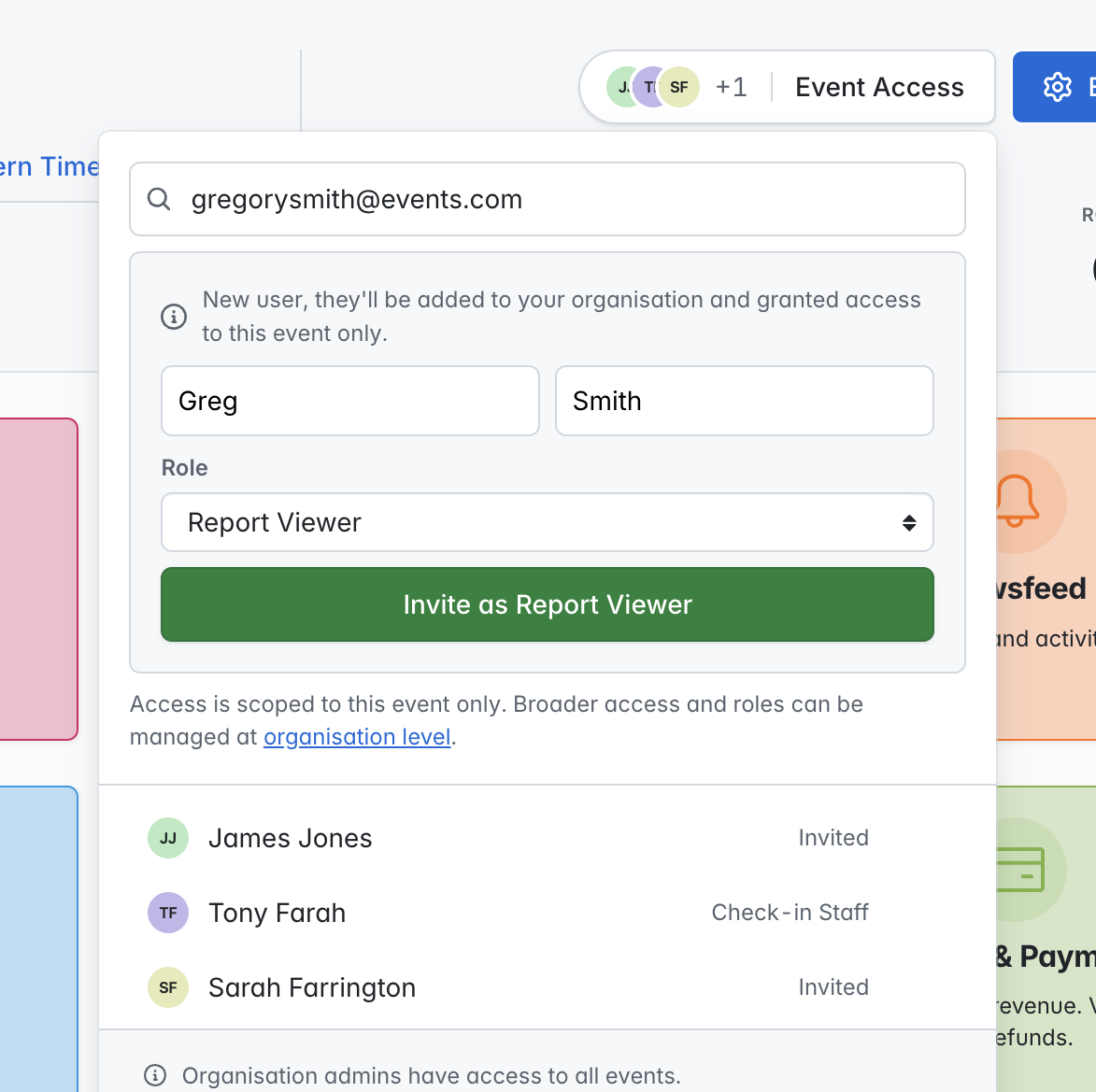
From within this area, you can view and manage all Member Event Users that have access to your specific event as well as add/invite new Member Event Users, eg:
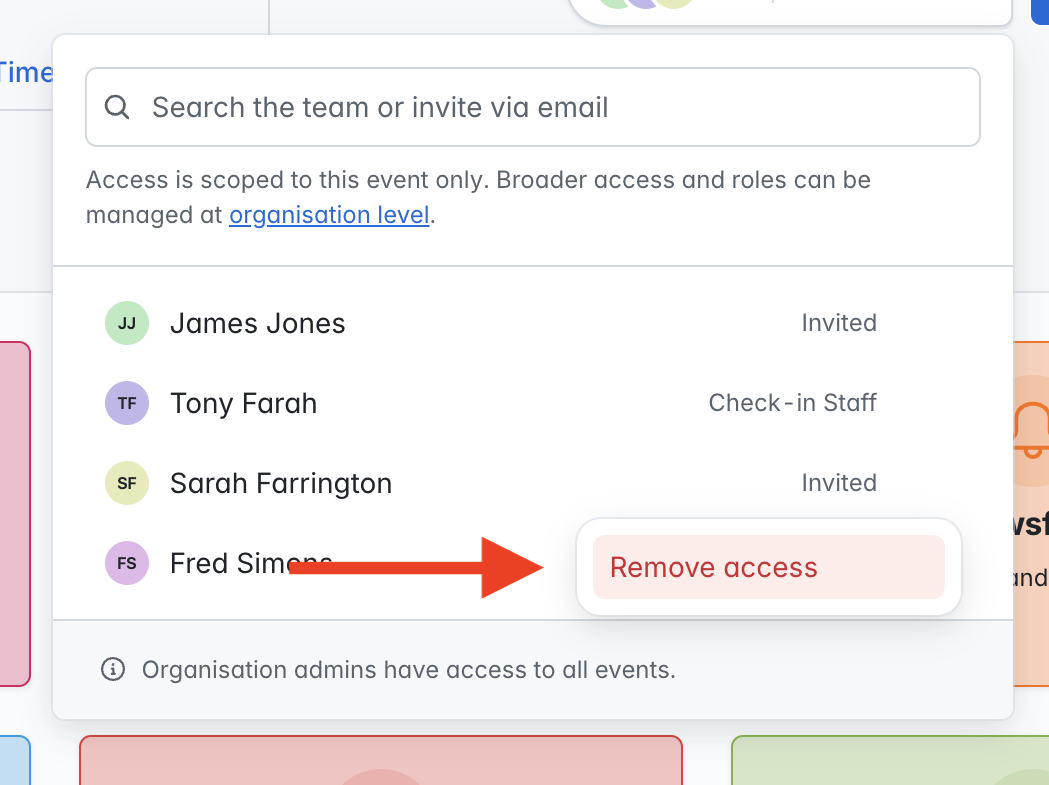
Remove event access via the 3 dots displayed inline with an event user:
Add/invite a new user to your event:
Add/Invite an existing Member Event User to your event: