.png)
How do I issue a refund in my events?
To issue a refund in your event in getregistered®, you must have 'Payments' enabled in your Event Settings, and a payment gateway must be set. To issue a refund, use the following steps:
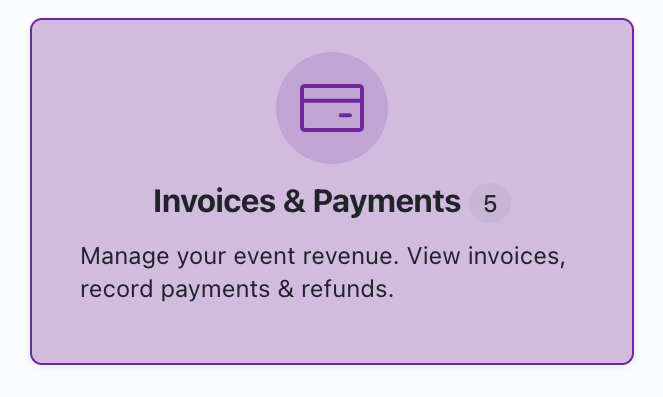
- Click on the Invoices & Payments tile on your Event Dashboard.
2. Find the attendee you wish to refund on the Invoices table, click on the 3 dots at the end of their row and select 'View'. This will take you to the full invoice.

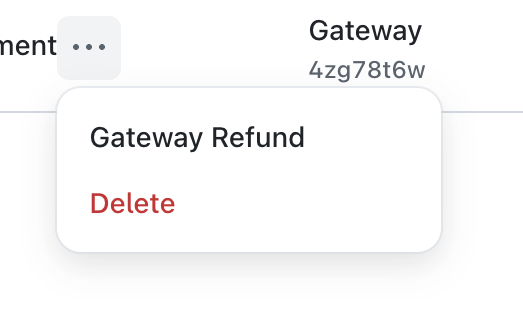
3. Under Payment History, click on the 3 dots displayed next to the card payment you wish to refund.
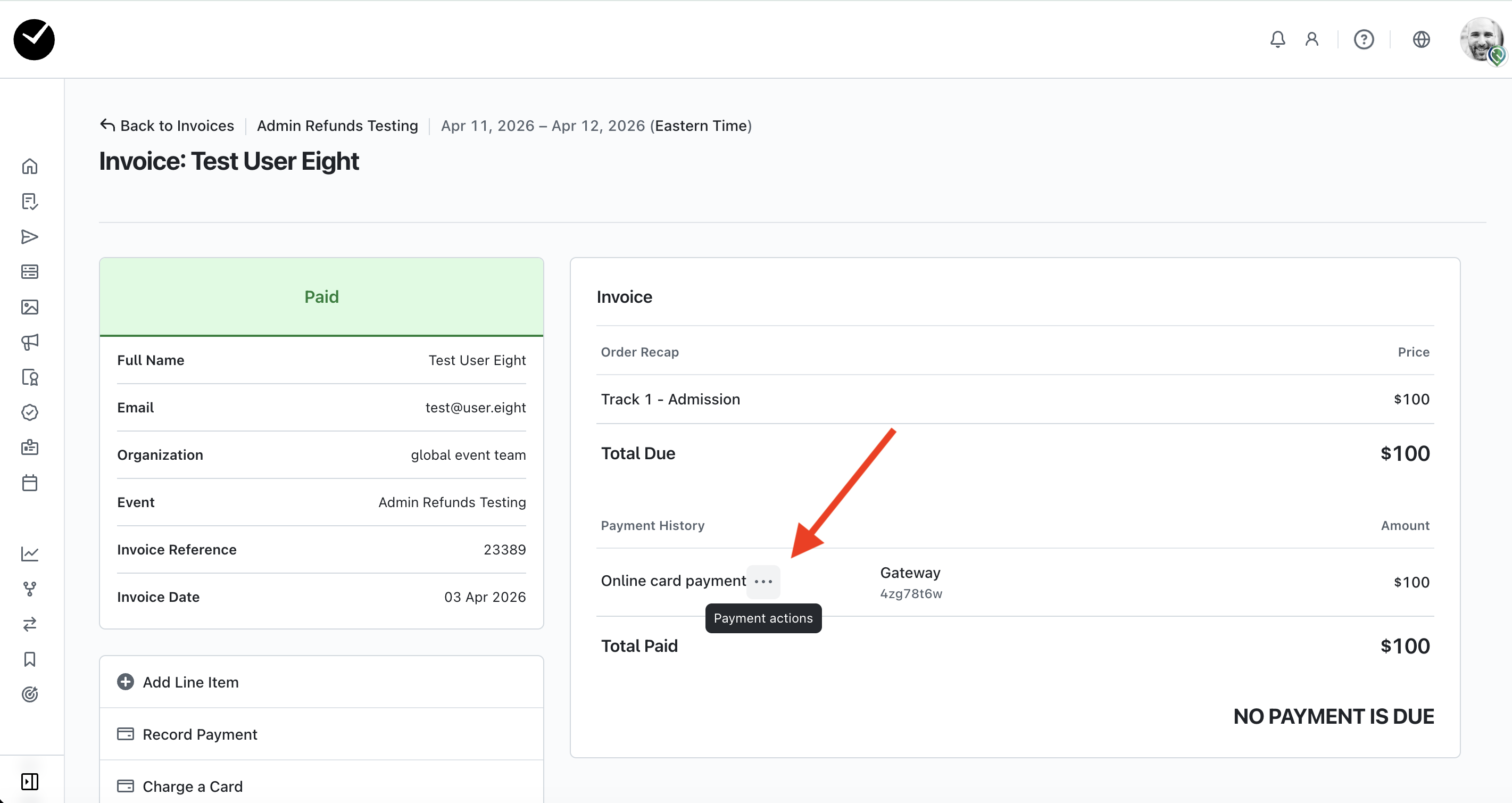
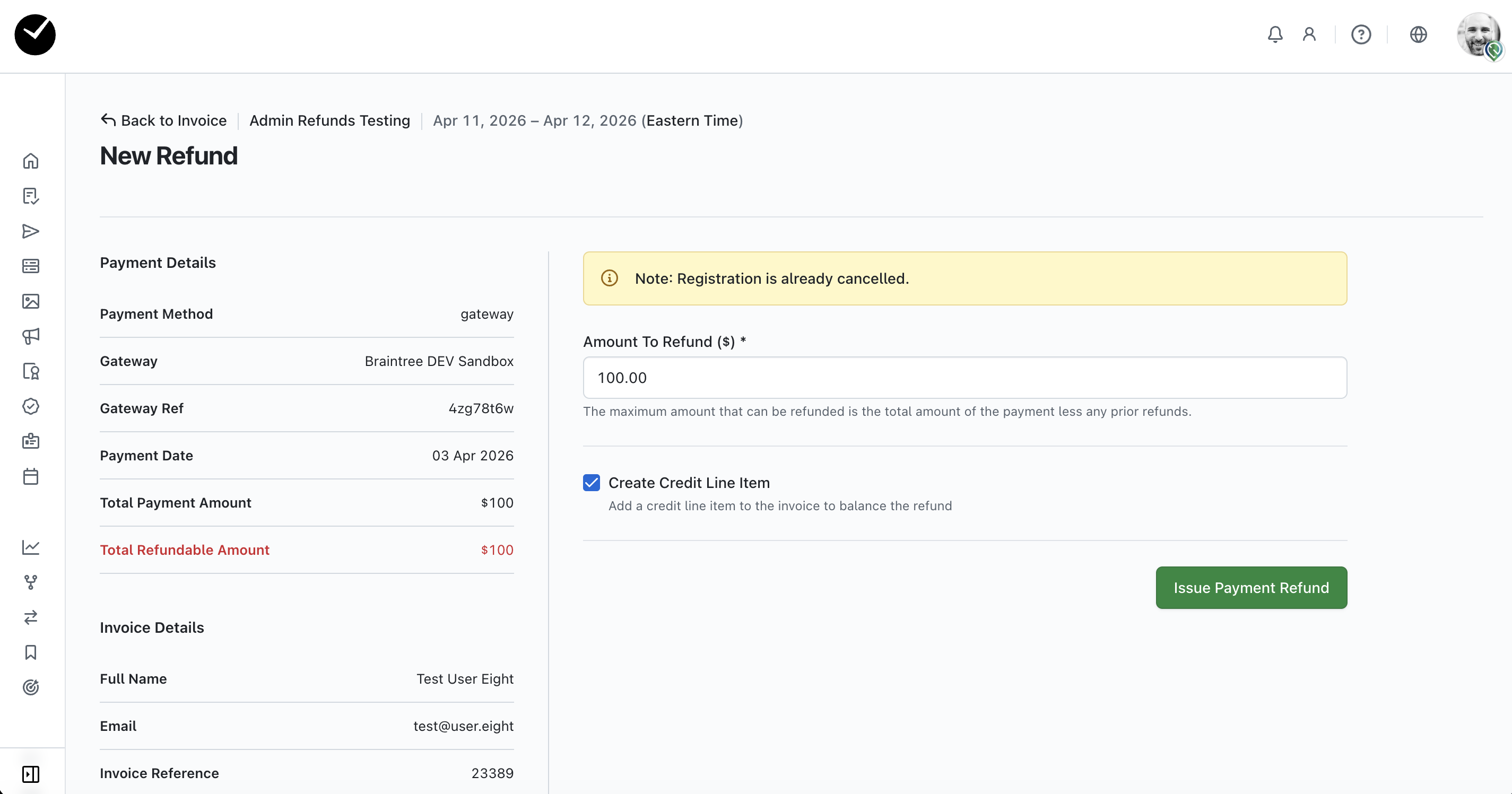
4. Next, click on the Gateway Refund option - this will take you to the refund page.
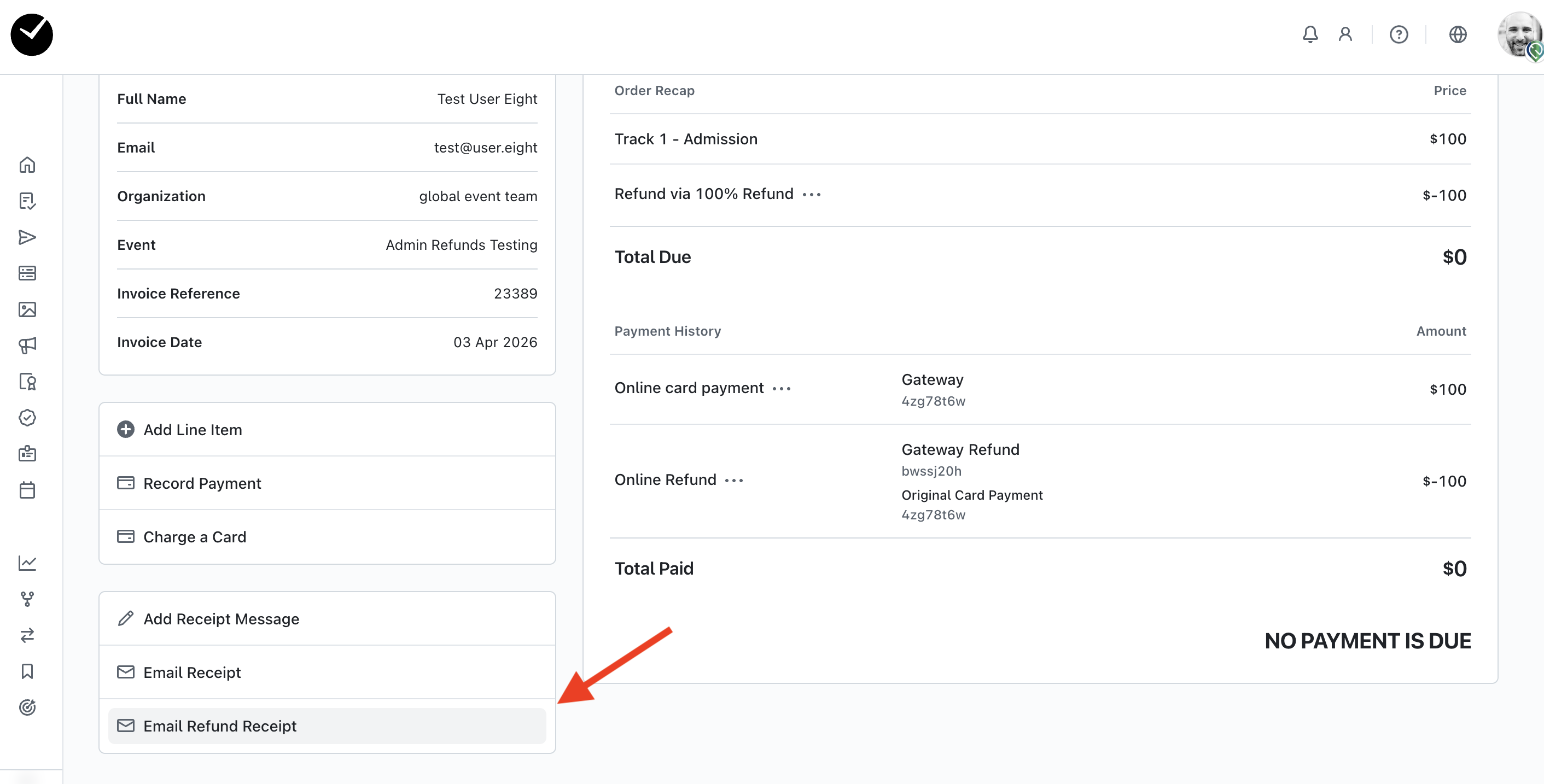
- Next, click on the green button that says Issue Payment Refund. The refund will then be processed via your payment gateway. Once the refund has been successfully issued, you can also send them a receipt to their email address.