.png)
How do I enable translations in my event?
Please note:
- Automatically-created translations can be quite 'formal'. However, the language can be corrected as 'suggest an edit' and the translator will learn the vernacular and pick up colloquial patterns.
- Enabling event languages does not automatically create translations - this must be managed in your 'Website Translations' area
In getregistered®, we offer the ability to translate any text displayed to attendees when registering (both your event website and registration form. This is managed in your 'Website Translations' area, but the feature must first be enabled to begin localizing your event text (for more information on this area, please refer to this article).
You can use the following steps to enable translations in your event:
-
Click on Edit Event from your event dashboard:
-
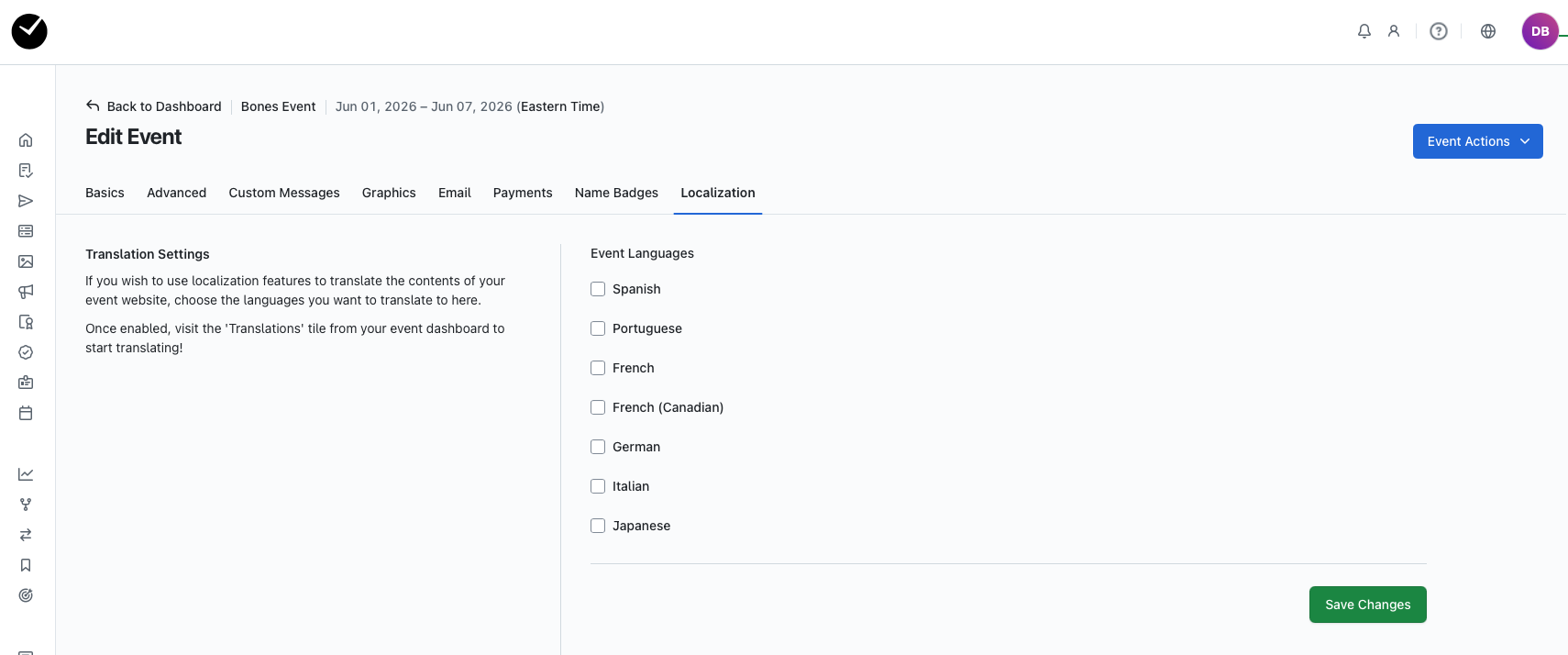
Click on the Localization tab on your settings page - you will see the Event Languages displayed at the top of the tab:
- You will see that there are a selection of languages available in the Event Languages section:
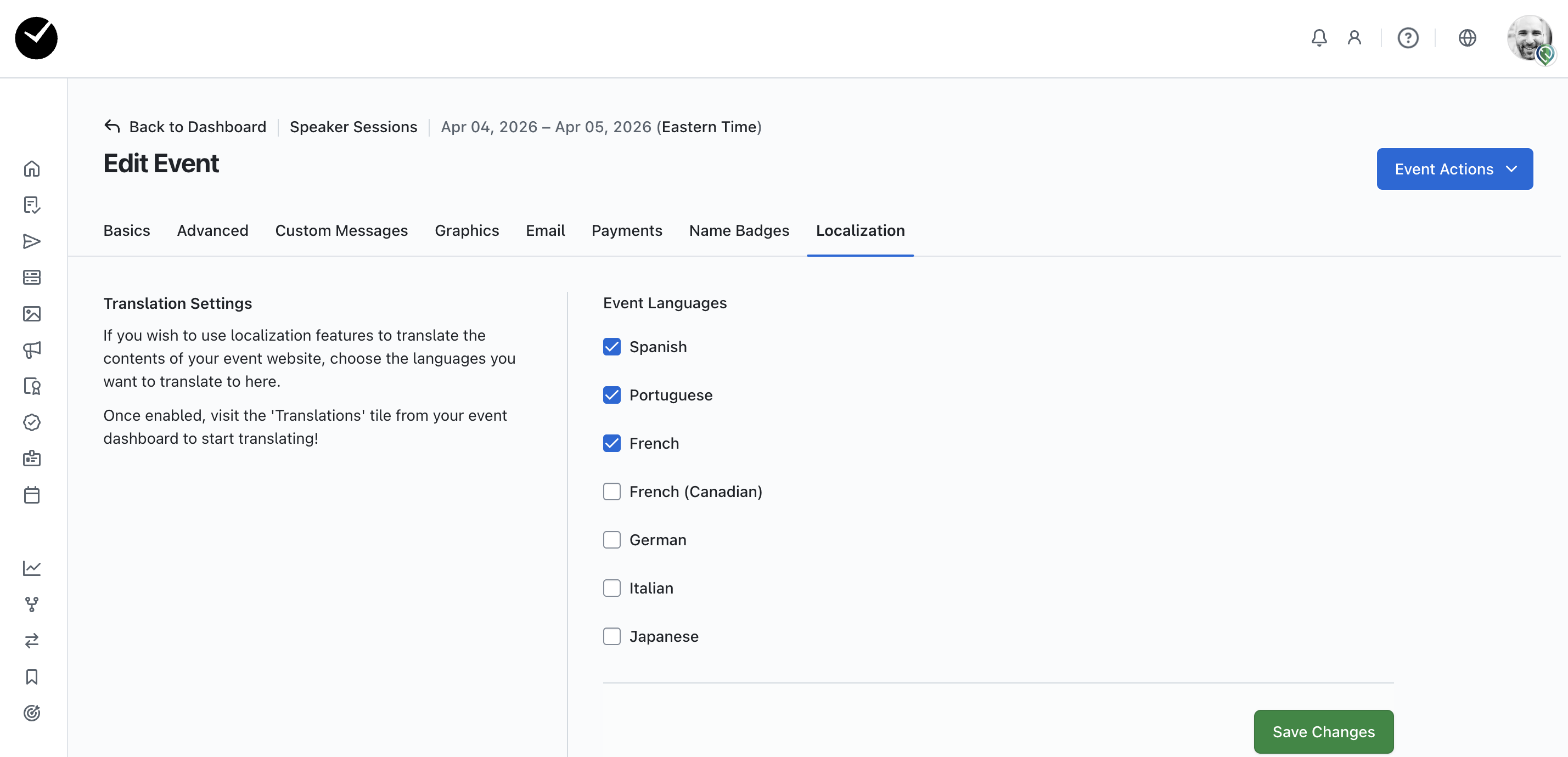
- Select one or more of the offered languages by clicking the box to the left of the desired language and click 'Save Changes'.
- If you do not see a language you require, email the getregistered support team at [email protected] about adding that language.

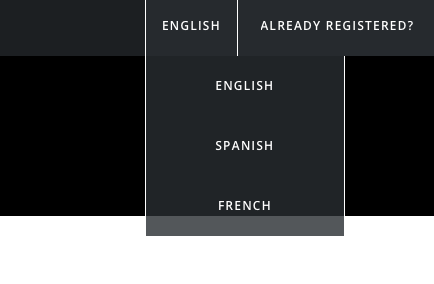
- Once saved, your selected languages will appear in the upper right hand corner of your event site for your registrants/attendees to choose. Please note that you will need to create translations for your event for any selected non-EN languages, this can be done in the 'Website Translations' area of your Event Dashboard.
- To unselect a previously selected language:
- Click the box to the left of the language you want to remove and click 'Save Changes'.
Please note: the translations can be quite proper. However, the language can be corrected as 'suggest an edit' and the translator will learn the vernacular and pick up colloquial patterns.