.png)
How do I add or invite a user in my events?
Note - only Admin Event Users can create and invite Event Users within an event. Only Member Event User roles can be added/invited to an event from within an event, and the new access/role is granted for only event you are interacting with.
For more in-depth information on managing users to your organization, see this article.
When with your Event Dashboard, you can quickly add new users to an event without having to complete the whole 'new user' flow at organization level. This can be done from your Event Dashboard in any event, by clicking on the 'Event Access' option at the top right of the page:
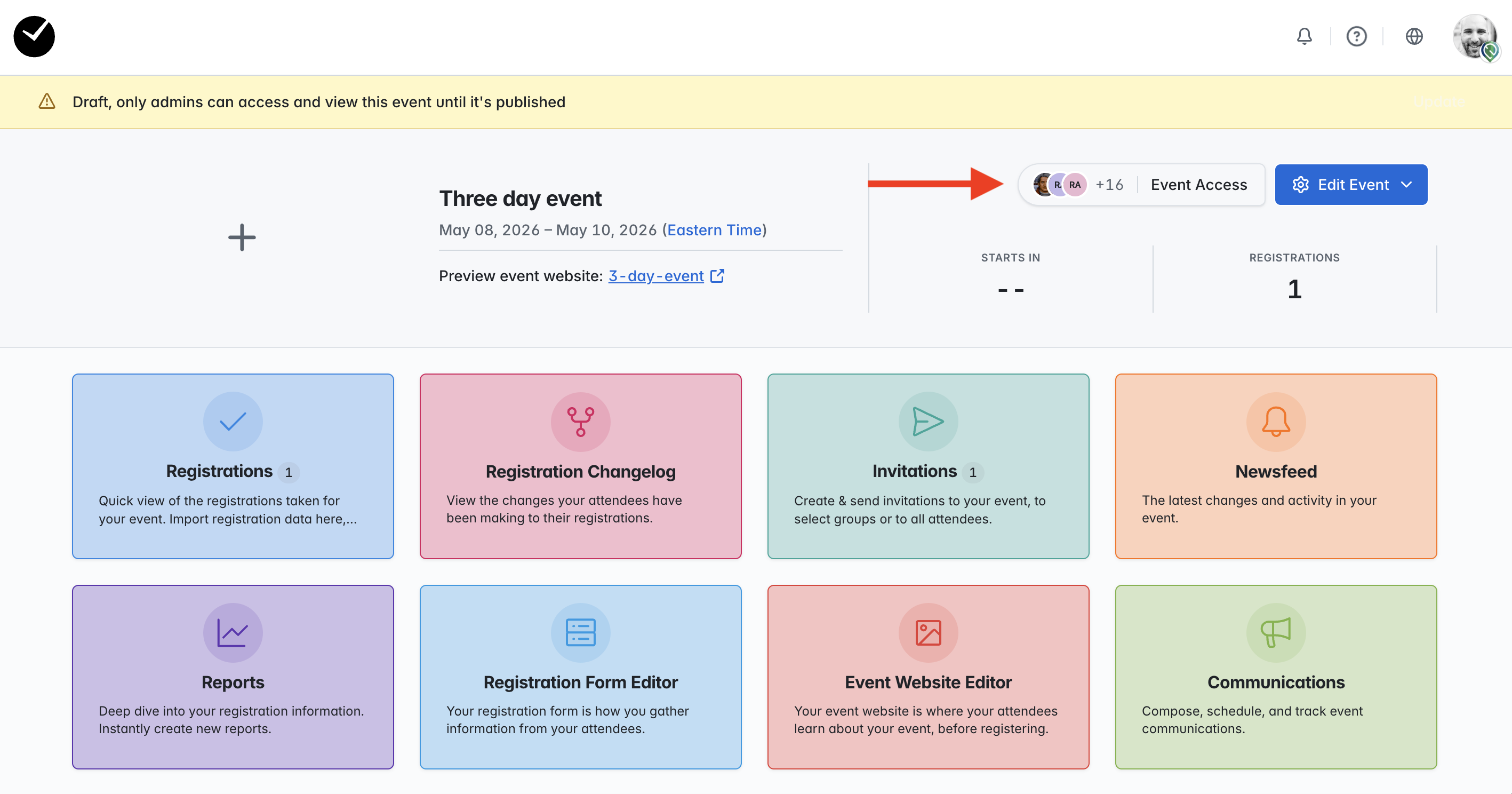
When creating or adding existing users to your event, you are limited to the following:
- You can only add Member Event User roles to your event
- The user role assigned will only be applied to the current event
- Report access can only be granted via your event's 'Custom Reports' area (no report access can be granted used the Event Access feature)
The Event Access feature also allows you to easily see who currently has access, as well as the ability to remove access if needed. For more information on user roles available in getregistered, please refer to this article.
Removing a 'Member' Event User from your event
Note: when removing an Event User at event level, please be aware that this will only remove event access. To completely remove a user from all events, please refer to the 'Managing your Event Users' guide in the previous section.
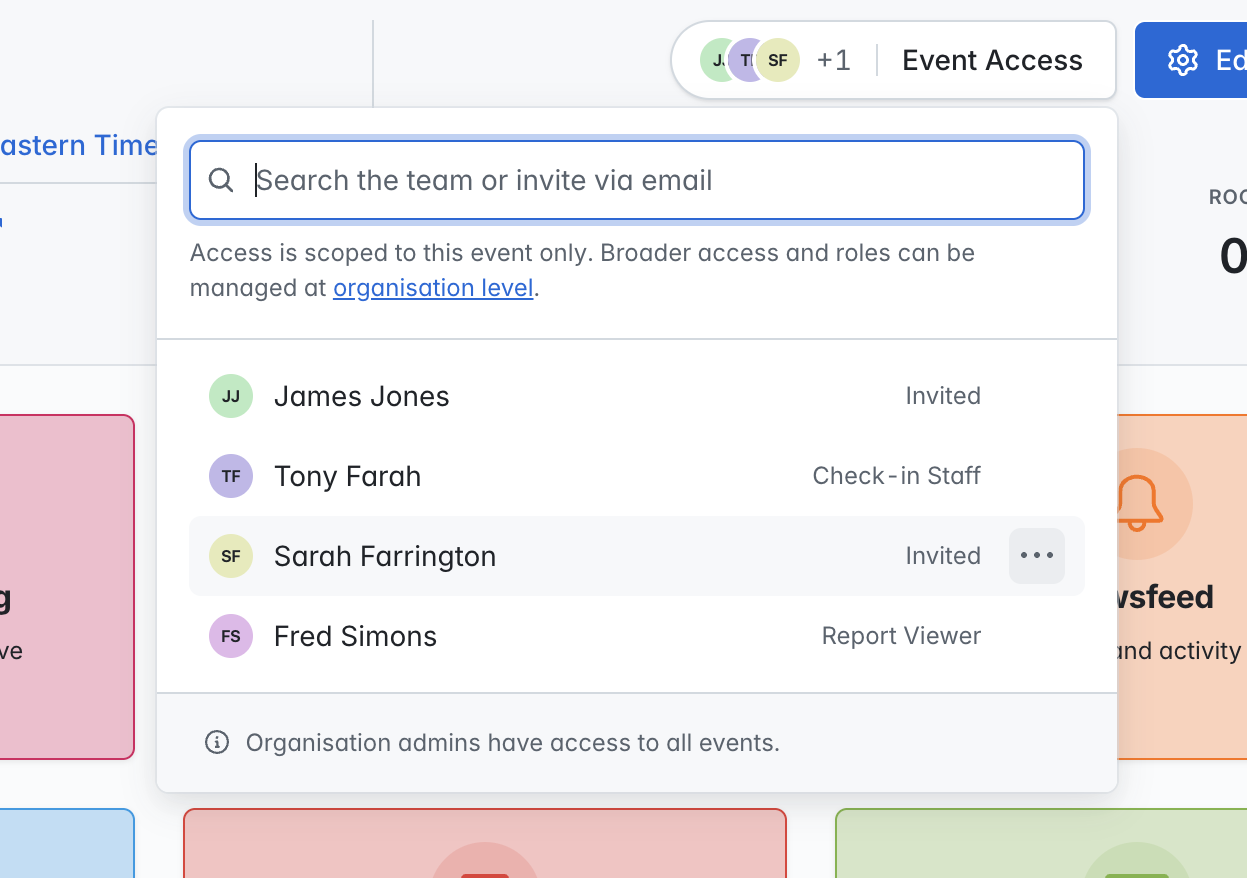
- Click on the 'Event Access' option at the top of the Event Dashboard, and then click on the 3 dots inline with the user you wish to remove
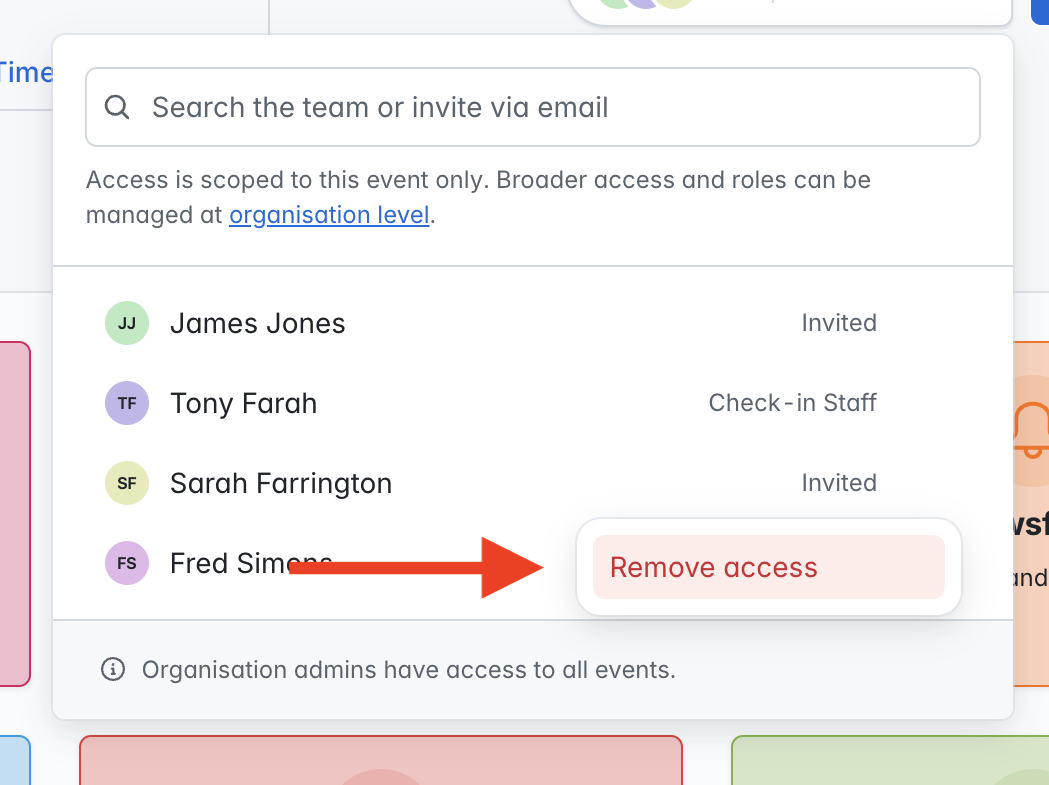
- Click on the 'Remove Access' option when displayed and the user's event access will be revoked
Adding a new Member Event User to your event
- Click on the 'Event Access' option at the top of the Event Dashboard
- Enter the email address of the user you wish to add - if there is no existing user that matches the email address, you will see a 'New User' form displayed above the current user list
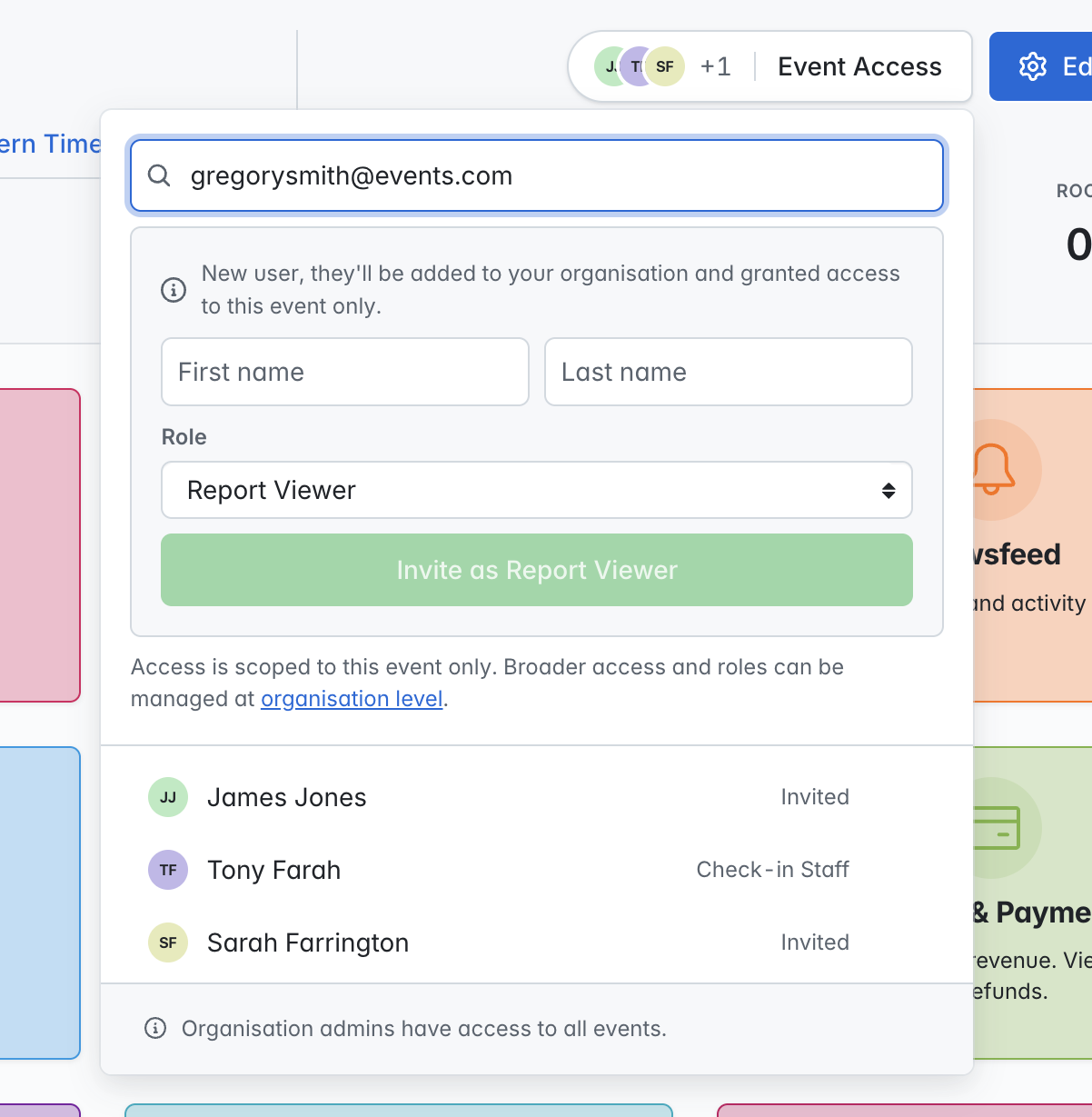
- Enter the user's first and last name in the fields provided, and select the role you wish to grant them. This will enable the 'Invite' button - click this to proceed.
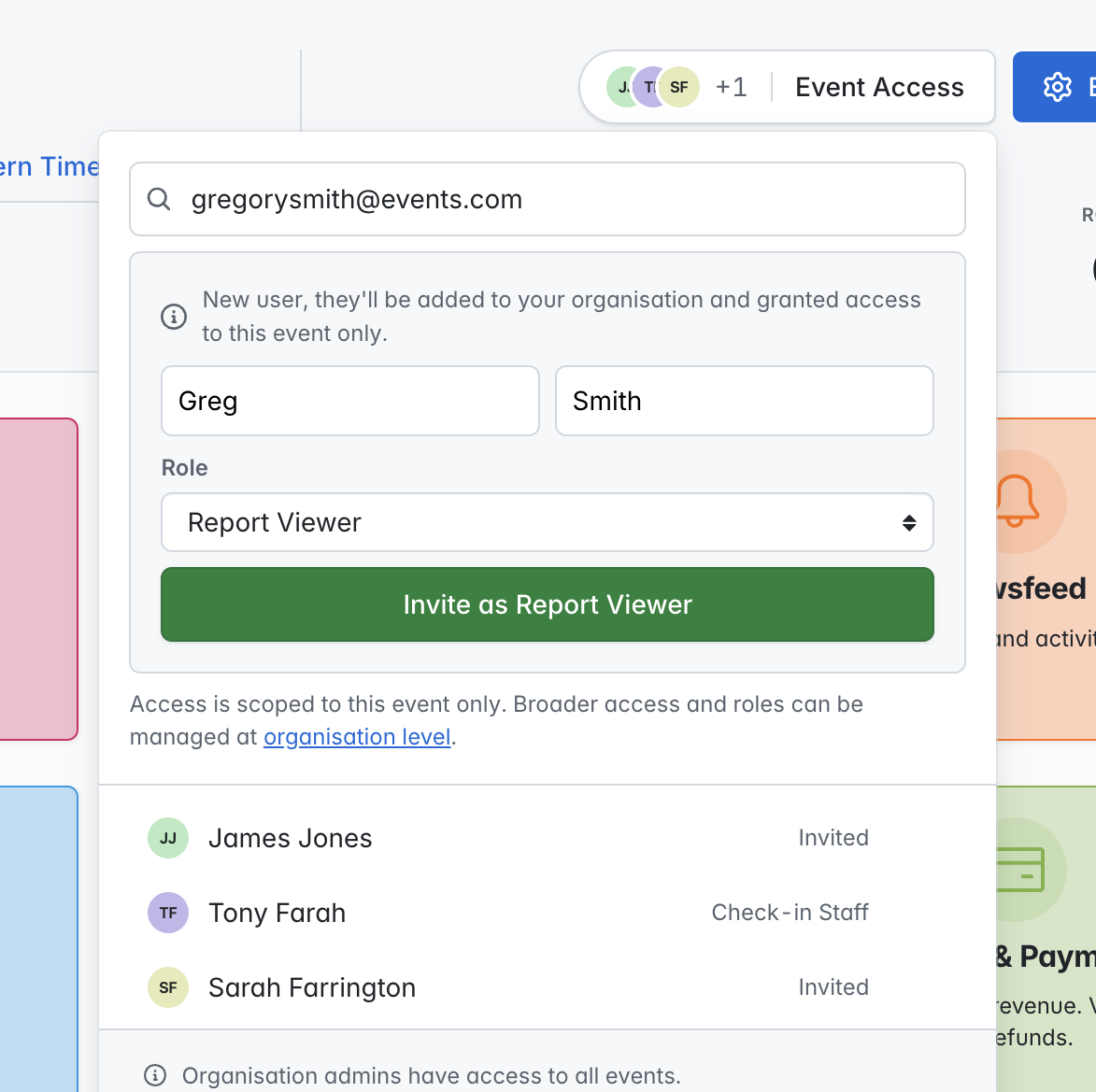
- You will then see the Event Access feature close, and a notification will display that the user has been added successfully. The user will then receive an invitation email to join your organization and be able to access the current event.
Adding an existing Member Event User to your event
- Click on the 'Event Access' option at the top of the Event Dashboard
- Enter the email of an existing user into the search field - if the email address is entered correctly and matches a user in your organization, you will see something similar to the following screenshot:
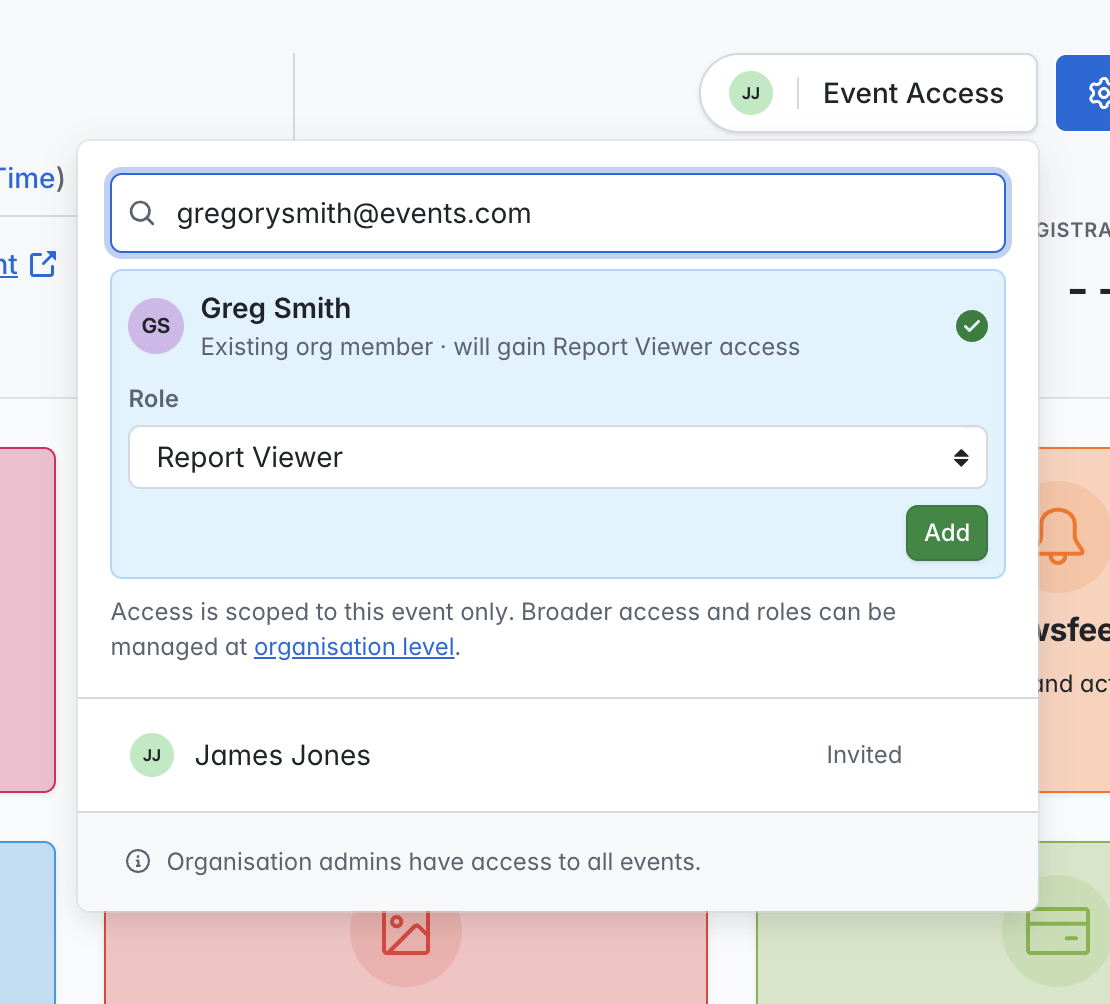
- To complete this flow, select the role you wish to add the user to your event with and click on the 'Add' button. The user will then be able to access the event with the user role you have selected.